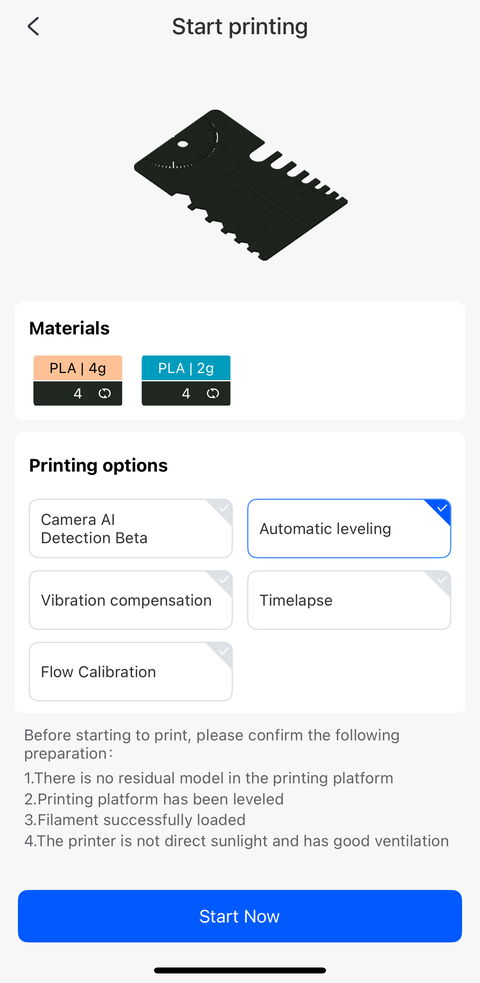
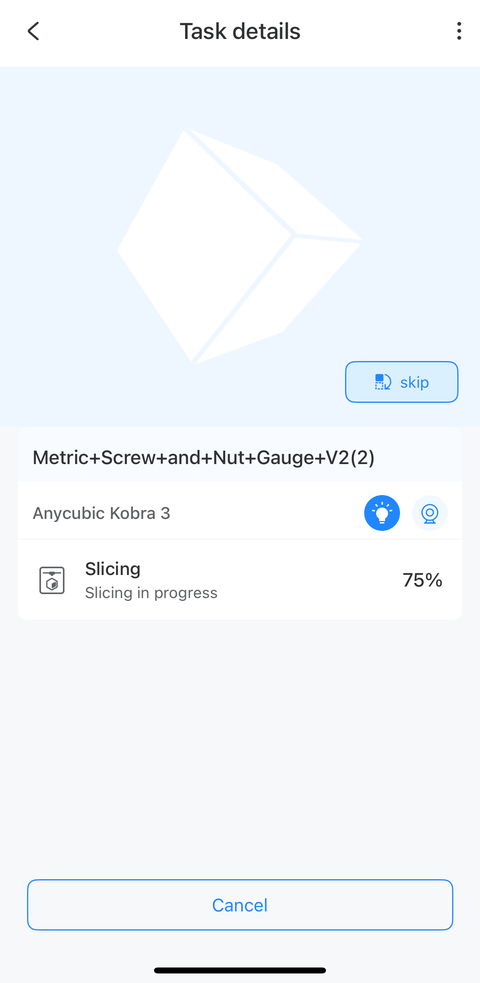
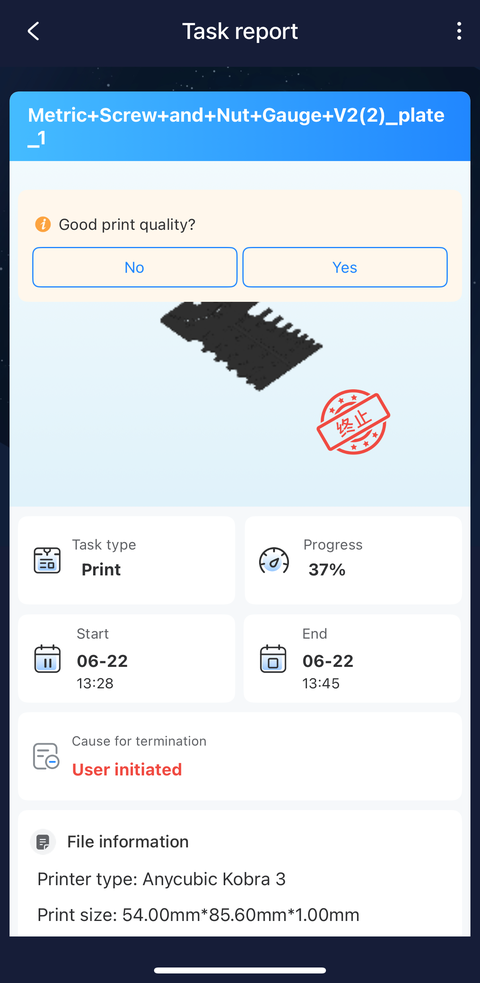
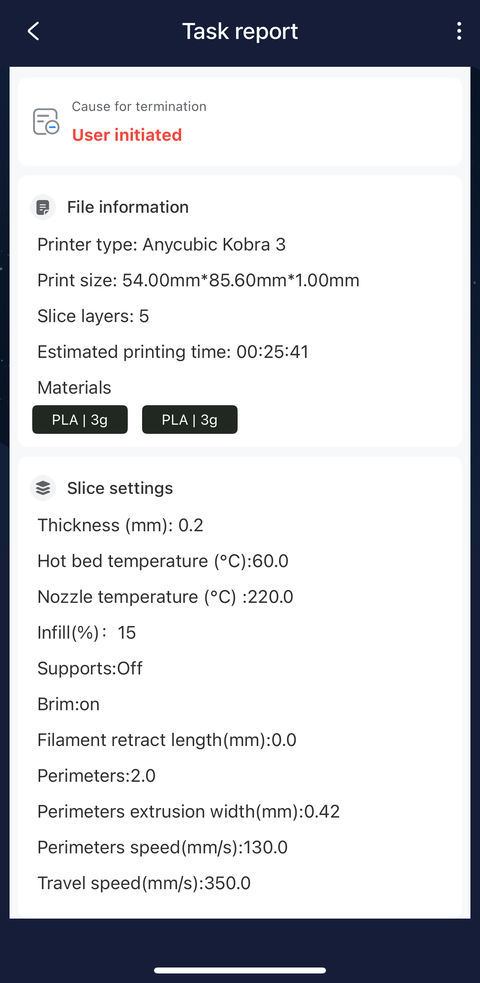
The assembly process took me just under a week since I did just a little bit each day. The manual has a QR code for the installation instructions video, Assembly for Anycubic Kobra 3 Combo:
The assembly process was smooth overall, especially because the video clarified some of the instructions. I wasn’t sure how to install the filament tubes into the print head because I did not know how far they should go into the print head. I noticed in the video that their filament tubes had a black ring on the tubes (which mine didn’t) but that was enough to let me know it was safe to push them further into the print head until they were firmly in. I also didn’t pay attention to the orientation of the filament when I loaded it into the ACE (Anycubic Color Engine), but it still worked fine in with my 180-degree rotation around the z-axis.
The print head and print bed did not seem to be shaking so I didn’t adjust the hexagonal isolation columns located underneath the print head/bed respectively. Another instruction in the “Check before use” section was to manually move the print head and print platform then if there is any difficulty or abnormal noise during the movement, adjust the tensioners to ensure smooth sliding of the print head or platform. I had no idea what the right tension was. I hazarded a guess and proceeded to powering on the machine.
Printing my First Model
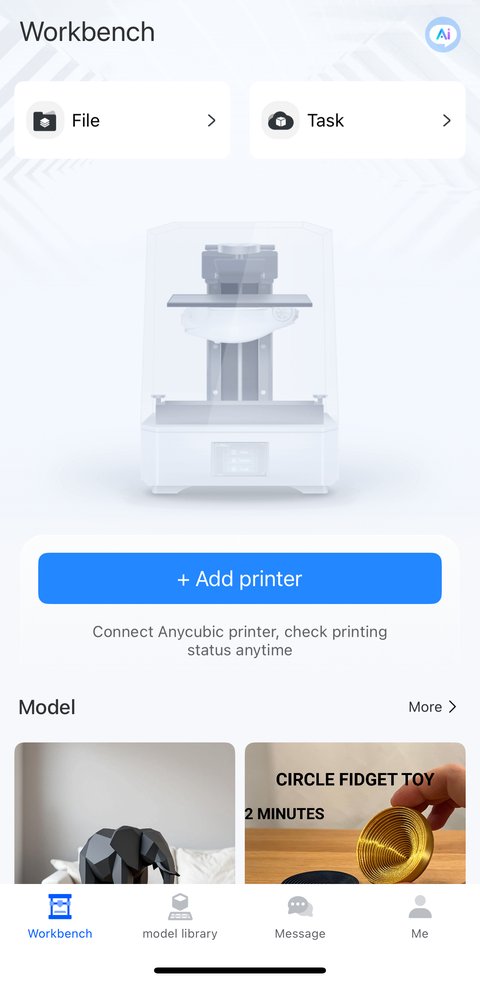
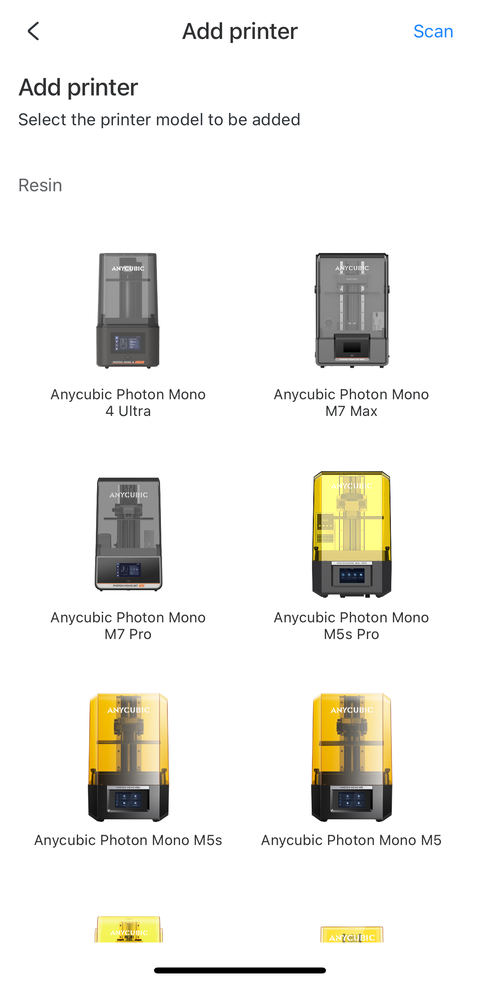
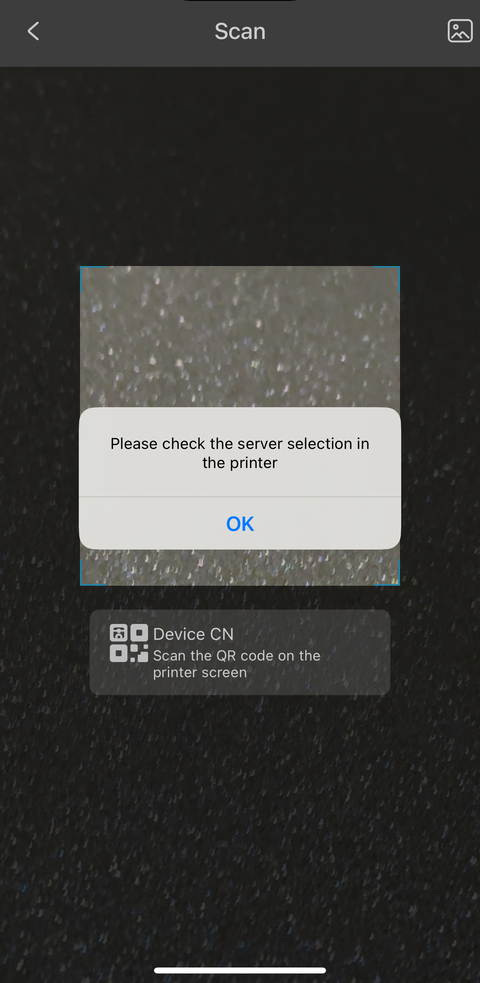
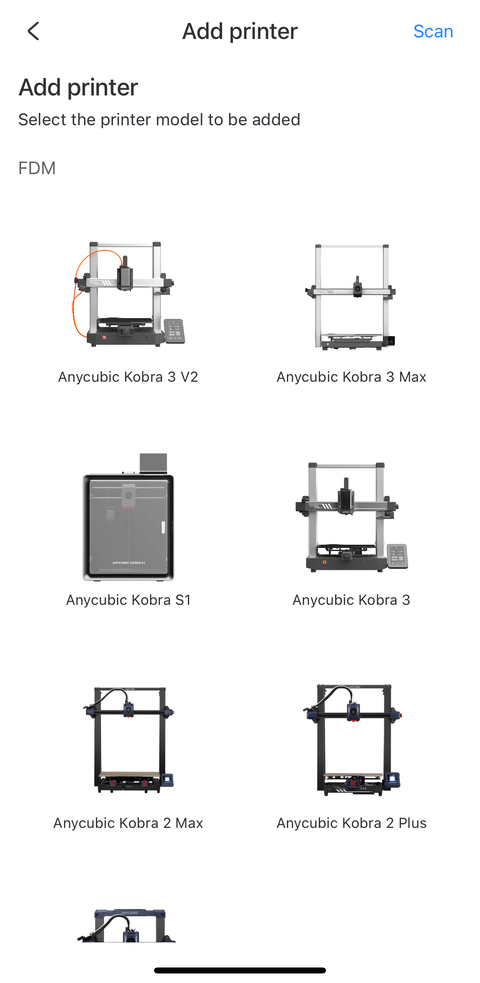
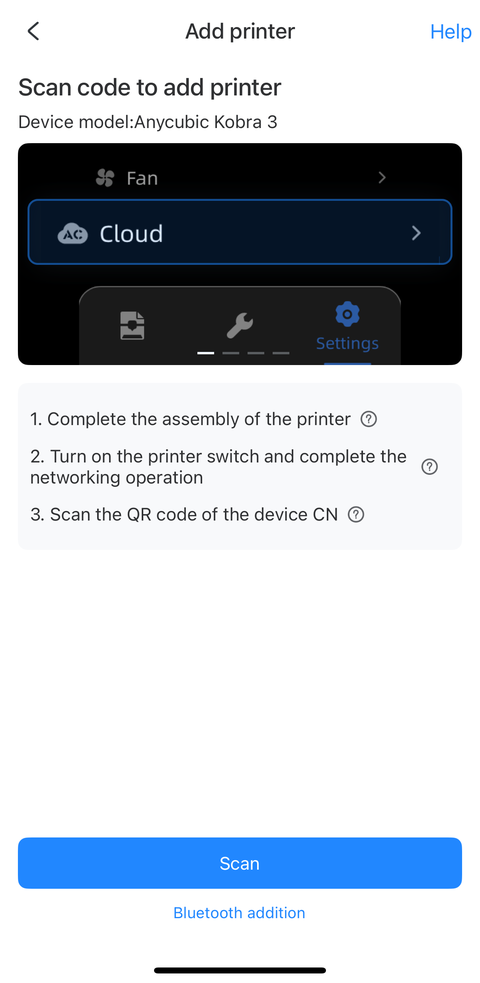
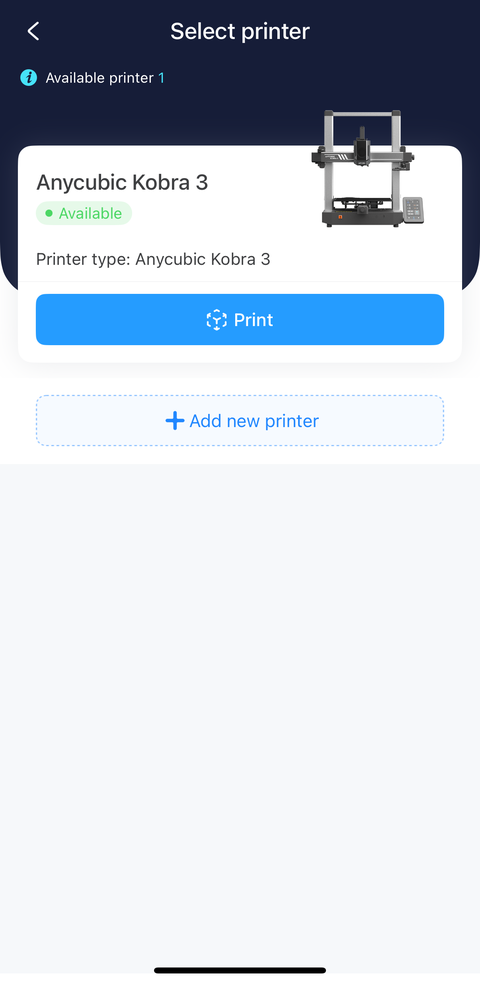
After powering up, the Kobra 3 displayed a QR code on its screen linking to the Anycubic app. The next step was to add the Kobra 3 printer after the app was installed and I registered a new account. I tried scanning the QR code on the printer screen, but it failed with an error about checking the server selection on the printer. I wasn’t sure what that was referring to since I had just connected the printer to my Wi-Fi without any “cloud” setup. I think I ended up selecting the printer by model in the app but still had problems connecting to it. I decided to install the desktop software to see if I could make progress that way. I think it was after I set up the Anycubic Slicer Next software on my desktop that I was able to connect to the printer in the app on my phone.
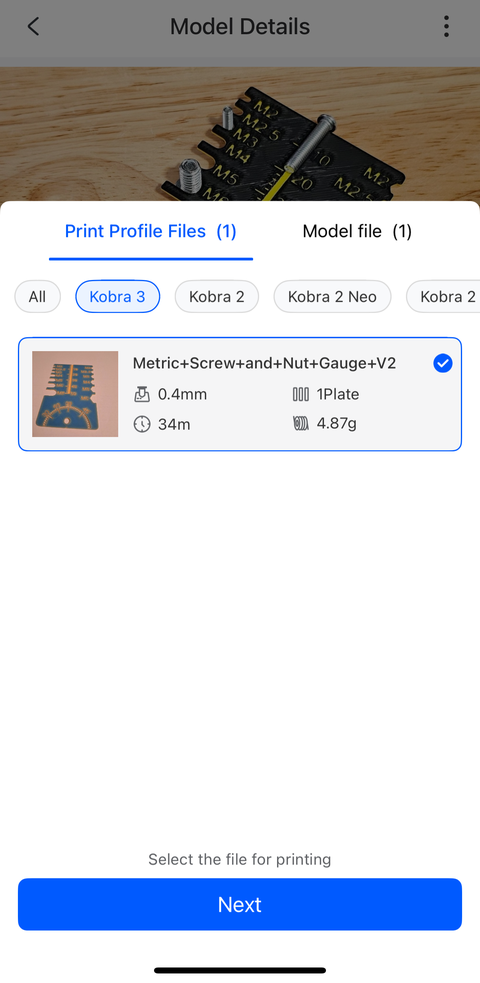
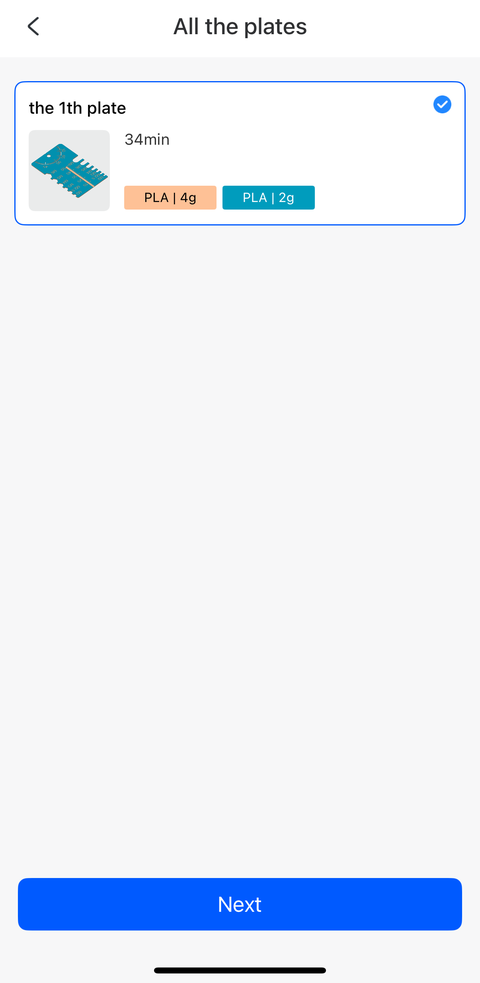
I looked around for what to make for my first ever print run and settled for this metric screw and nut gauge (whatever it is). Unfortunately, the printer kept moving closer and closer to the y-axis edge. It looked like it was going to try to print off the build platform so I canceled the task.
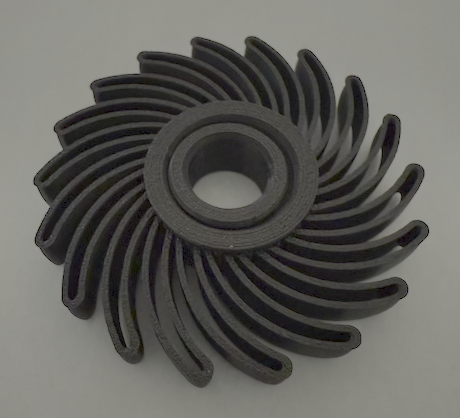
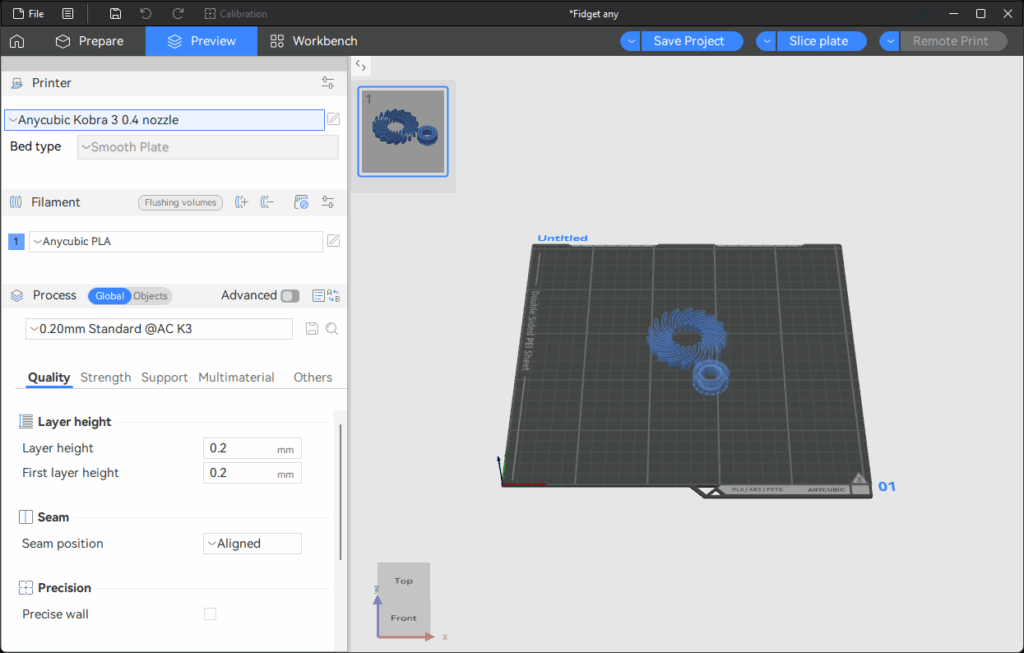
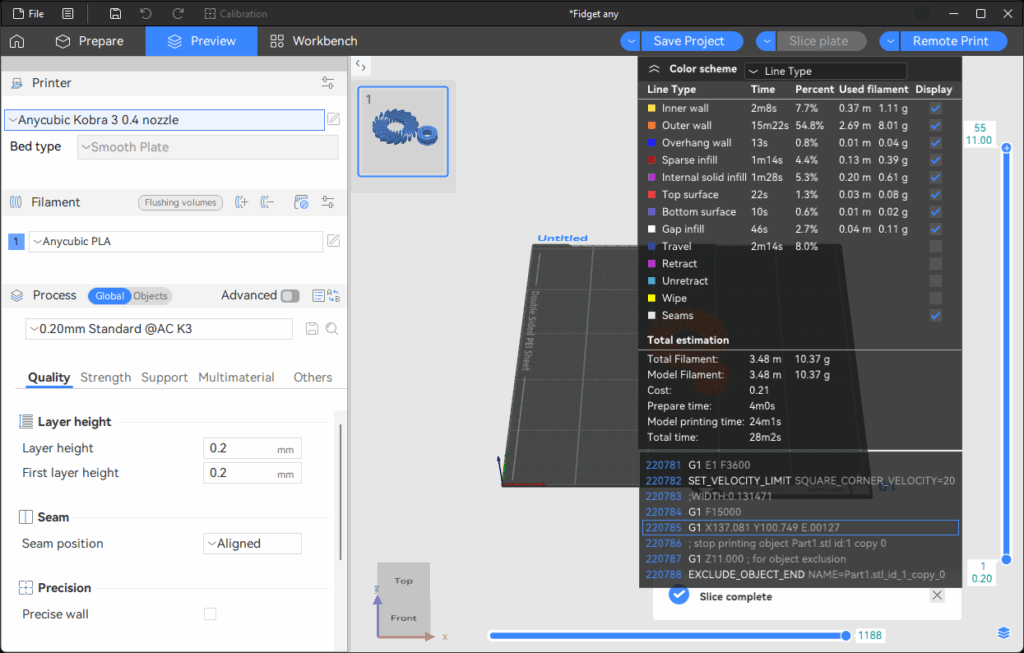
I decided to print a different model, a simpler one, to see if perhaps the model is at issue. This (mostly) circular fidget toy seemed ideal because its dimensions meant that it had to be centered on the build platform.
3D-printed Downloaded Fidget Toy
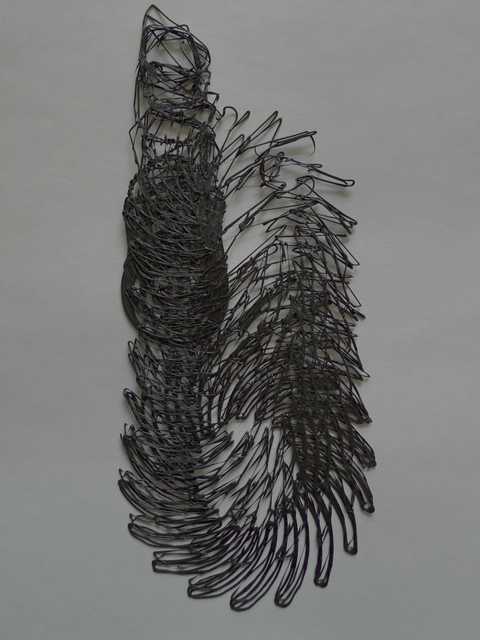
The first time I tried to print this model, it failed with the printer almost overrunning the build platform (just like it did with the previous model):
Broken 3D-printed Downloaded Fidget Toy
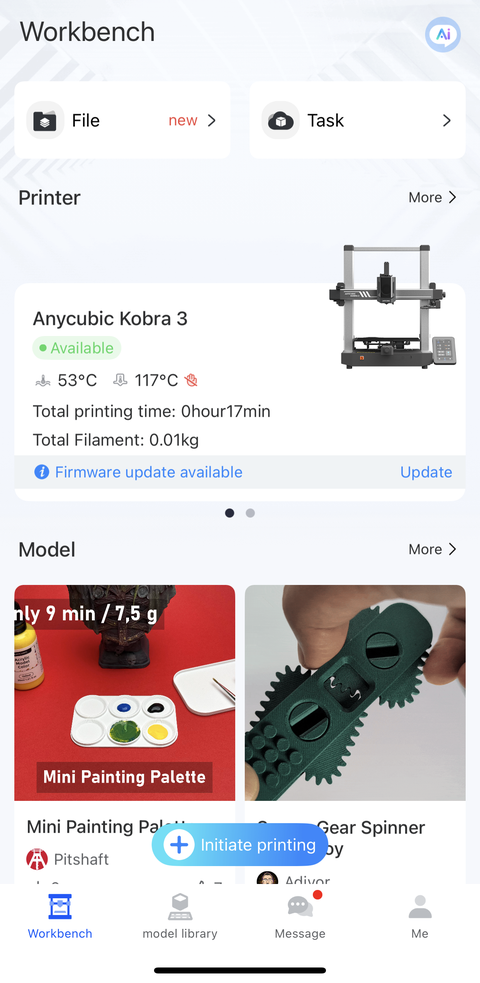
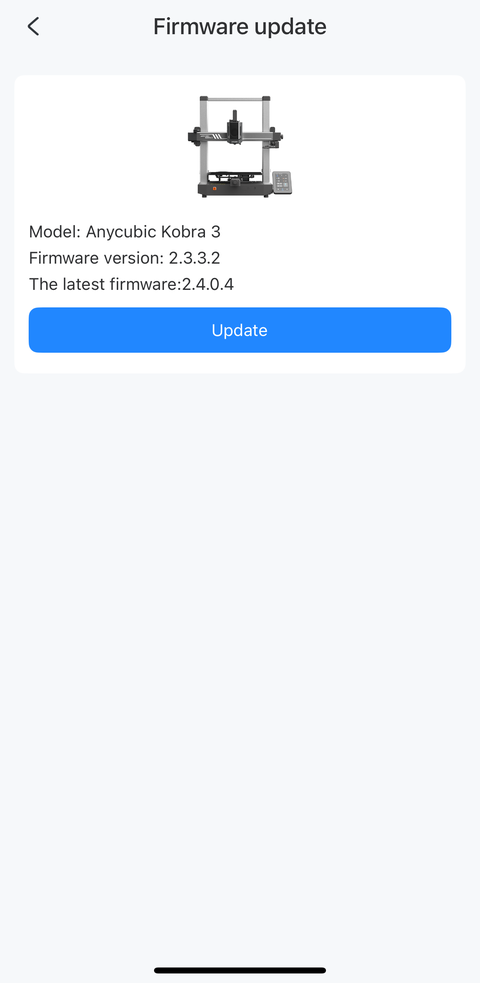
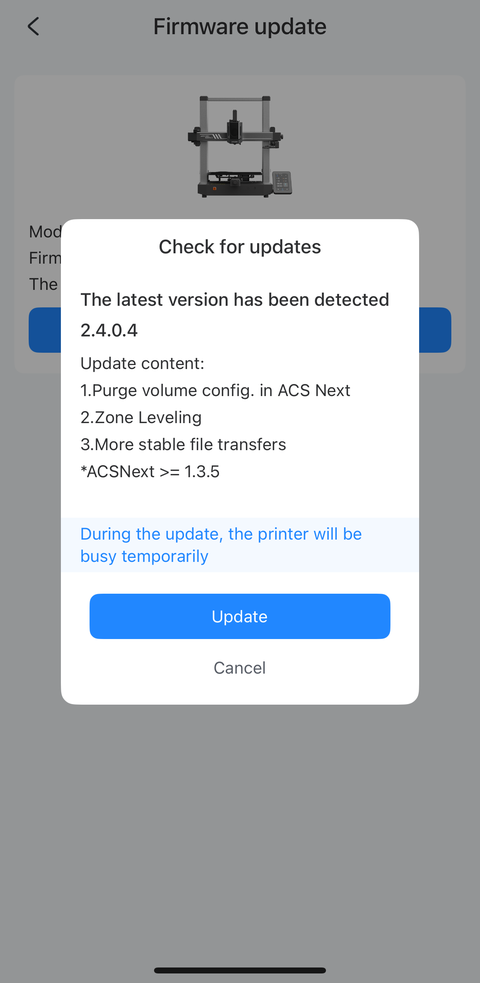
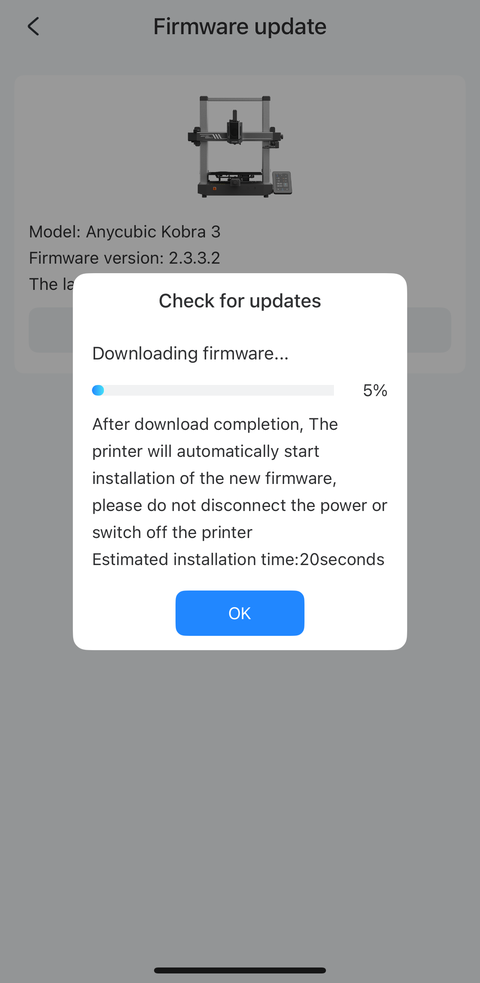
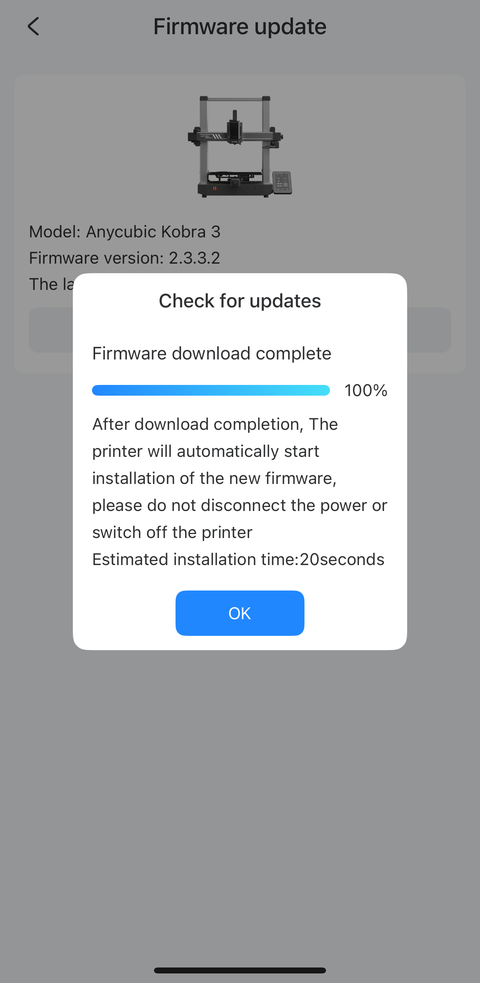
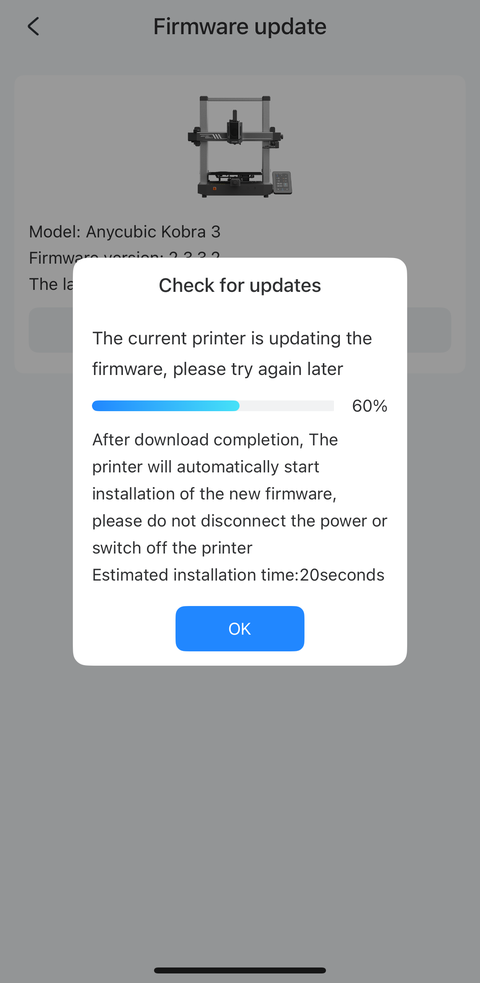
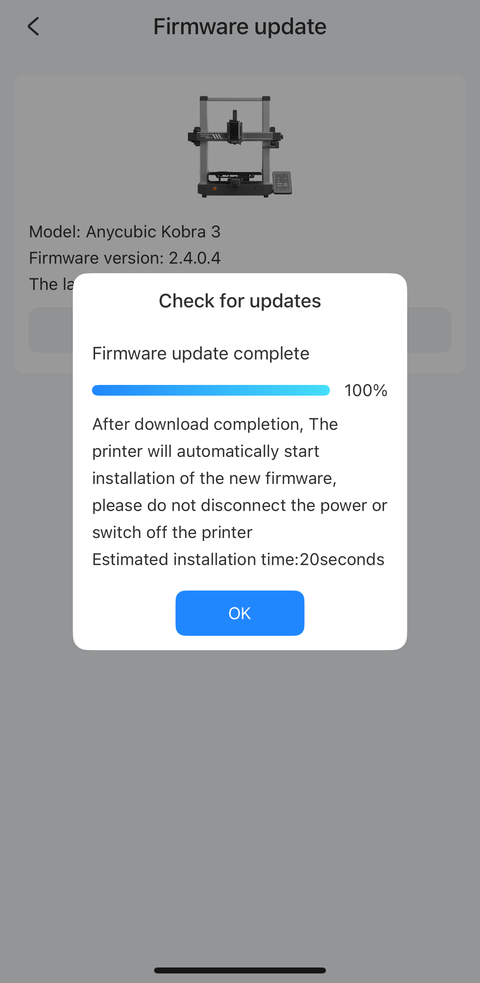
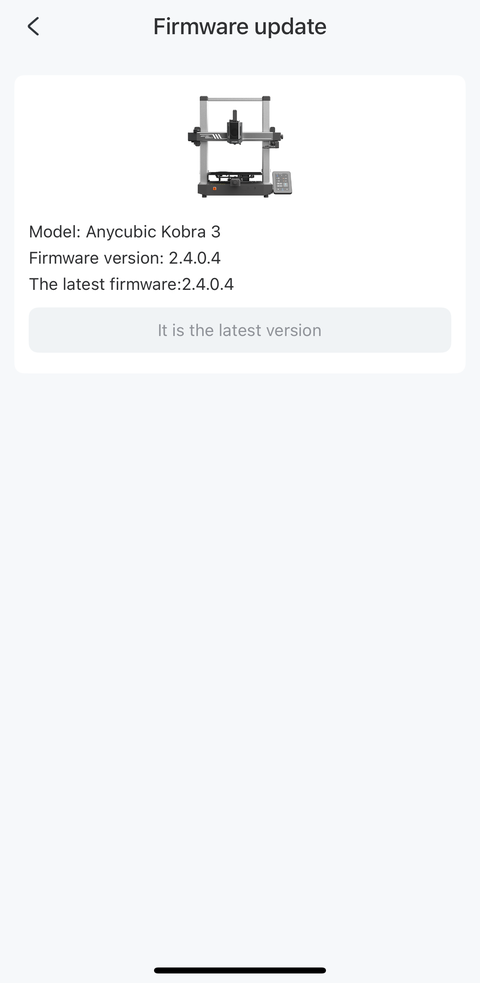
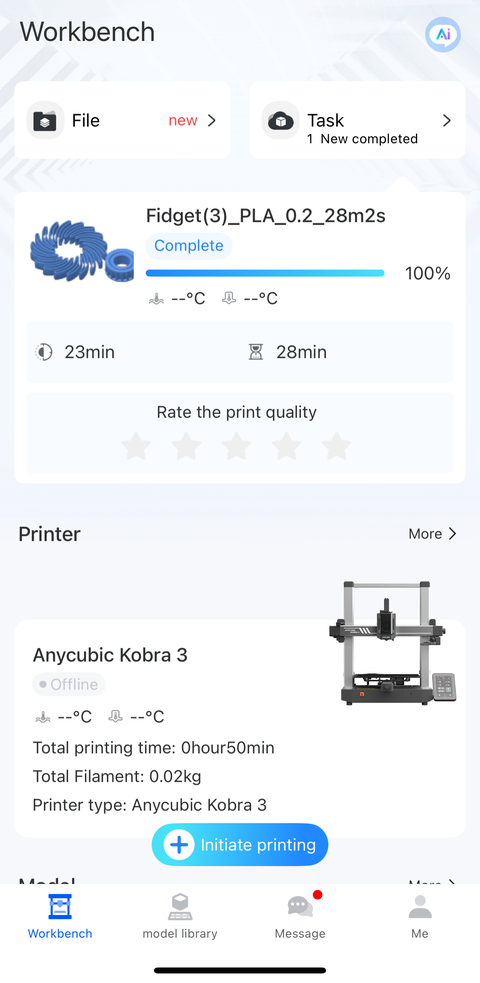
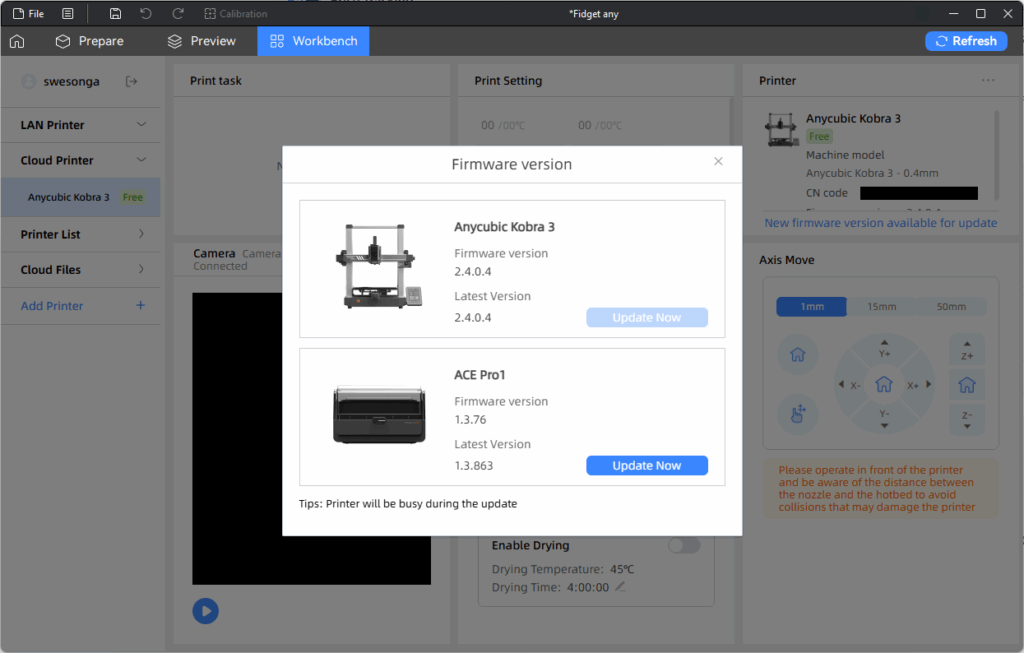
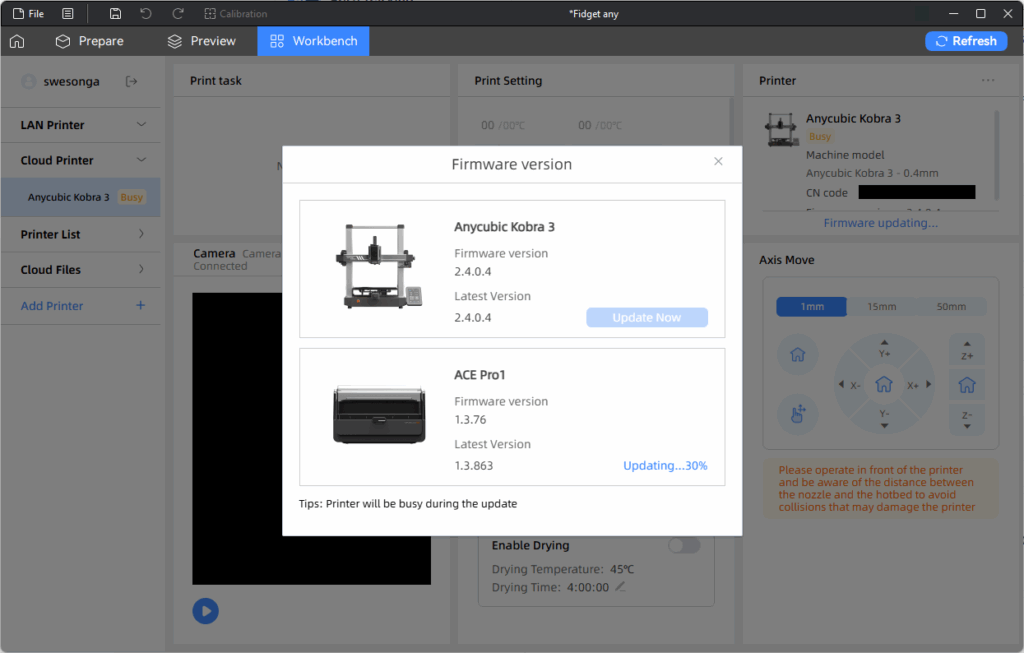
I cancelled that task and upgraded the printer’s firmware:
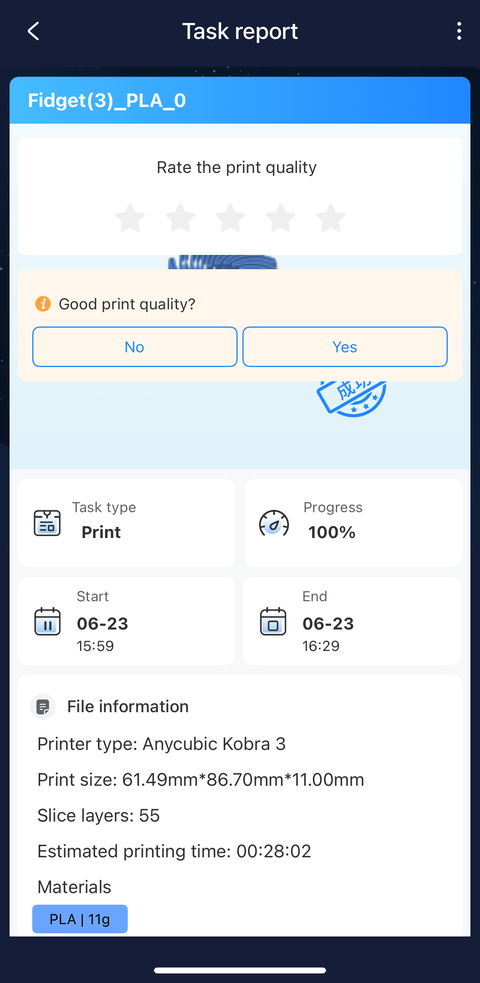
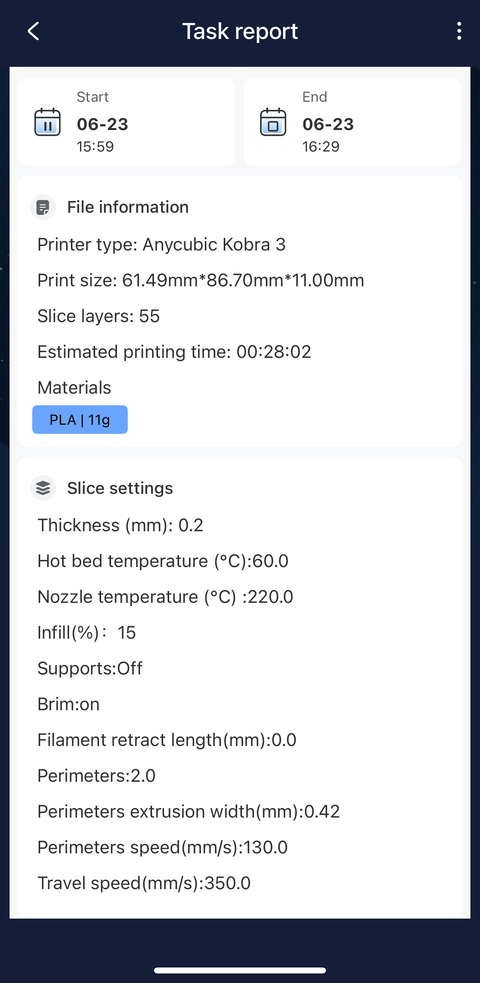
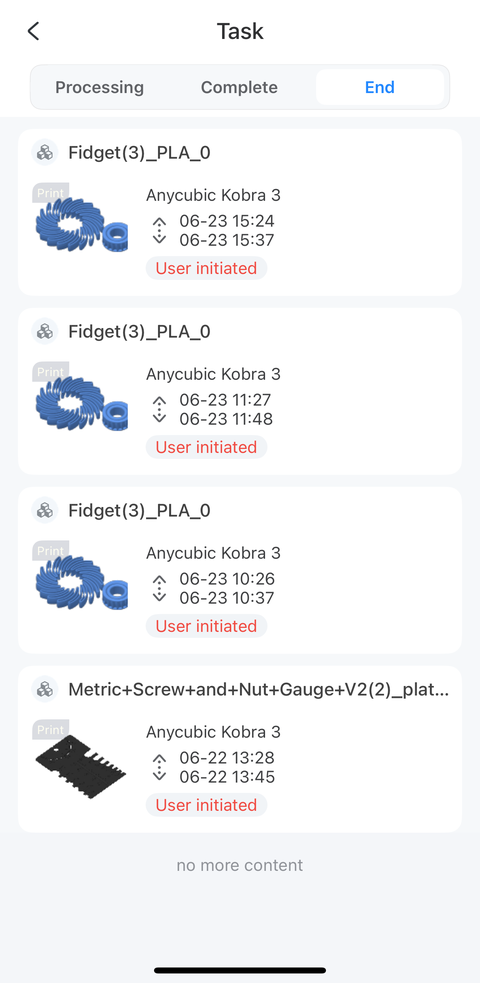
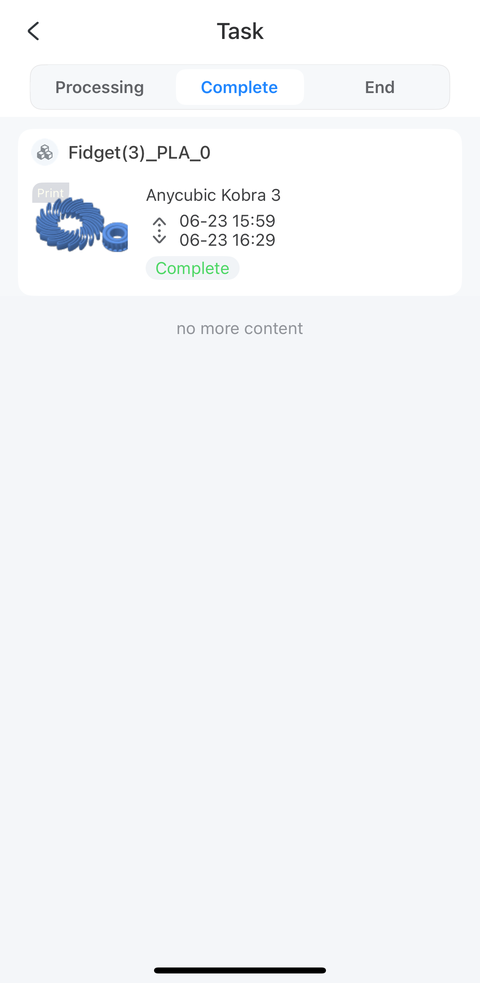
The same thing happened again so I cancelled the printing task. I had set up the 3D printer on a stand-up desk which had a little bit of swaying motion when the printer was at work so I moved the 3D printer onto the floor to see if this could have been the problem. The same broken model was being printed with the printer on the floor so I cancelled the task again. However, this enabled me to rule out the stability of the print platform. The tasks I cancelled are in the “End” tab, along with their start and end times in the images below.
At this point, the remaining question was whether the build platform’s Y-axis was too lose. That could be the cause of the drifting that occurred as the build progressed. I tightened the Y-axis belt tensioner more than what I had initially considered reasonable then printed the model again. This time, the print head appeared to correctly stay within the bounds of the model! The fidget toy was now printed correctly! It was such a relief to know that my unit was functioning correctly and so I didn’t have to start dealing with tech support on a new product.
Desktop Software Installation and Usage
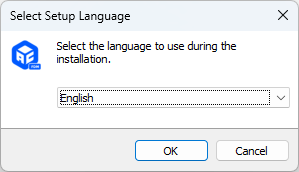
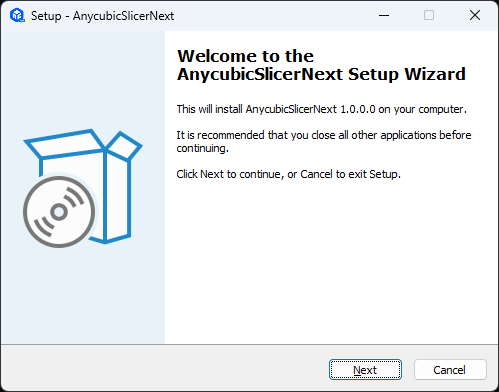
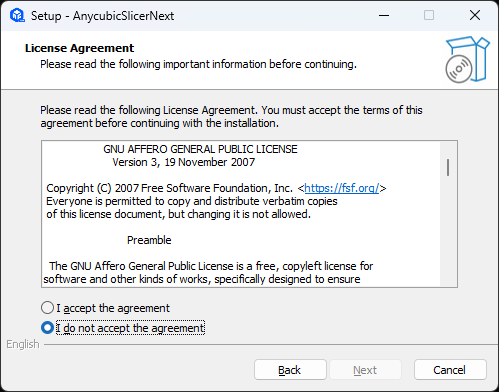
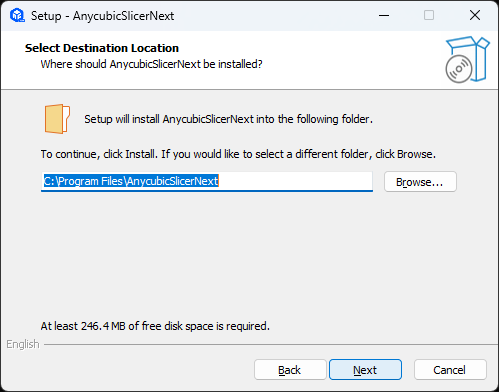
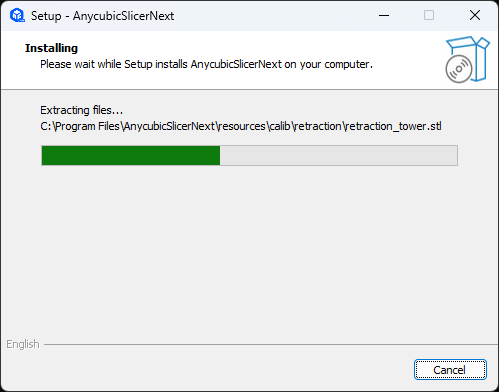
The printer’s accompanying USB stick has the Anycubic Slicer Next installer. I set it up when my initial attempts to connect to the printer on my phone failed.
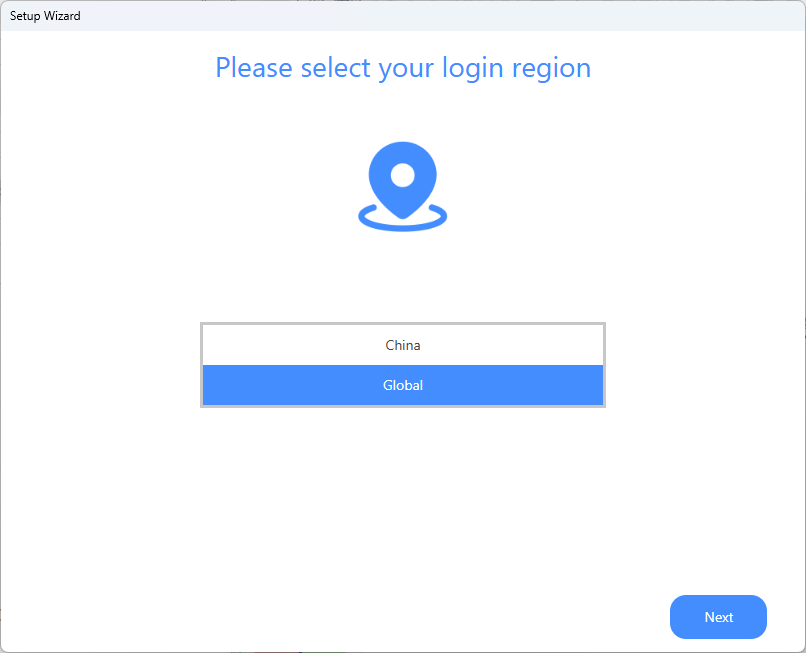
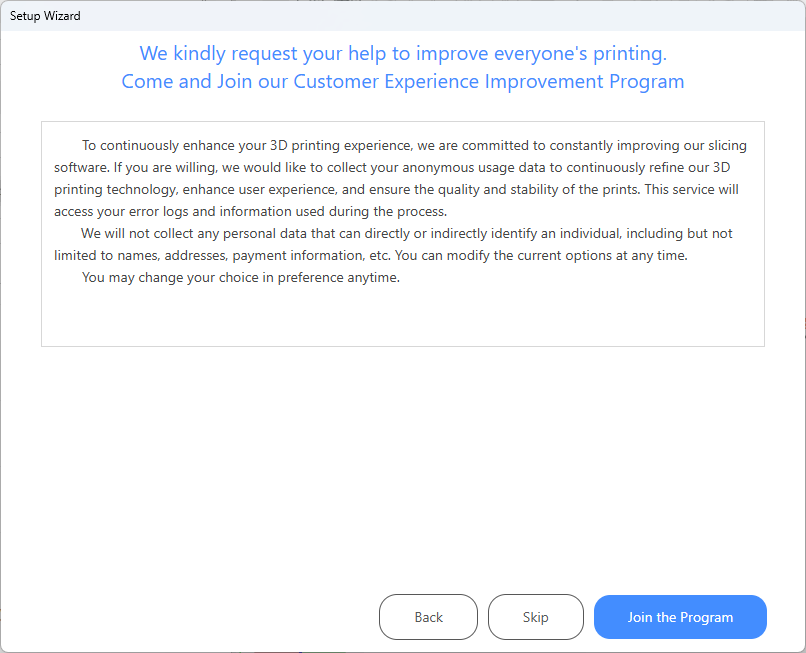
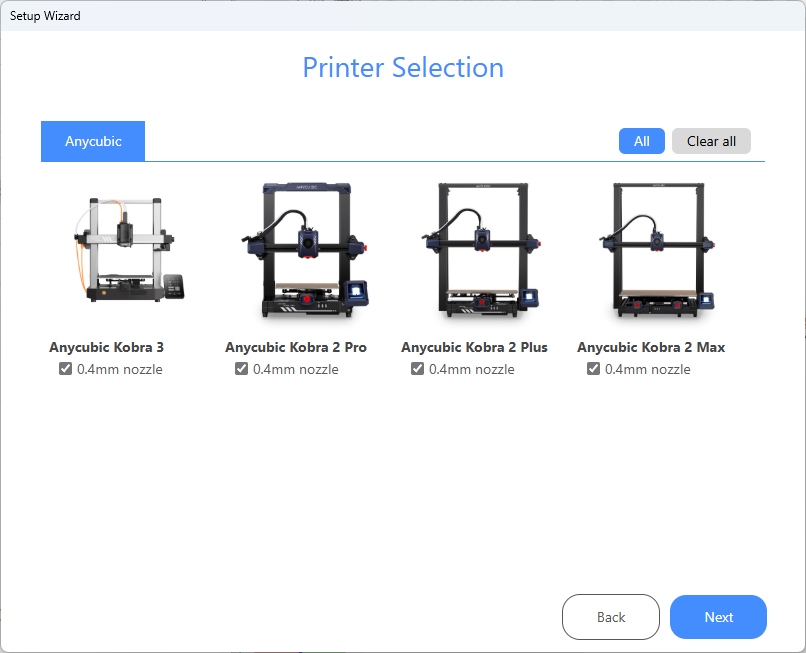
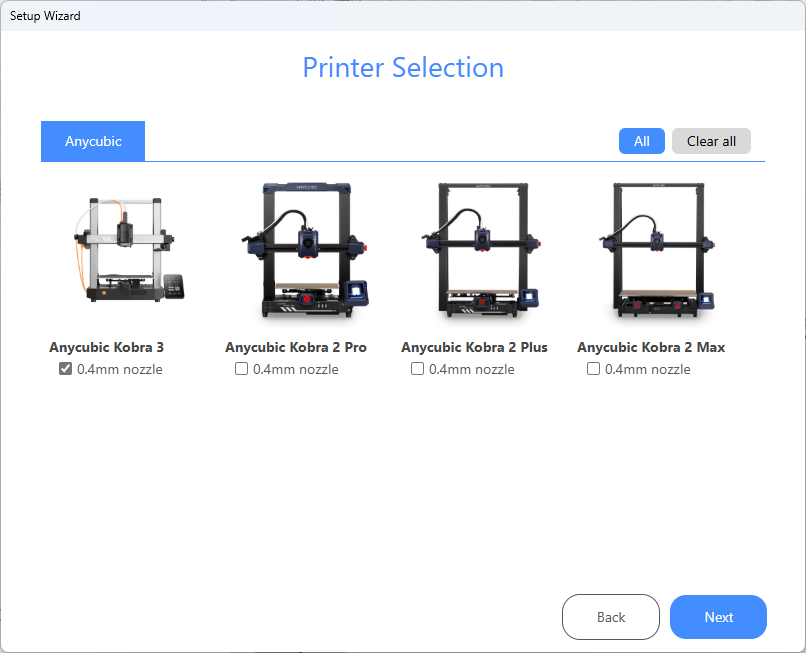
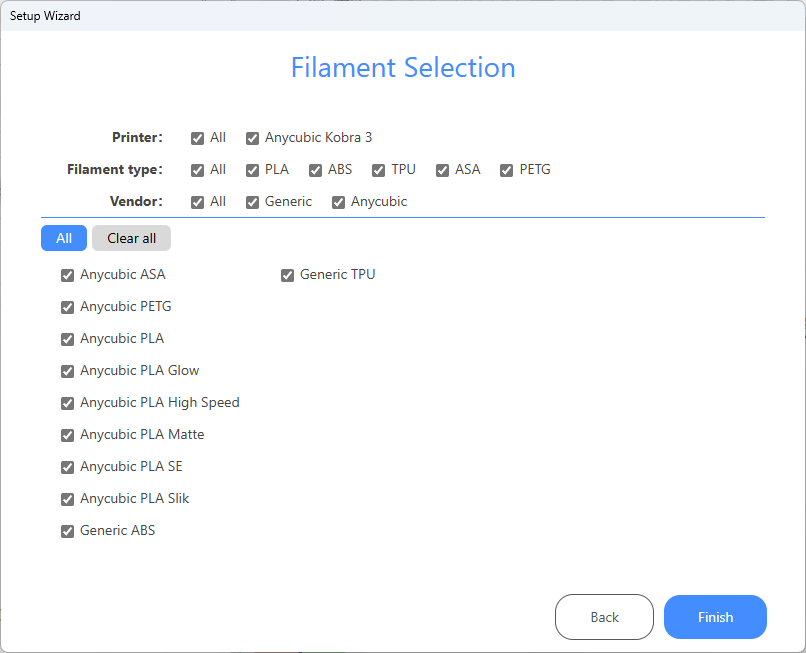
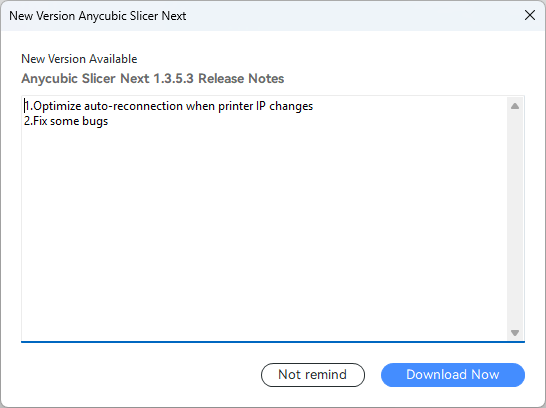
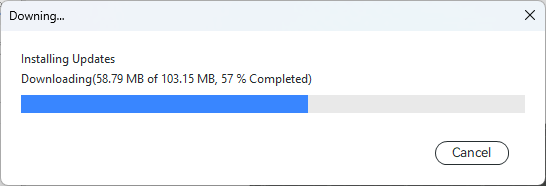
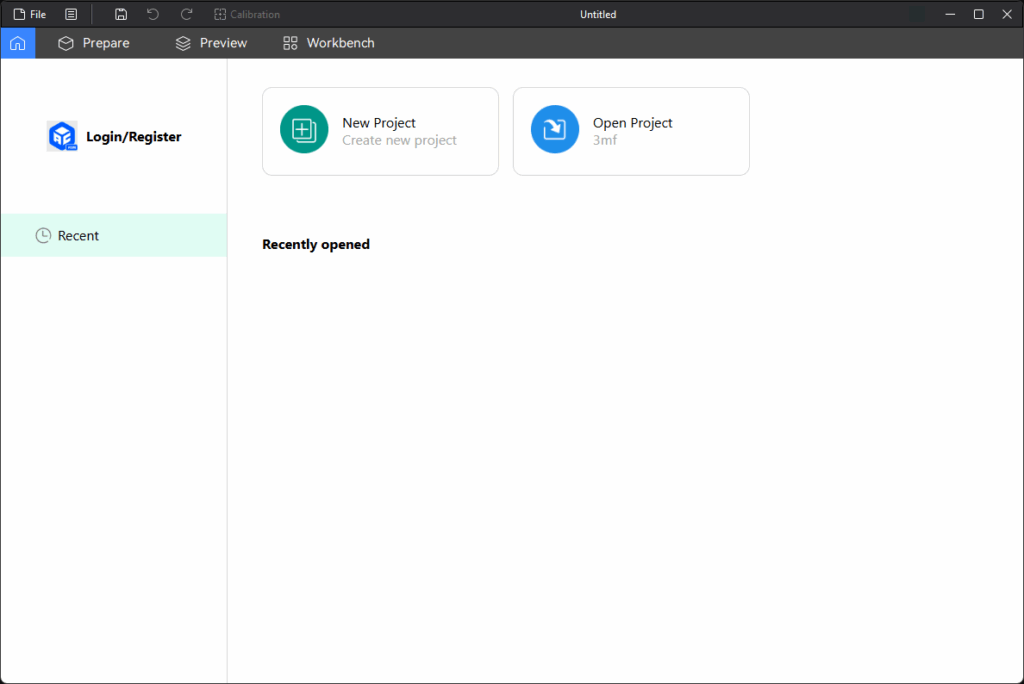
The only change I made in the startup sequence was to disable the other 3D printers. I installed the updates when prompted then logged in after Anycubic Slicer Next loaded.
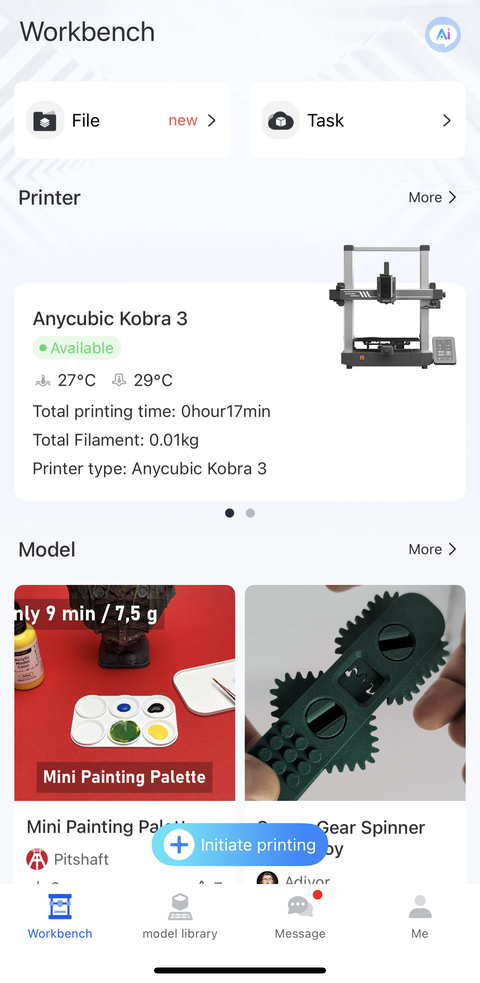
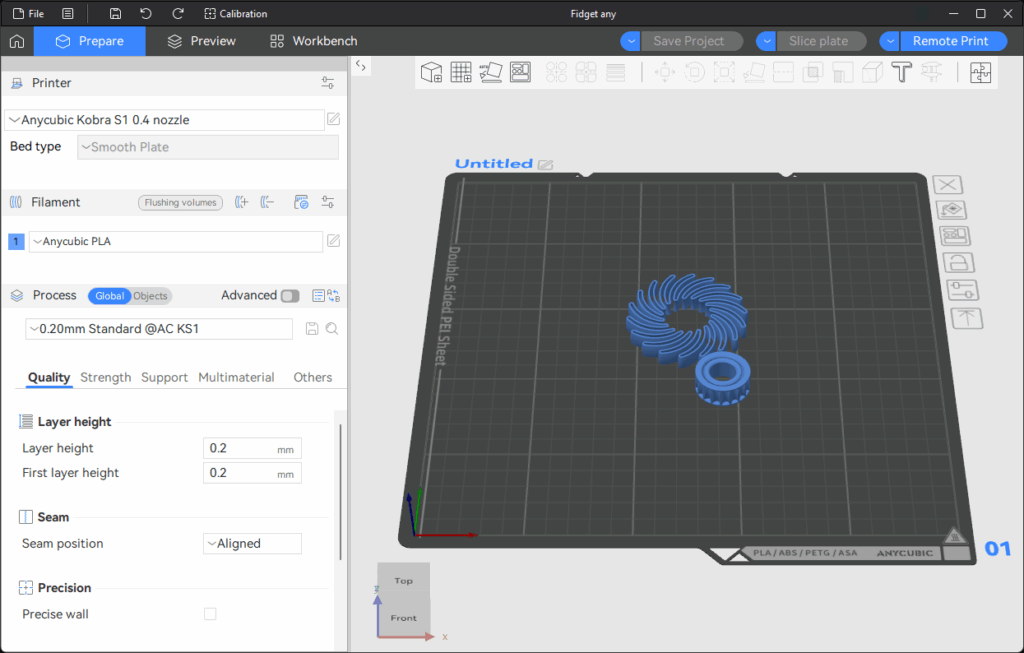
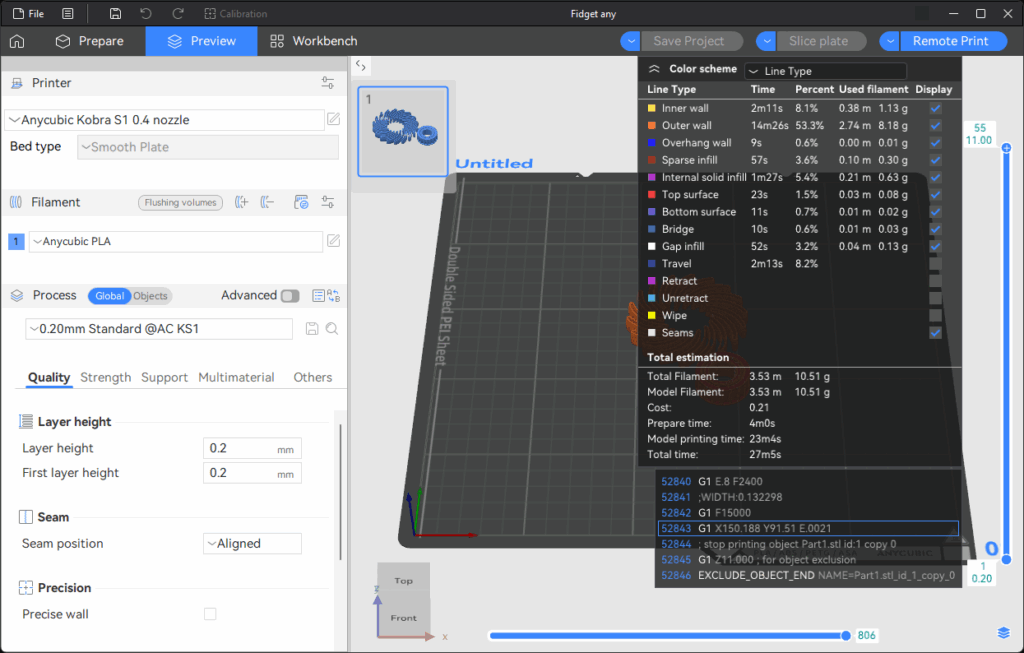
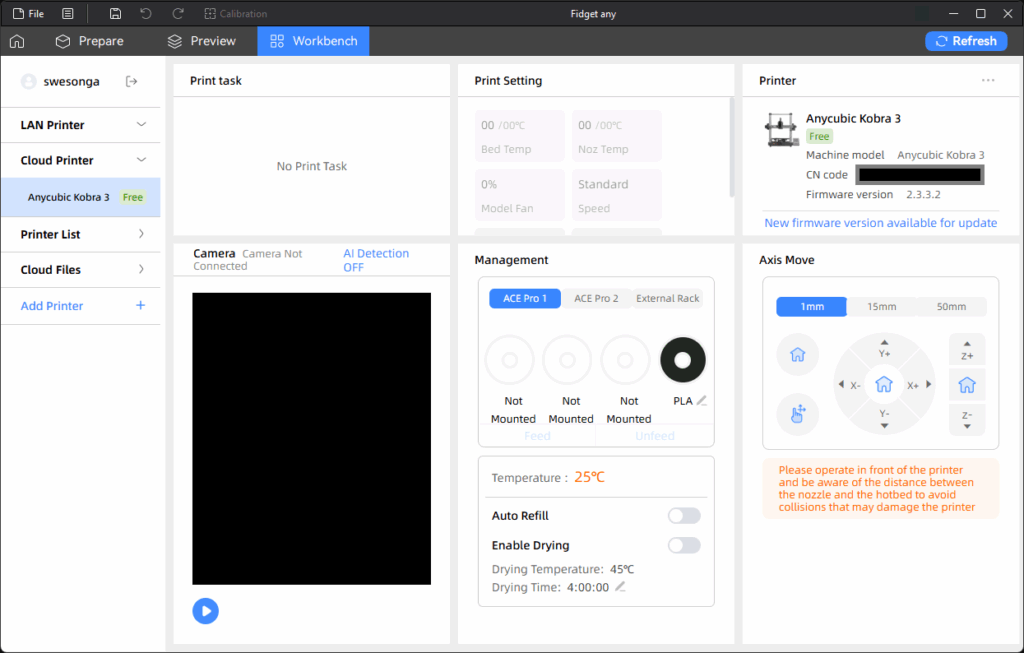
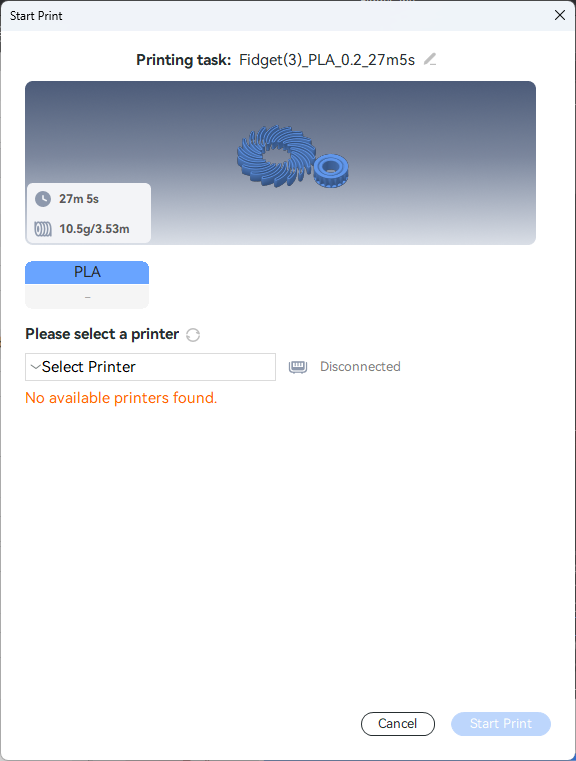
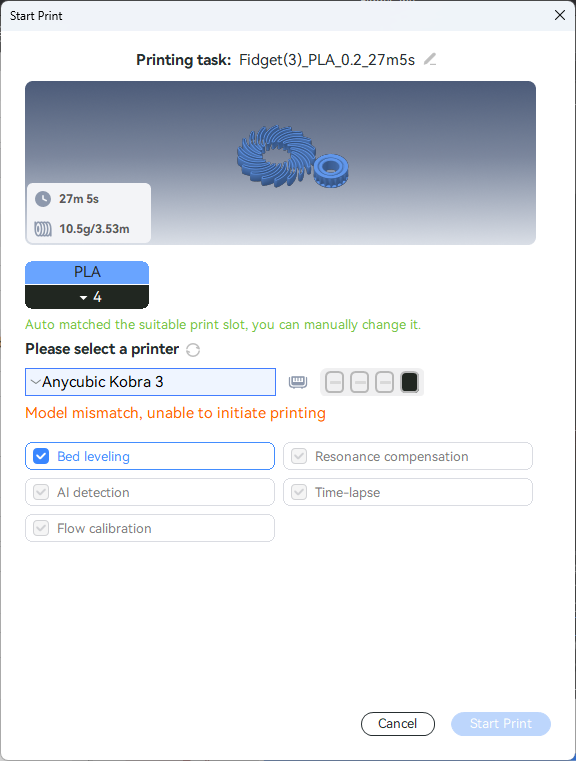
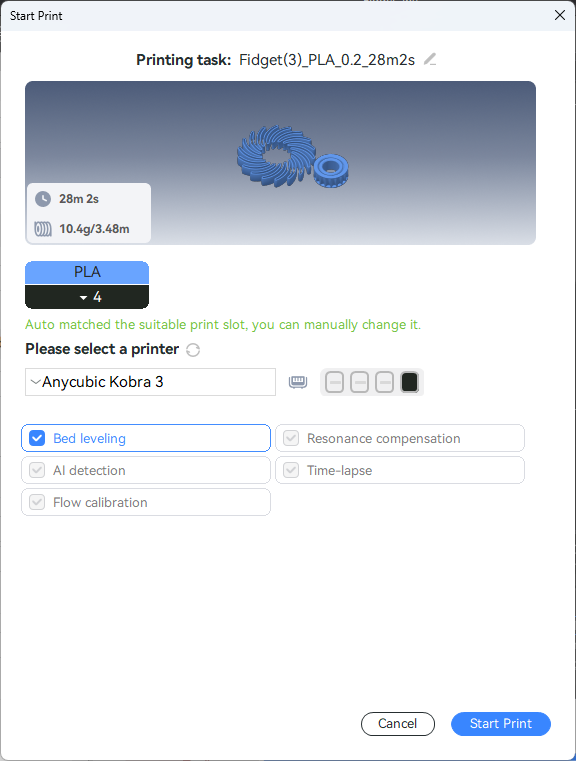
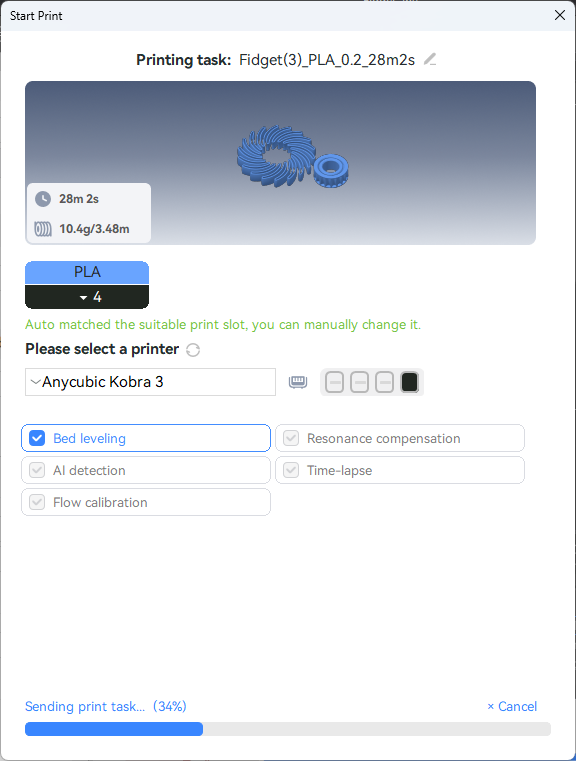
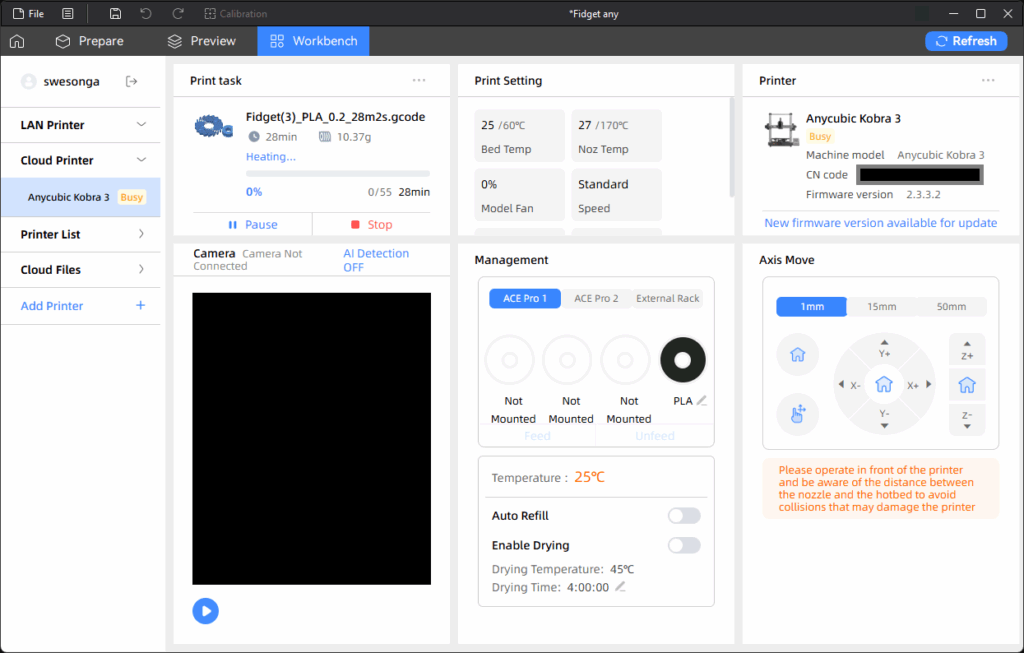
After logging in, I went to the Makeronline tab and found the fidget toy (this was when I had realized that a simpler model would greatly aid my troubleshooting efforts). The firmware updates message on the Workbench page are what prompted me to update the firmware (as phone earlier in the app screenshots from my phone). My first run through this program also had the wrong printer selected. The corresponding error is included in the images below.
I needed to switch from the Anycubic Kobra S1 0.4 nozzle. Why is this one selected anyway if I only checked mine in the initial startup prompts? Switching to the right printer enabled the print task to start:
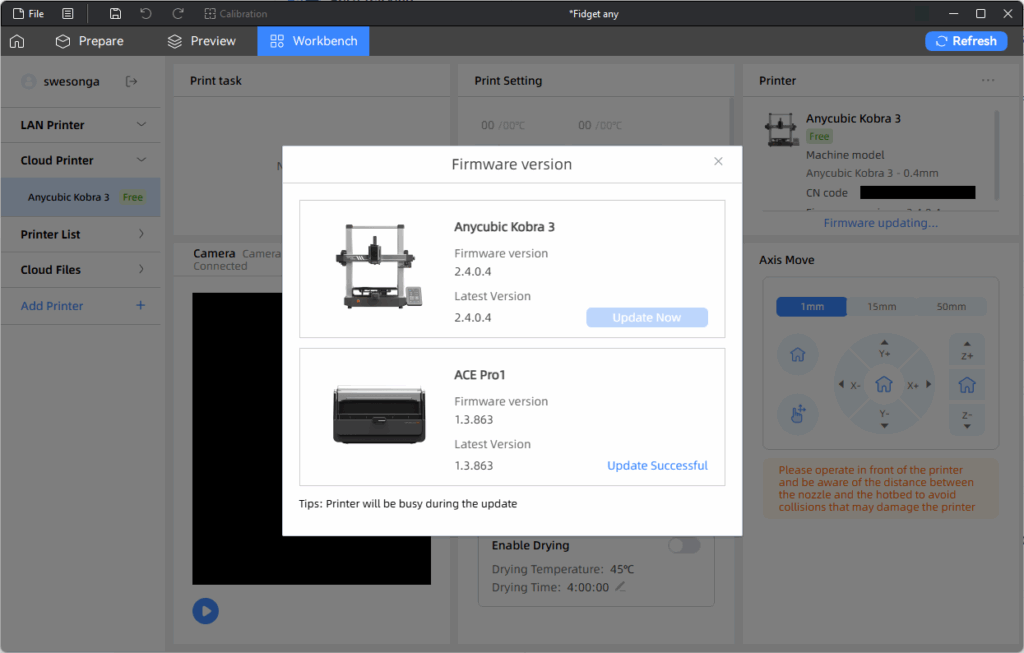
The job started above is the first fidget task I manually ended in the “End” tab of the Tasks page in an earlier screenshot of the app on my phone. After I installed the firmware update using my phone, there was still a “New firmware version available for update” message in the Printer section but it turned out the update was for the ACE Pro this time:
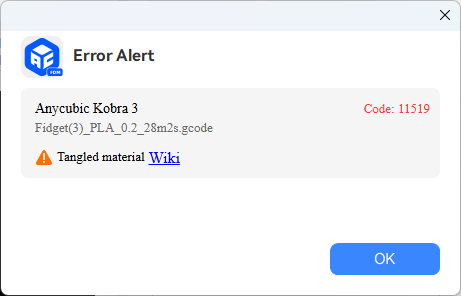
With both devices’ firmware up to date, I started the second attempt of the fidget toy (which failed due to the aforementioned lose Y-axis belt). One error that popped up was this tangled material error alert.
Tangled Material Dialog
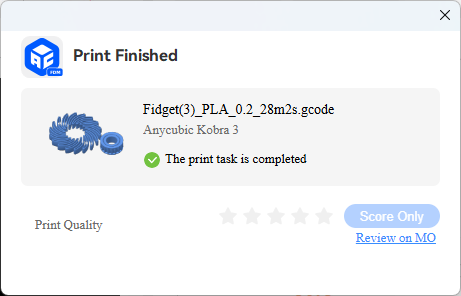
This was when I realized that the orientation of the filament when I loaded it into the ACE (Anycubic Color Engine) was off by 180-degrees around the z-axis. The link is to CODE: 11519 Filament tangle detected, please organize the filament and resume printing | Anycubic Wiki. I re-adjusted the roll and was able to resume printing. The dialog below marked the completion of the final print (after the Y-axis belt was tightened):
Print Finished Dialog
Modeling Software Options
Now that I could print models from Makeronline, the remaining key component was the software for creating my own models. I learned that one of the programs people use is Tinkercad, which is a free web app. Having used SolidWorks in the past, I decided to stick with it. I needed to renew my license though, which turned out to be more involved than I expected (see the post on Troubleshooting my SOLIDWORKS 2025 Installation for details). In the midst of troubleshooting those issues, I realized that I could probably use Blender as well! In conclusion, there are many options for modeling software for exploration and 3D printing.
I installed SOLIDWORKS 2023 Student Edition on my desktop about 2 years ago but did not renew the license after it expired last year. Having just set up a 3D printer, I decided to renew my SOLIDWORKS license to make new models I could print. Since I bought the latest version (2025) from SOLIDWORKS for Students | SOLIDWORKS. I uninstalled SOLIDWORKS 2023 and installed SOLIDWORKS 2025 SP2.0. However, I could not start SOLIDWORKS 2025! It failed with this error:
---------------------------
SOLIDWORKS Product Activation
---------------------------
The current computer identifier (0) does not match the previously used computer identifier (1). You can continue, but you might have activation or deactivation issues in the future.

Please contact you support representative for support.
---------------------------
OK
---------------------------
The OK button then leads to another dialog with this message:
[Window Title]
SOLIDWORKS

[Content]
This Student Edition has expired.

Please browse to the following web location to find out about the new version of SOLIDWORKS Student Edition:

www.solidworks.com/goEDU

[OK]
These is the first set of instructions I got (slightly paraphrased):
Go to the FlexNet Folder (C:\ProgramData\FLEXnet) and rename all ‘SW_D’ files to something like ‘SW_D_old’. Launch SOLIDWORKS again and test the behavior. By default, the “ProgramData” folder is hidden. Either you can activate the “Show hidden folders” option in the “Folder” options, or you can directly enter C:\ProgramData in the address bar to access this folder.
If the above steps do not help, try the steps below
Go to Control Panel\All Control Panel Items\Programs and Features
Search for SOLIDWORKS <version> then right click on it and click ‘Change’
The SOLIDWORKS installation manager will pop up. Click on ‘Repair your installation’.
Once repair is complete, launch SOLIDWORKS and test the behavior.
If the issue still persists, please share the Installation Manager logs on the 3DSupport App for investigation. To go to the Installation log folder, you can type %appdata% at Start > RUN and press Enter, and it will open the “Roaming” folder. In the “Roaming” folder, go to the “SOLIDWORKS” folder. Under the “SOLIDWORKS” folder, you will find a folder named “Installation log.” Zip this complete folder and provide it for investigation.
These steps didn’t work so I uploaded my installation logs. The next set of instructions addressed the problem. Here they are (slightly paraphrased):
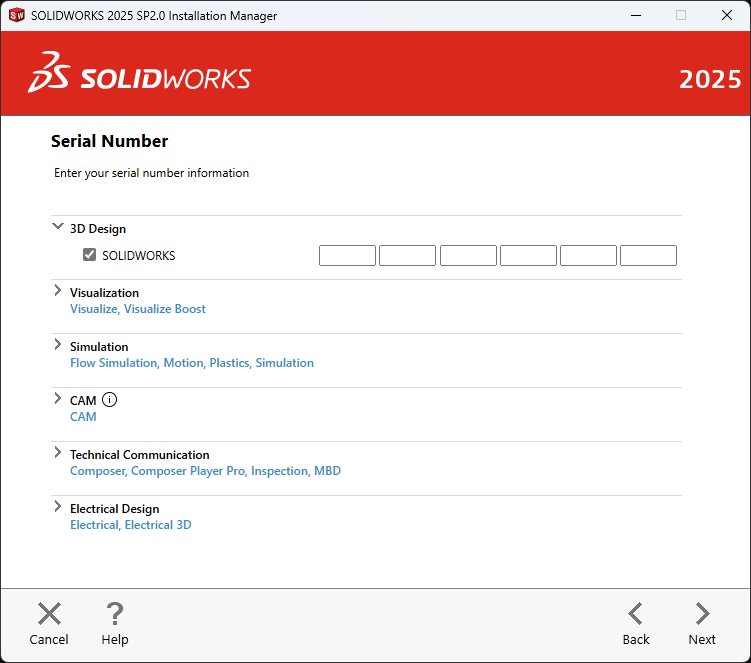
To resolve this issue, I recommend uninstalling all SOLIDWORKS versions currently present on your system. Once that is done, then perform the installation again and be sure to enter your new license number [1234…] manually on the serial number page in the “3D Design > SOLIDWORKS” checkbox. If you have purchased the Student Edition, then your new serial number will be present in the post-purchase email. Please follow these installation steps:
Uninstall all SOLIDWORKS versions currently present on your system. Please follow these steps:
Go to Control Panel\All Control Panel Items\Programs and Features
Search for SOLIDWORKS (Version) then right click on it and select ‘Uninstall’.
In the Installation Manager window, under ‘Advanced Options’, select ‘Change’.
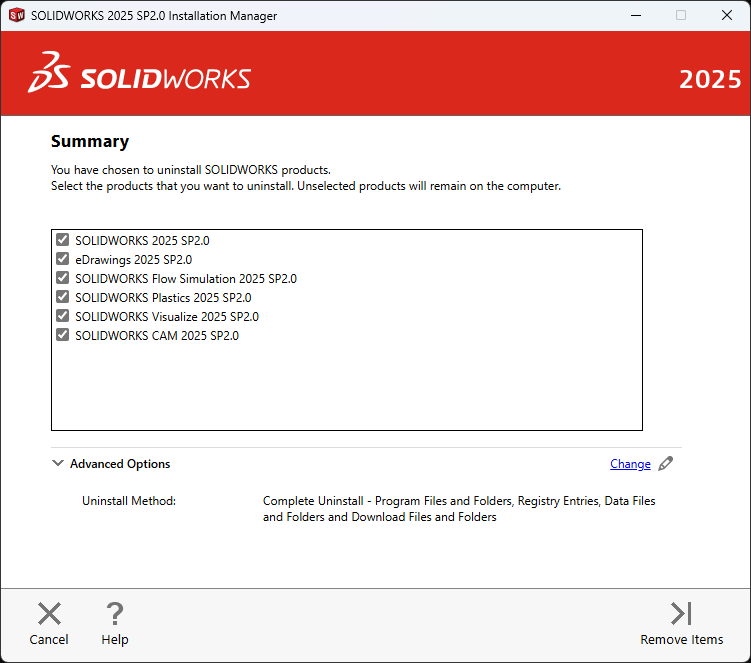
By default, the ‘Program files and Folders’ will be selected. Select the remaining items (‘Registry Entries’ and ‘Data Files and Folders’) as well.
Click ‘Back to Summary’.
Click on ‘Remove Items’ and let Installation Manager complete the uninstallation.
Once uninstallation is complete, restart your system.
Download the setup file from: www.solidworks.com/SEK
Right-click on the setup file and select ‘Run as administrator’.
On Welcome page > Select ‘Install on this computer’ and click ‘Next’.
On the Serial Number screen, enter your latest serial number [1234…] manually in the 3D Design > SOLIDWORKS checkbox only. Please leave all the other product’s [like composer, Visual, simulation, etc..] serial number checkboxes blank and unchecked. See the attached image for your reference.
On the Summary screen > Under Products, click ‘change’ > untick the unwanted
On the Summary screen > Download Option, click ‘change” > select ‘Download and Install’.
On the Summary screen, click ‘Install Now’.
Uninstalling SOLIDWORKS 2025
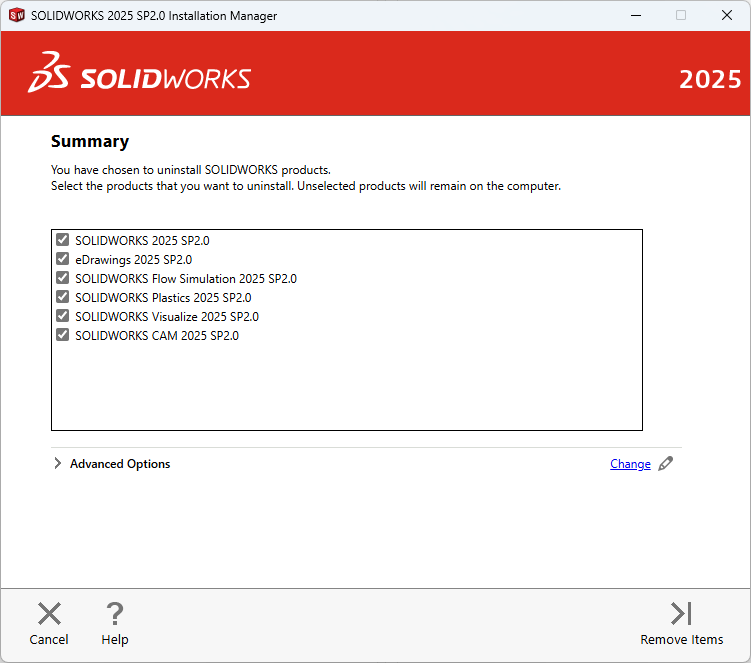
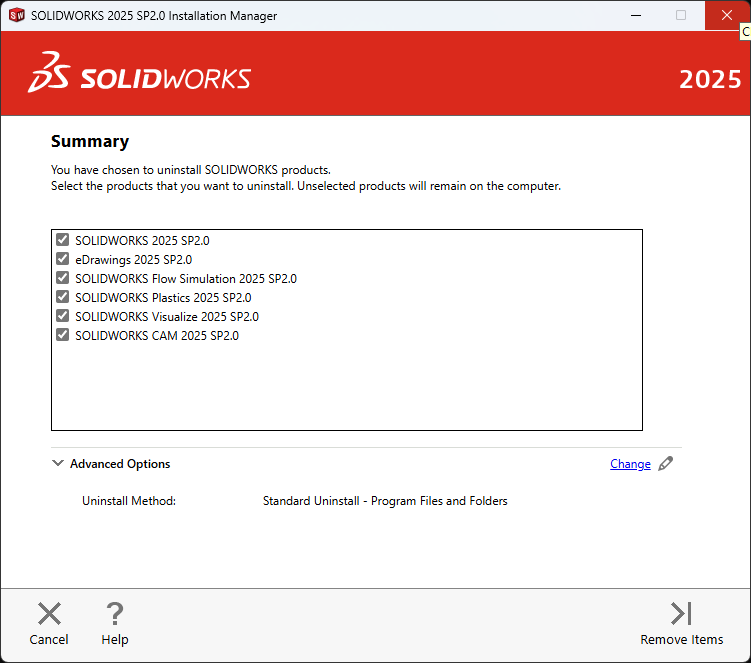
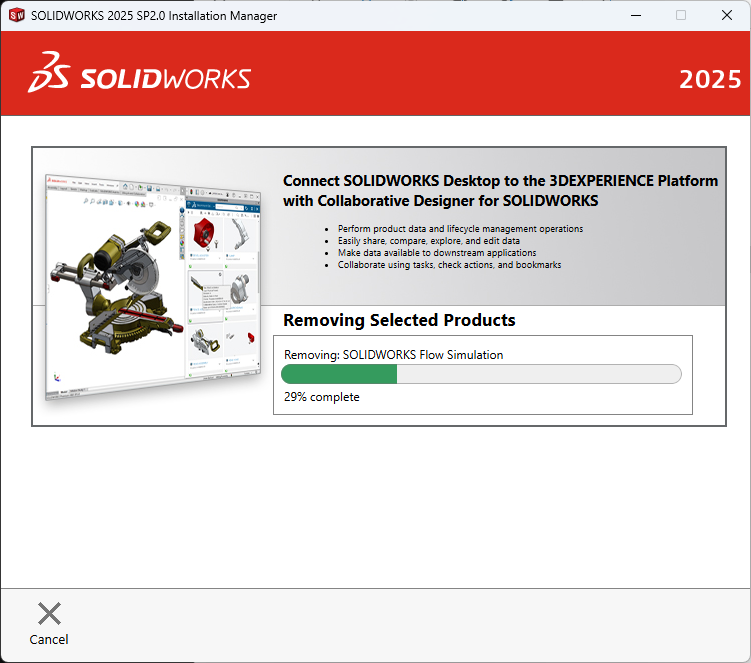
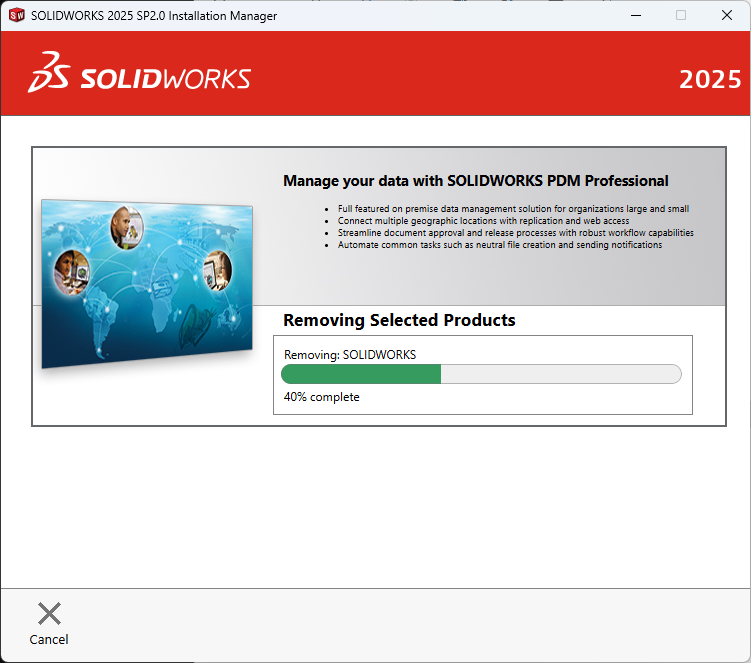
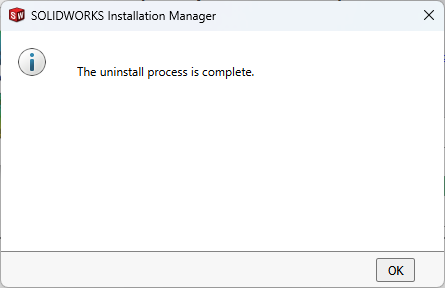
The first time I uninstalled SOLIDWORKS 2025, I didn’t adjust the “Advanced Options”:
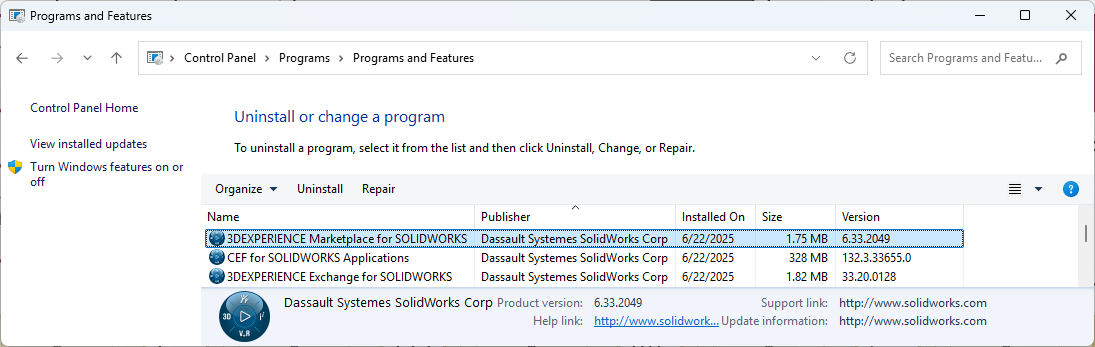
After uninstalling it, the SOLIDWORKS Login Manager was still listed as installed in the control panel. I uninstalled it as well then later realized that I missed other products from Dassault Systemes.
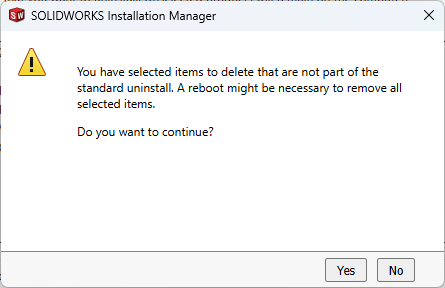
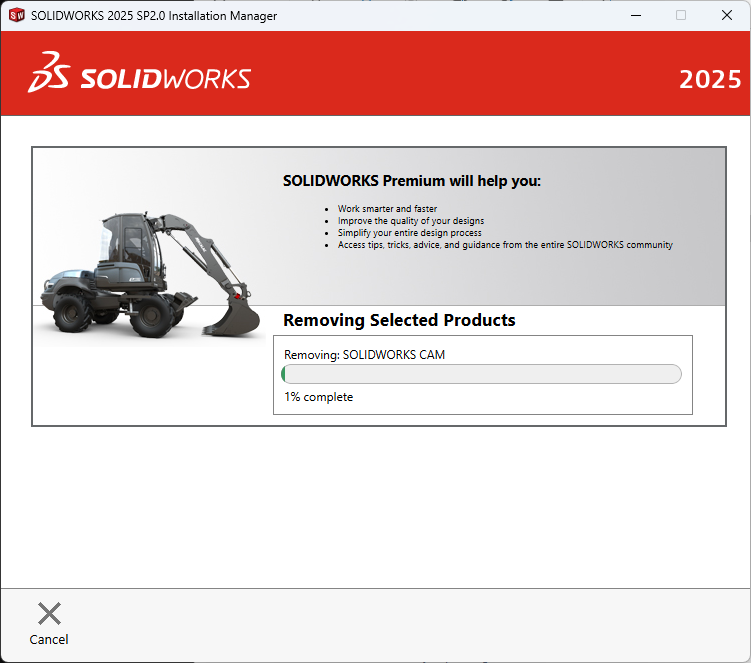
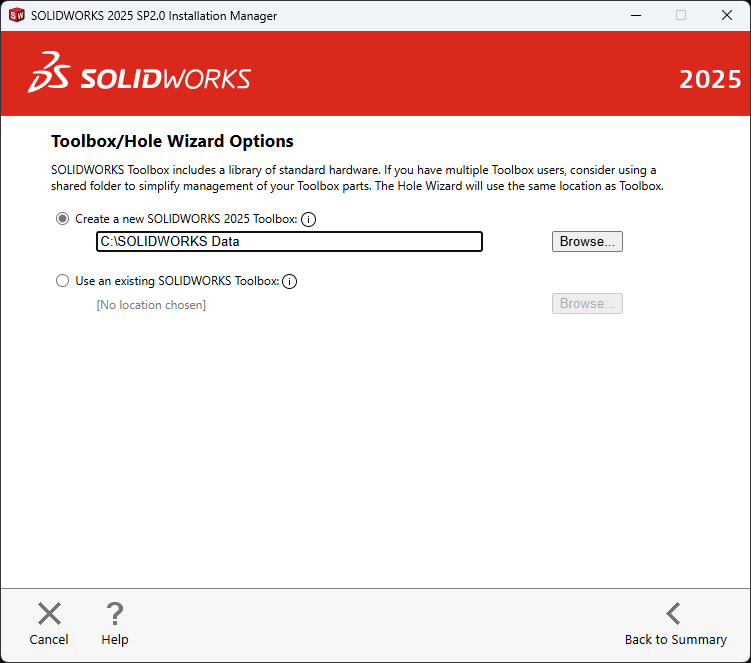
I entered the correct serial number on the installation this time. I also noticed that the install path is in C:\dev (which also has SOLIDWORKS 2023 files). I didn’t remember how I created that directory the last time I installed SOLIDWORKS (nothing else would automatically go into my \dev directory). After all this, the same error message is displayed when trying to start SOLIDWORKS. This was because I skipped the most important steps in the uninstallation. I paid careful attention to the options the next time I uninstalled it! Before uninstalling it, I poked around and found that I the license is in HKEY_LOCAL_MACHINE\SOFTWARE\SolidWorks\Licenses\Serial Numbers. The slideshow below shows the advanced options that need to be selected for a full uninstall.
These are the files and folders that were to be removed on my desktop:
Program Files and Folder:
C:\Program Files\SOLIDWORKS Corp\SOLIDWORKS CAM\
C:\Program Files\SOLIDWORKS Corp\SOLIDWORKS Visualize\
C:\Program Files\SOLIDWORKS Corp\SOLIDWORKS Plastics\
C:\Program Files\SOLIDWORKS Corp\SOLIDWORKS Flow Simulation\
C:\Program Files\SOLIDWORKS Corp\eDrawings\
C:\Program Files\SOLIDWORKS Corp\SOLIDWORKS\

Registry Entries:
HKCU\Software\SolidWorks
HKLM\Software\Wow6432Node\SolidWorks
HKLM\Software\SolidWorks
HKCU\Software\SRAC
HKLM\Software\SRAC
HKCU\Software\eDrawings
HKLM\Software\eDrawings

Data Files and Folder:
C:\software\SOLIDWORKS Data (2)
C:\ProgramData\SolidWorks
C:\ProgramData\COSMOS Applications
C:\Users\Public\Documents\SolidWorks
C:\ProgramData\DassaultSystemes

Download Files and Folder:
C:\dev\Downloads\SolidWorksFiles\SOLIDWORKS 2023 SP02.1
C:\dev\Downloads\SolidWorksFiles\SOLIDWORKS 2025 SP02
After uninstallation completed, I decided to inspect the registry (using the reg query command) to see what was left. 6 of the 7 registry entries returned “ERROR: The system was unable to find the specified registry key or value.” Only the HKEY_LOCAL_MACHINE\SOFTWARE\SolidWorks key still contained data.
C:\>reg query "HKEY_LOCAL_MACHINE\SOFTWARE\SolidWorks" /s

HKEY_LOCAL_MACHINE\SOFTWARE\SolidWorks\AddIns

HKEY_LOCAL_MACHINE\SOFTWARE\SolidWorks\AddIns\{219180B0-7183-4FE2-B167-4E2BFE534004}
    (Default)    REG_DWORD    0x1
    Description    REG_SZ    Access to digital manufacturers worldwide, sourceable 3D components, and more. v6.33.2049
    Title    REG_SZ    3DEXPERIENCE Marketplace
    Icon Path    REG_SZ    C:\Program Files\Common Files\SOLIDWORKS Shared\3DEXPERIENCE Marketplace\I_3DEXPERIENCEPlatform_16.png

HKEY_LOCAL_MACHINE\SOFTWARE\SolidWorks\AddIns\{fb5ac345-200b-44d2-9ffa-69b7d44fc36f}
    (Default)    REG_DWORD    0x0
    Description    REG_SZ    Work with a package of content from a 3DEXPERIENCE source, such as SOLIDWORKS Connected or the Design with SOLIDWORKS app.
    Title    REG_SZ    3DEXPERIENCE Exchange
    Icon Path    REG_SZ    C:\Program Files\Common Files\SOLIDWORKS Shared\3DEXPERIENCE Exchange\Resources\3dexperience_exchange-20px.png
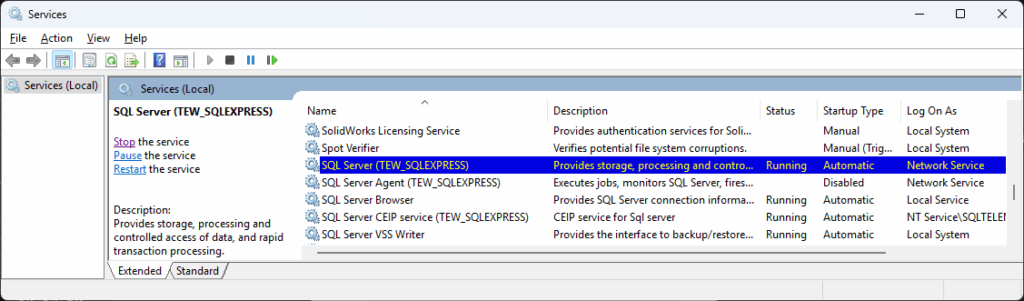
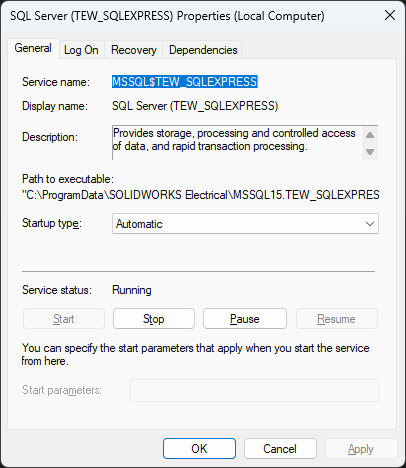
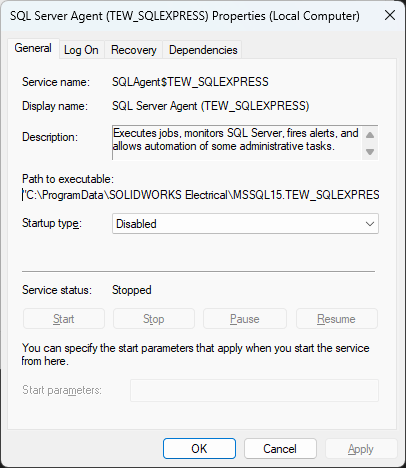
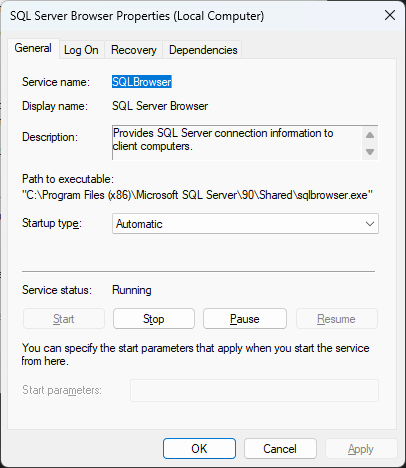
The path “C:\Program Files\SOLIDWORKS Corp” now contained 0 files but still contained 2 folders: “SOLIDWORKS Electrical” and “eDrawings” (which looked harmless). The other directories had been removed. There was still a “C:\ProgramData\SOLIDWORKS Electrical” directory though. I could not remove it because “C:\ProgramData\SOLIDWORKS Electrical\MSSQL15.TEW_SQLEXPRESS\MSSQL\Binn\batchparser.dll” was open in the SQL Server (TEW_SQLEXPRESS) service. The path to its executable was "C:\ProgramData\SOLIDWORKS Electrical\MSSQL15.TEW_SQLEXPRESS\MSSQL\Binn\sqlservr.exe" -sTEW_SQLEXPRESS. The disabled agent’s path was "C:\ProgramData\SOLIDWORKS Electrical\MSSQL15.TEW_SQLEXPRESS\MSSQL\Binn\SQLAGENT.EXE" -i TEW_SQLEXPRESS and the CEIP service executable path was "C:\ProgramData\SOLIDWORKS Electrical\MSSQL15.TEW_SQLEXPRESS\MSSQL\Binn\sqlceip.exe" -Service TEW_SQLEXPRESS. See the properties of these services below.
I stopped the SQL Server (TEW_SQLEXPRESS) and SQL Server CEIP service (TEW_SQLEXPRESS) services. I could now delete the “C:\ProgramData\SOLIDWORKS Electrical” directory. Notice that there was also a SolidWorks Licensing Service but it was stopped. The path to its executable was "C:\Program Files (x86)\Common Files\SolidWorks Shared\Service\SolidWorksLicensing.exe" and it was the only file under the “SolidWorks Shared” directory. I deleted it (even though this left the service entry). I didn’t recall how I set up the 2023 version but I have setup files in C:\dev\Downloads\SolidWorks so I just manually deleted that entire folder.
Installing SOLIDWORKS 2025
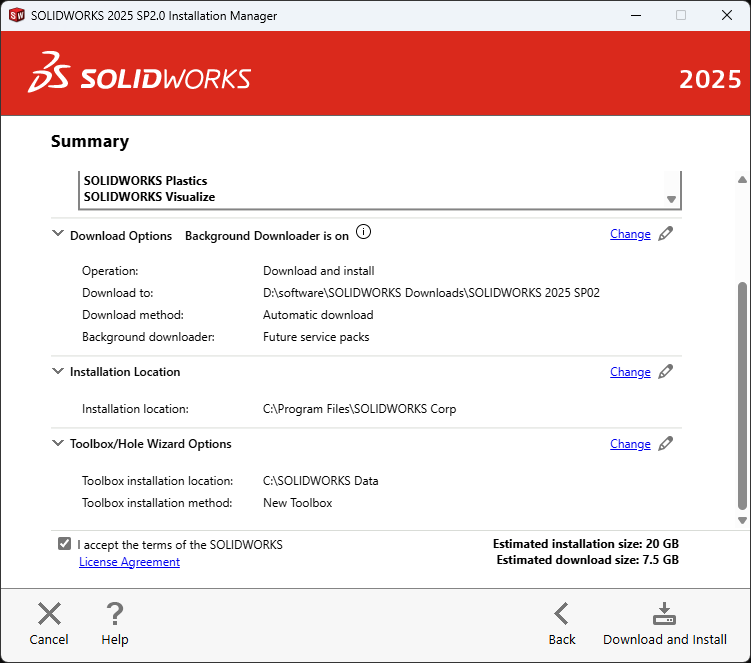
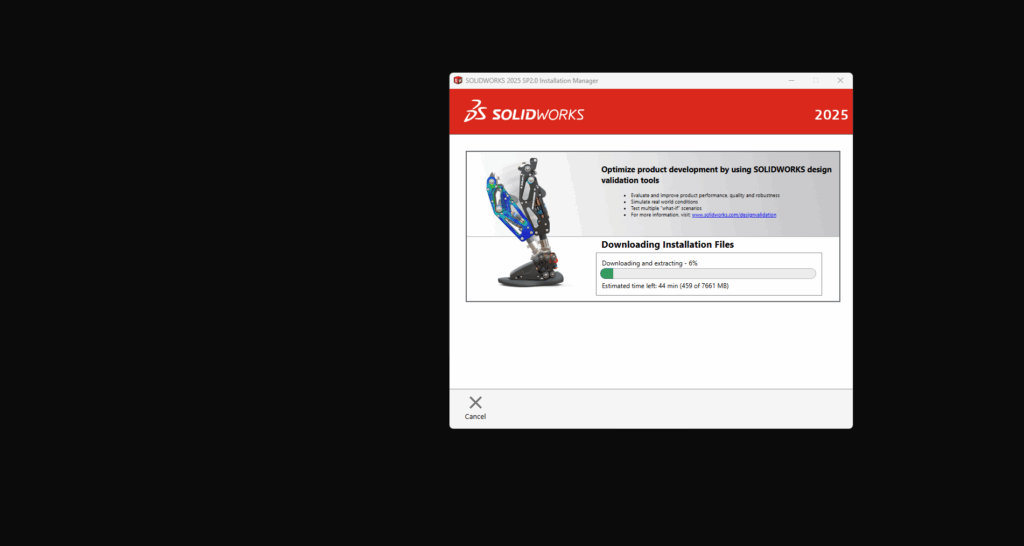
After the full uninstall described above, there was no serial number prepopulated into the installer this time! The default Download to path was in my documents folder, which is on OneDrive. Aha, this must be why I had changed it to C:\dev\Downloads\SolidWorks – no need to store a couple of GBs of installers on OneDrive.
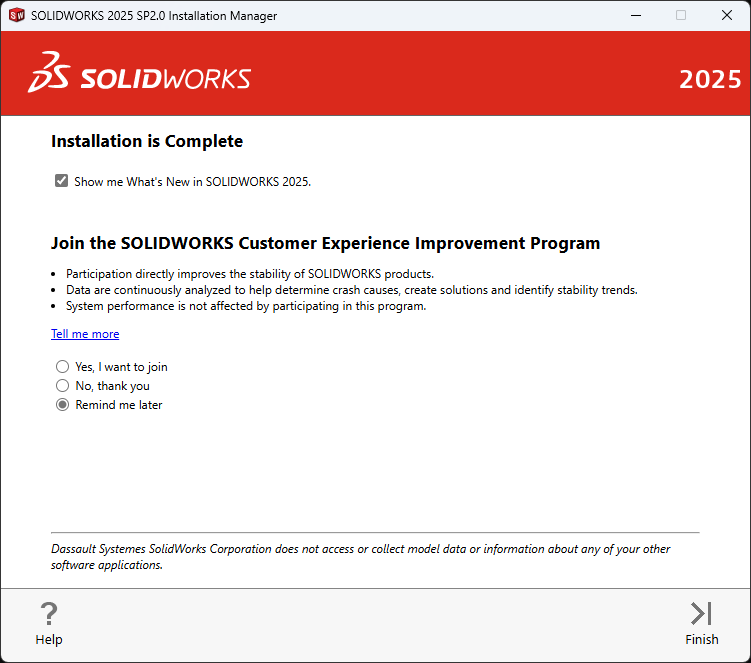
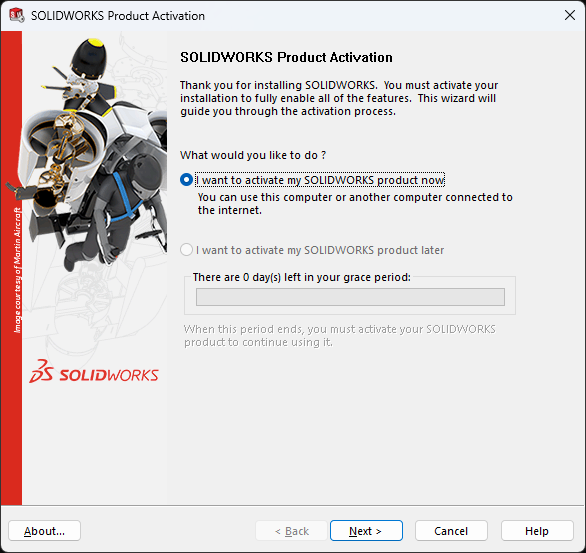
Once installation completed, all I needed to do is enter my email and click “next” to activate the product.
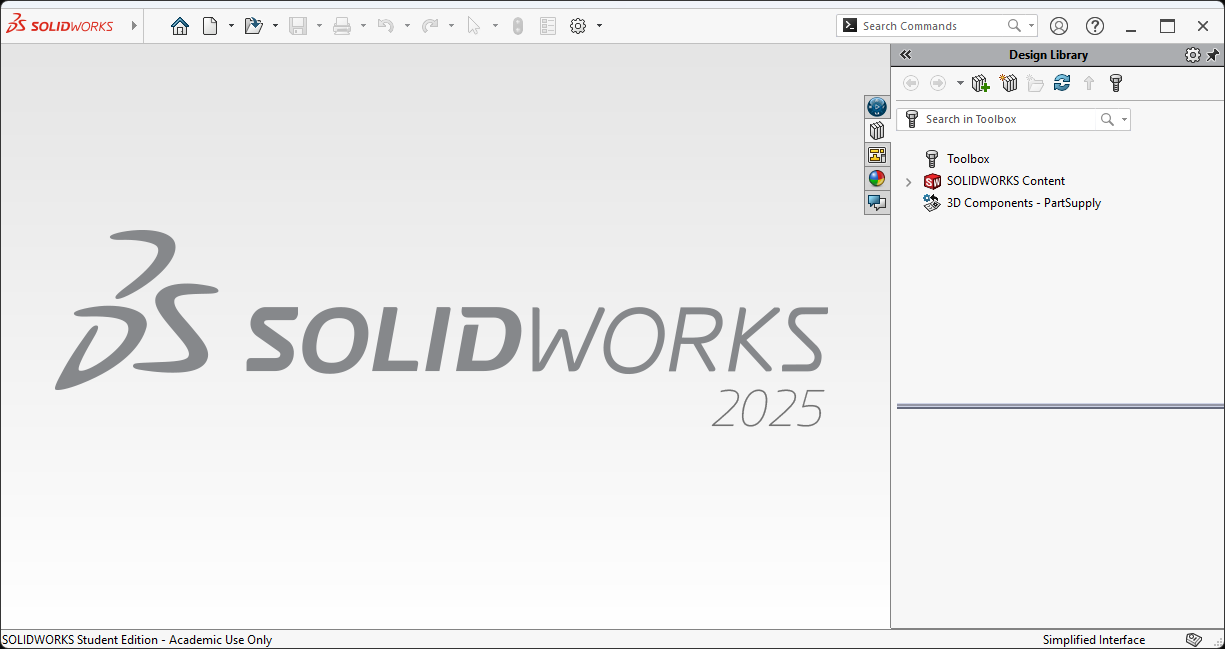
SOLIDWORKS 2025 now started up successfully! The root cause of all my problems was that I didn’t do a full uninstall of SOLIDWORKS 2023!
time /cygdrive/c/repos/scratchpad/scripts/java/cygwin/build-jdk.sh windows x86_64 slowdebug zero
The build will fail with Error: Failed to load D:\java\forks\dups11\openjdk\jdk\build\windows-x86_64-zero-slowdebug\jdk\bin\zero\jvm.dll. However, the build is still usable (all the binaries and symbols should be present). I am saving that investigation for another day. For now, verify that the build works by running this command:
$ build/windows-x86_64-zero-slowdebug/jdk/bin/java.exe -version
java version "25-internal" 2025-09-16
Java Runtime Environment (slowdebug build 25-internal-adhoc.USERsaint.jdk)
Java HotSpot 64-Bit Zero VM (slowdebug build 25-internal-adhoc.USERsaint.jdk, interpreted mode)
checking for --enable-hsdis-bundling... disabled, default
checking what hsdis backend to use... 'none', hsdis will not be built
checking if hsdis should be bundled... no
checking for --enable-libffi-bundling... disabled, default
checking for LIBFFI... checking for ffi.h... no
configure: error: Could not find libffi!
configure exiting with result code 1
I took at look at the source of the error message in jdk/make/autoconf/lib-ffi.m4 and realized that I need to have the repo.
git clone https://github.com/libffi/libffi.git
cd libffi
git checkout v3.4.8
I then added the --with-libffi argument to the configure script.
This didn’t address the failure but closer inspection of the .m4 led me to realize that I need to build libffi. This was the genesis of the post on Building libffi for Windows x64 with Visual C++. Once I had built libffi and created the .lib file in the expected location of its repo, the configure script succeeded. I started the build with this command:
time /cygdrive/c/repos/scratchpad/scripts/java/cygwin/build-jdk.sh windows x86_64 slowdebug zero
The build failed!
* For target hotspot_variant-zero_libjvm_gtest_objs_BUILD_GTEST_LIBJVM_pch.obj:
BUILD_GTEST_LIBJVM_pch.cpp
d:\java\forks\dups11\openjdk\jdk\src\hotspot\share\runtime/globals.hpp(35): fatal error C1083: Cannot open include file: 'globals_windows_zero.hpp': No such file or directory
   ... (rest of output omitted)
* For target support_gensrc_java.base__SocketOptionRegistry.java:
/*
 * Copyright (c) 2008, 2020, Oracle and/or its affiliates. All rights reserved.
 *
...
 * FITNESS FOR A PARTICULAR PURPOSE.  See the GNU General Public License
 * version 2 for more details (a copy is included in the LICENSE file that
   ... (rest of output omitted)

* All command lines available in /cygdrive/d/java/forks/dups11/openjdk/jdk/build/windows-x86_64-zero-slowdebug/make-support/failure-logs.
=== End of repeated output ===
There was a .log file and a .cmd file in the failure-logs folder. build\windows-x86_64-zero-slowdebug\make-support\failure-logs\support_gensrc_java.base__SocketOptionRegistry.java.log contained this:
/*
 * Copyright (c) 2008, 2020, Oracle and/or its affiliates. All rights reserved.
 *
 * DO NOT ALTER OR REMOVE COPYRIGHT NOTICES OR THIS FILE HEADER.
 *
 * This code is free software; you can redistribute it and/or modify it
 * under the terms of the GNU General Public License version 2 only, as
 * published by the Free Software Foundation.  Oracle designates this
 * particular file as subject to the "Classpath" exception as provided
 * by Oracle in the LICENSE file that accompanied this code.
 *
 * This code is distributed in the hope that it will be useful, but WITHOUT
 * ANY WARRANTY; without even the implied warranty of MERCHANTABILITY or
 * FITNESS FOR A PARTICULAR PURPOSE.  See the GNU General Public License
 * version 2 for more details (a copy is included in the LICENSE file that
 * accompanied this code).
 *
 * You should have received a copy of the GNU General Public License version
 * 2 along with this work; if not, write to the Free Software Foundation,
 * Inc., 51 Franklin St, Fifth Floor, Boston, MA 02110-1301 USA.
 *
 * Please contact Oracle, 500 Oracle Parkway, Redwood Shores, CA 94065 USA
 * or visit www.oracle.com if you need additional information or have any
 * questions.
 *
 */
/cygdrive/d/java/forks/dups11/openjdk/jdk/make/scripts/fixpath.sh: line 486: c:\progra~1\mib055~1\2022\enterp~1\vc\tools\msvc\1444~1.352\bin\hostx64\x64\cl.exe: command not found
There were several warnings (e.g. warning C4267: ‘initializing’: conversion from ‘size_t’ to ‘int’, possible loss of data) and a build error that I fixed in Fix MSVC warnings and build errors · swesonga/jdk@bd519ea. I later realized that I could have used the --disable-warnings-as-errors configure argument but it was good for me to be aware of which issues I could run into later when using the zero interpreter. At this point, the build failed with this message:
* For target buildtools_create_symbols_javac__the.COMPILE_CREATE_SYMBOLS_batch:
Error: Failed to load D:\java\forks\dups11\openjdk\jdk\build\windows-x86_64-zero-slowdebug\jdk\bin\zero\jvm.dll

* All command lines available in /cygdrive/d/java/forks/dups11/openjdk/jdk/build/windows-x86_64-zero-slowdebug/make-support/failure-logs.
That error in the only line in the build\windows-x86_64-zero-slowdebug\make-support\failure-logs\buildtools_create_symbols_javac__the.COMPILE_CREATE_SYMBOLS_batch.log file. This was the .cmdline file (next to the .log file):
That meant that I didn’t need to look any further into this error (at least not right away) so I moved on to building for the ARM64 platform. I initially tried cross compiling but this didn’t work. This is the configure command I tried for cross compiling.
The linker failed with a series of 19 unresolved symbols and a warning that the library machine type ‘ARM64’ conflicts with target machine type ‘x64’. Notice that the === Output from failing command(s) repeated here === section did not contain the linker warning LNK4272 since it omits the rest of the input after showing the first 14 lines. Scanning the build log is important in such cases where some of the output is omitted at the end.
...
fallbackLinker.o : error LNK2019: unresolved external symbol __imp_ffi_type_double referenced in function Java_jdk_internal_foreign_abi_fallback_LibFallback_ffi_1type_1double
fallbackLinker.o : error LNK2019: unresolved external symbol __imp_ffi_type_pointer referenced in function Java_jdk_internal_foreign_abi_fallback_LibFallback_ffi_1type_1pointer
d:\repos\dups\libffi\lib\libffi.lib : warning LNK4272: library machine type 'ARM64' conflicts with target machine type 'x64'
d:\java\forks\dups11\openjdk\jdk\build\windows-aarch64-zero-slowdebug\buildjdk\support\modules_libs\java.base\fallbackLinker.dll : fatal error LNK1120: 19 unresolved externals
At this point, I switched to my ARM64 machine (to avoid these mismatch issues) and copied the the libffi files onto it (after cloning the libffi repo). The --openjdk-target argument is no longer necessary for a native build on Windows ARM64. The build failed since the CONTEXT (x86 64-bit) struct (defined in C:\Program Files (x86)\Windows Kits\10\Include\10.0.26100.0\um\winnt.h is a platform specific struct. This fix was needed for ARM64: Fix build errors on Windows AArch64 · swesonga/jdk@d3ec3c7. OpenJDK now built successfully, well, until the same error about being unable to load jvm.dll.
I moved on to testing the build but this time it didn’t work! I added some debug output in Display GetLastError() on failure to load DLL · swesonga/jdk@ce7143e. GetLastError was 126, i.e. “the specified module could not be found” as per the System Error Codes (0-499) (WinError.h). I verified that the path to jvm.dll was valid then used Process Monitor to record events on the system while running java.exe. Turns out I needed to copy libffi-8.dll into the directory containing jvm.dll.
The Microsoft.CodeCoverage.Console tool can be used to collect code coverage for C++ code. To use it, open the “Developer Command Prompt” – it should be in the path by default. Once the OpenJDK build completes, instrument the DLLs and EXEs as follows:
Run start output.coverage to open the code coverage file. You can use the search filter to narrow down the coverage results, e.g. by searching for “interpreter”.
Instrumenting Fails on Windows AArch64
There are warnings when instrumenting some of the DLLs on the AArch64 platform. The warning below is from running Microsoft.CodeCoverage.Console instrument java.dll in the ARM64 Native Tools Command Prompt:
My list from last year had these 3 files, which are no longer present in the build so keep in mind that you need to ensure your list is current and exhaustive:
$ alias ls
alias ls='ls -F --color=auto --show-control-chars'

$ which ls
/usr/bin/ls

$ /usr/bin/ls -1 *.exe
jabswitch.exe
jaccessinspector.exe
jaccesswalker.exe
...
I started by downloading Node.js. The Node.js — Run JavaScript Everywhere page has a link to the JSConf | LF Events page. I have never attended this conference, so it piqued my interest (I made a note to learn more about it later). Node.js informed me that it would install its prerequisites.
====================================================
Tools for Node.js Native Modules Installation Script
====================================================

This script will install Python and the Visual Studio Build Tools, necessary
to compile Node.js native modules. Note that Chocolatey and required Windows
updates will also be installed.

...

Press any key to continue . . .
The Chocolatey script failed to install since I already have a version of Chocolatey installed. Python was upgraded from 3.11 to 3.13.
WARNING: 'choco' was found at 'C:\ProgramData\chocolatey\bin\choco.exe'.
WARNING: An existing Chocolatey installation was detected. Installation will not continue. This script will not
overwrite existing installations.
If there is no Chocolatey installation at 'C:\ProgramData\chocolatey', delete the folder and attempt the installation
again.

Please use choco upgrade chocolatey to handle upgrades of Chocolatey itself.
If the existing installation is not functional or a prior installation did not complete, follow these steps:
 - Backup the files at the path listed above so you can restore your previous installation if needed.
 - Remove the existing installation manually.
 - Rerun this installation script.
 - Reinstall any packages previously installed, if needed (refer to the lib folder in the backup).

Once installation is completed, the backup folder is no longer needed and can be deleted.
Chocolatey v1.2.1
Upgrading the following packages:
python;visualstudio2019-workload-vctools
By upgrading, you accept licenses for the packages.

You have python v3.11.0 installed. Version 3.13.3 is available based on your source(s).
Progress: Downloading python3 3.13.3... 100%
Progress: Downloading python313 3.13.3... 100%
Progress: Downloading python 3.13.3... 100%

python313 v3.13.3 [Approved]
python313 package files upgrade completed. Performing other installation steps.
Installing 64-bit python313...
python313 has been installed.
Added C:\ProgramData\chocolatey\bin\python3.13.exe shim pointed to 'c:\python313\python.exe'.
Python installed to: 'C:\Python313'
WARNING: Environment variable PYTHONHOME points to different version: C:\Python311\
Restricting write permissions to Administrators
  python313 can be automatically uninstalled.
Environment Vars (like PATH) have changed. Close/reopen your shell to
 see the changes (or in powershell/cmd.exe just type `refreshenv`).
 The upgrade of python313 was successful.
  Software installed as 'exe', install location is likely default.

python3 v3.13.3 [Approved]
python3 package files upgrade completed. Performing other installation steps.
 The upgrade of python3 was successful.
  Software installed to 'C:\ProgramData\chocolatey\lib\python3'

python v3.13.3 [Approved]
python package files upgrade completed. Performing other installation steps.
 The upgrade of python was successful.
  Software installed to 'C:\ProgramData\chocolatey\lib\python'
visualstudio2019-workload-vctools v1.0.1 is the latest version available based on your source(s).

Chocolatey upgraded 3/4 packages.
 See the log for details (C:\ProgramData\chocolatey\logs\chocolatey.log).
Type ENTER to exit:
Welcome to Rust!

This will download and install the official compiler for the Rust
programming language, and its package manager, Cargo.

Rustup metadata and toolchains will be installed into the Rustup
home directory, located at:

  C:\Users\saint\.rustup

This can be modified with the RUSTUP_HOME environment variable.

The Cargo home directory is located at:

  C:\Users\saint\.cargo

This can be modified with the CARGO_HOME environment variable.

The cargo, rustc, rustup and other commands will be added to
Cargo's bin directory, located at:

  C:\Users\saint\.cargo\bin

This path will then be added to your PATH environment variable by
modifying the PATH registry key at HKEY_CURRENT_USER\Environment.

You can uninstall at any time with rustup self uninstall and
these changes will be reverted.

Current installation options:


   default host triple: x86_64-pc-windows-msvc
     default toolchain: stable (default)
               profile: default
  modify PATH variable: yes

1) Proceed with standard installation (default - just press enter)
2) Customize installation
3) Cancel installation
>
info: profile set to 'default'
info: default host triple is x86_64-pc-windows-msvc
info: syncing channel updates for 'stable-x86_64-pc-windows-msvc'
info: latest update on 2025-05-15, rust version 1.87.0 (17067e9ac 2025-05-09)
info: downloading component 'cargo'
info: downloading component 'clippy'
info: downloading component 'rust-docs'
info: downloading component 'rust-std'
info: downloading component 'rustc'
 73.8 MiB /  73.8 MiB (100 %)  24.2 MiB/s in  3s
info: downloading component 'rustfmt'
info: installing component 'cargo'
info: installing component 'clippy'
info: installing component 'rust-docs'
 20.2 MiB /  20.2 MiB (100 %)   1.8 MiB/s in  8s
info: installing component 'rust-std'
 22.4 MiB /  22.4 MiB (100 %)  20.4 MiB/s in  1s
info: installing component 'rustc'
 73.8 MiB /  73.8 MiB (100 %)  20.8 MiB/s in  3s
info: installing component 'rustfmt'
info: default toolchain set to 'stable-x86_64-pc-windows-msvc'

  stable-x86_64-pc-windows-msvc installed - rustc 1.87.0 (17067e9ac 2025-05-09)


Rust is installed now. Great!

To get started you may need to restart your current shell.
This would reload its PATH environment variable to include
Cargo's bin directory (%USERPROFILE%\.cargo\bin).

Press the Enter key to continue.
Creating a Simple Tauri App
The tutorial says you can use yarn, npm, or bun but npm was the only tool available on my command line after the above installation steps. I followed the instructions to create a Tauri app:
npm create tauri-app@latest
The first prompt was for a project name. I pressed ENTER to use the default name.
> npx
> create-tauri-app

✔ Project name · tauri-app
✔ Identifier · com.tauri-app.app
? Choose which language to use for your frontend ›
❯ TypeScript / JavaScript  (pnpm, yarn, npm, deno, bun)
  Rust
  .NET
For TypeScript/JavaScript, you need to specify your package manager. I used npm.
> npx
> create-tauri-app

✔ Project name · tauri-app
✔ Identifier · com.tauri-app.app
✔ Choose which language to use for your frontend · TypeScript / JavaScript - (pnpm, yarn, npm, deno, bun)
? Choose your package manager ›
❯ npm
  pnpm
  yarn
  deno
  bun
I selected React as my UI template. I’m so out of it on front end development that I was surprised to see that Angular is still in use (given that I don’t hear much about it these days).
> npx
> create-tauri-app

✔ Project name · tauri-app
✔ Identifier · com.tauri-app.app
✔ Choose which language to use for your frontend · TypeScript / JavaScript - (pnpm, yarn, npm, deno, bun)
✔ Choose your package manager · npm
? Choose your UI template ›
  Vanilla
  Vue
  Svelte
❯ React  (https://react.dev/)
  Solid
  Angular
  Preact
Finally, I selected TypeScript as my UI flavor:
> npx
> create-tauri-app

✔ Project name · tauri-app
✔ Identifier · com.tauri-app.app
✔ Choose which language to use for your frontend · TypeScript / JavaScript - (pnpm, yarn, npm, deno, bun)
✔ Choose your package manager · npm
✔ Choose your UI template · React - (https://react.dev/)
? Choose your UI flavor ›
❯ TypeScript
  JavaScript
The template was created and instructions on how to run the app were displayed:
> npx
> create-tauri-app

✔ Project name · tauri-app
✔ Identifier · com.tauri-app.app
✔ Choose which language to use for your frontend · TypeScript / JavaScript - (pnpm, yarn, npm, deno, bun)
✔ Choose your package manager · npm
✔ Choose your UI template · React - (https://react.dev/)
✔ Choose your UI flavor · TypeScript

Template created! To get started run:
  cd tauri-app
  npm install
  npm run tauri android init

For Desktop development, run:
  npm run tauri dev

For Android development, run:
  npm run tauri android dev
I tried running npm run tauri dev without doing anything else, out of curiosity. The command failed (unsurprisingly). npm install is required.
$ cd tauri-app/

$ npm run tauri dev

> tauri-app@0.1.0 tauri
> tauri dev

'tauri' is not recognized as an internal or external command,
operable program or batch file.

$ npm install

added 74 packages, and audited 75 packages in 6s

11 packages are looking for funding
  run `npm fund` for details

found 0 vulnerabilities
Running the app takes about 2 minutes (
$ npm run tauri dev

> tauri-app@0.1.0 tauri
> tauri dev

     Running BeforeDevCommand (`npm run dev`)

> tauri-app@0.1.0 dev
> vite


  VITE v6.3.5  ready in 217 ms

  ➜  Local:   http://localhost:1420/
     Running DevCommand (`cargo  run --no-default-features --color always --`)
        Info Watching C:\repos\learning\tauri\tauri-app\src-tauri for changes...
    Updating crates.io index
     Locking 474 packages to latest compatible versions
      Adding proc-macro-crate v2.0.0 (available: v2.0.2)
      Adding serialize-to-javascript v0.1.1 (available: v0.1.2)
      Adding serialize-to-javascript-impl v0.1.1 (available: v0.1.2)
   Compiling proc-macro2 v1.0.95
   Compiling unicode-ident v1.0.18
   Compiling cfg-if v1.0.0
   Compiling windows_x86_64_msvc v0.52.6
   Compiling zerocopy v0.8.25

...

   Compiling keyboard-types v0.7.0
   Compiling serialize-to-javascript v0.1.1
   Compiling embed-resource v3.0.3
   Compiling cargo_toml v0.22.1
   Compiling tauri-utils v2.4.0
   Compiling tauri-winres v0.3.1
   Compiling muda v0.16.1
   Compiling tauri-build v2.2.0
   Compiling tauri-plugin v2.2.0
   Compiling tauri-codegen v2.2.0
   Compiling tauri v2.5.1
   Compiling tauri-plugin-opener v2.2.7
   Compiling tauri-macros v2.2.0
   Compiling tauri-app v0.1.0 (C:\repos\learning\tauri\tauri-app\src-tauri)
   Compiling tao v0.33.0
   Compiling webview2-com v0.37.0
    Finished `dev` profile [unoptimized + debuginfo] target(s) in 1m 35s
     Running `target\debug\tauri-app.exe`
The second execution of that command was much faster since most of the compilation was already complete.
$ npm run tauri dev

> tauri-app@0.1.0 tauri
> tauri dev

     Running BeforeDevCommand (`npm run dev`)

> tauri-app@0.1.0 dev
> vite

     Running DevCommand (`cargo  run --no-default-features --color always --`)

  VITE v6.3.5  ready in 214 ms

  ➜  Local:   http://localhost:1420/
        Info Watching C:\repos\learning\tauri\temp\tauri-app\src-tauri for changes...
   Compiling tauri-app v0.1.0 (C:\repos\learning\tauri\tauri-app\src-tauri)
    Finished `dev` profile [unoptimized + debuginfo] target(s) in 16.97s
     Running `target\debug\tauri-app.exe`
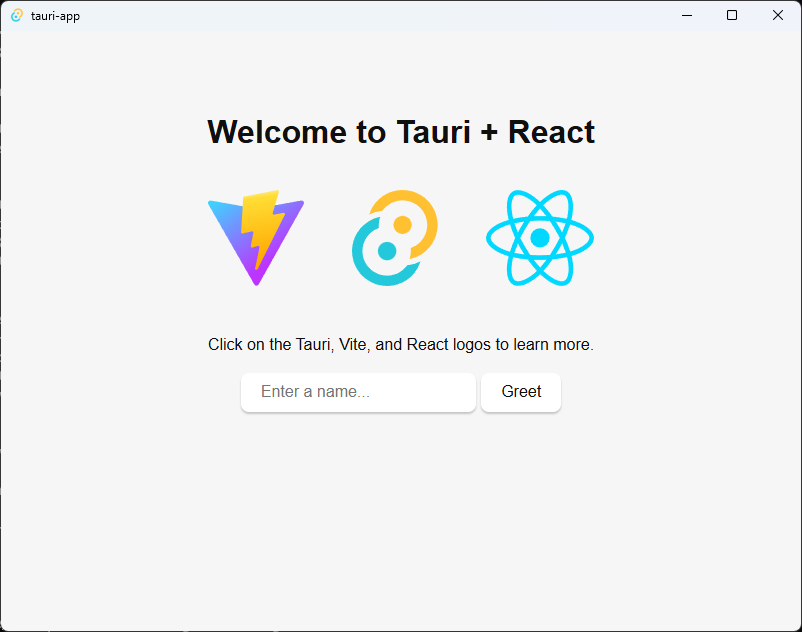
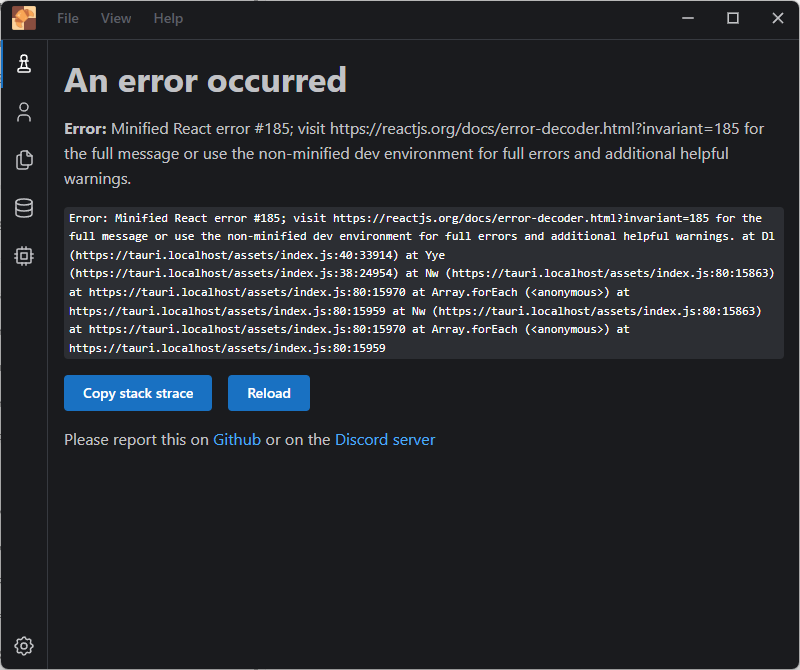
Welcome to Tauri + React Desktop Window
Installing pnp
I discovered Tauri in the En Croissant chess program. Per the en-croissant readme, it uses pnpm as the package manager. It is easy to enable as described in the pnpm install instructions.
Since v16.13, Node.js is shipping Corepack for managing package managers. This is an experimental feature, so you need to enable it by running: corepack enable pnpm
$ corepack enable pnpm

$ which pnpm
/c/Program Files/nodejs/pnpm
Building en-croissant
This was easy (compared to some of the other C++ codebases I have been looking at recently). The commands just ran successfully. It’s somewhat unsettling seeing how many packages are downloaded in these npm projects though.
$ pnpm build

> en-croissant@0.11.1 build C:\repos\en-croissant
> tauri build --no-bundle

    Running beforeBuildCommand `pnpm build-vite`

> en-croissant@0.11.1 build-vite C:\repos\en-croissant
> tsc --noEmit && vite build


♻️  Generating routes...
✅ Processed routes in 167ms
vite v5.4.8 building for production...

♻️  Regenerating routes...
✅ Processed routes in 21ms
✓ 8330 modules transformed.
warnings when minifying css:
▲ [WARNING] Transforming this CSS nesting syntax is not supported in the configured target environment ("chrome87", "edge88", "es2020", "firefox78", "safari14") [unsupported-css-nesting]

    <stdin>:9086:37:
      9086 │   [data-mantine-color-scheme="dark"] & {
           ╵                                      ^

  The nesting transform for this case must generate an ":is(...)" but the configured target environment does not support the ":is" pseudo-class.
...
warning: field `eco` is never read
  --> src\opening.rs:13:5
   |
12 | struct Opening {
   |        ------- field in this struct
13 |     eco: String,
   |     ^^^
   |
   = note: `Opening` has derived impls for the traits `Clone` and `Debug`, but these are intentionally ignored during dead code analysis

warning: `en-croissant` (bin "en-croissant") generated 8 warnings (run `cargo fix --bin "en-croissant"` to apply 4 suggestions)
    Finished `release` profile [optimized] target(s) in 3m 16s
    Built application at: C:\repos\en-croissant\src-tauri\target\release\en-croissant.exe
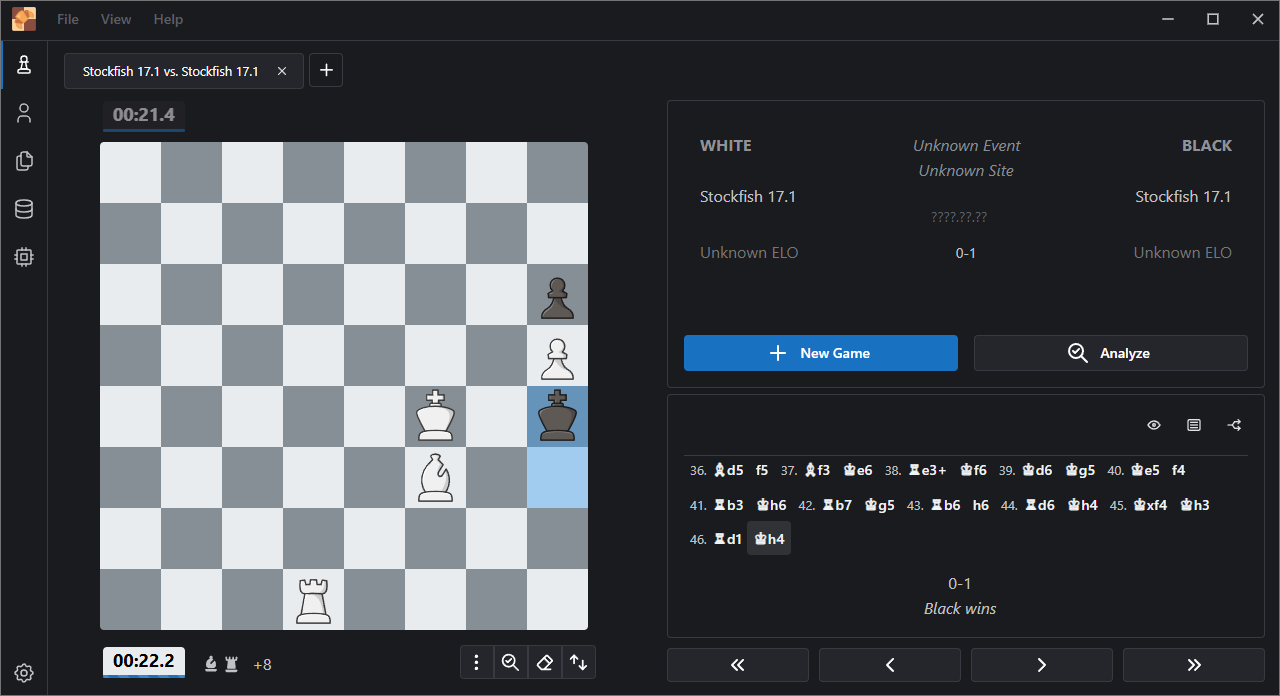
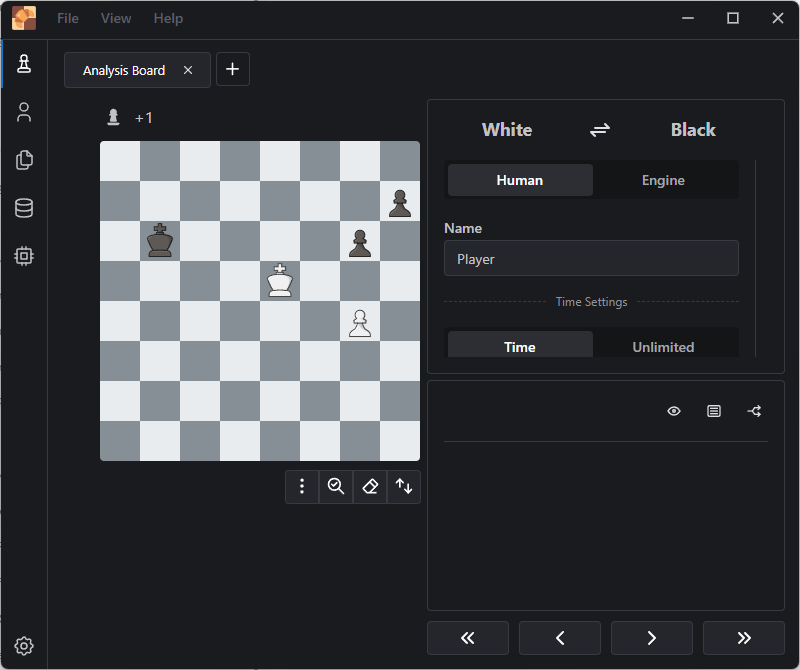
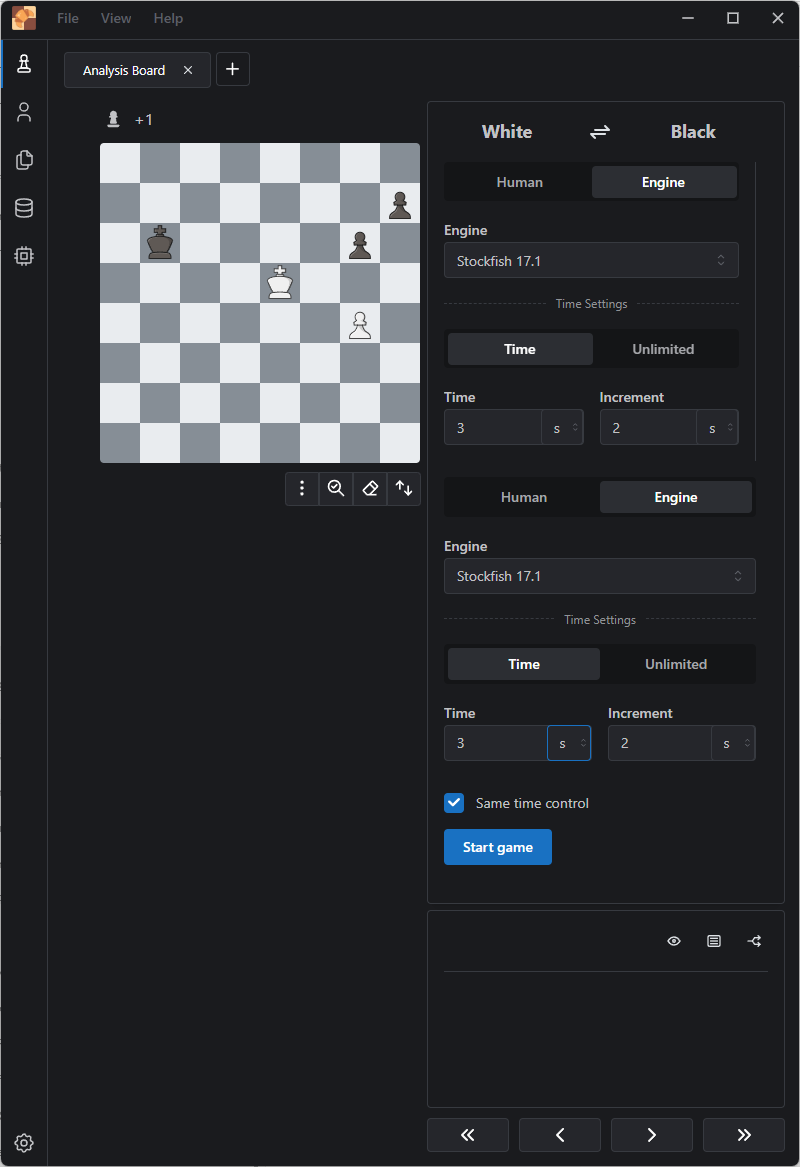
I like that the output of this entire process is a single executable. Here it is in action after I loaded this FEN: 1r5k/2q2p1p/p2p3B/5PQ1/n1p5/2b4P/PrB3P1/2R1R1K1 w - - 0 0. Something odd is happening here (with the claim that “Black Wins”).
The previous post covered Building libffi for Windows x64 with Visual C++. In this post, I detail the instructions needed to build for the ARM64 platform (building the zero variant of the HotSpot JVM for the Windows ARM64 platform was my overall objective). I used the same Windows x64 machine for this build. As in the previous post, Visual C++ and MSYS are prerequisites. Get the sources from GitHub:
cd /c/repos
git clone https://github.com/libffi/libffi.git
cd libffi
git checkout v3.4.8
MSYS Prerequisites
Launch MSYS2 and install automake and libtool using these commands:
pacman -S automake
pacman -S libtool
The Visual C++ compiler needs to be available in the path as well. Run cl without any parameters to ensure the compiler is available. If it is available, it must be the ARM64 compiler to ensure we cross-compile! It most likely won’t be by default. If it isn’t, add it to the path as follows:
With the MSYS prerequisites installed, run the autogen.sh script:
user@machine /d/repos/libffi
$ ./autogen.sh
This creates a configure script in the root of the repository. Run it using bash. This command is the main difference between ARM64 and x86_64. Notice that I need to specify various include paths for the ARM64 compiler and linker that were not required in the x86_64 case.
Run make in the root of the repo. The generated LIB and DLL files should be in the aarch64-w64-mingw32/.libs/ subdirectory of the repo root. There will also be ffi.h and ffitarget.h include files in the aarch64-w64-mingw32/include/ subdirectory of the repo root. These 4 files are typically what will be required by other projects with a libffi dependency (like OpenJDK).
$ ls -1 aarch64-w64-mingw32/.libs/
libffi.la
libffi.lai
libffi_convenience.la
libffi_convenience.lib
libffi-8.dll*
libffi-8.exp
libffi-8.lib

$ ls -1 aarch64-w64-mingw32/include/
ffi.h
ffitarget.h
Makefile
Background Investigation Details
Investigating Configure Errors
My initial attempt at building libffi for Windows ARM64 started on the wrong path, based on this quote from libffi/libffi at v3.4.8.
To build static library for ARM64 with MSVC using visual studio solution, msvc_build folder have aarch64/Ffi_staticLib.sln required header files in aarch64/aarch64_include/
I thought this meant that it would be much faster for me to build libffi since I wouldn’t need all these bash configure stuff. The solution informed me that I needed to upgrade the toolset:
I then changed the architecture (in the Configuration Manager dropdown on the standard VS toolbox) from x64 to ARM64. There are a bunch of compiler errors!
1>D:\repos\libffi\src\closures.c(1015,30): error C2039: 'ftramp': is not a member of 'ffi_closure'
1>    D:\repos\libffi\msvc_build\aarch64\aarch64_include\ffi.h(306,16):
1>    see declaration of 'ffi_closure'
...
1>D:\repos\libffi\src\prep_cif.c(248,16): error C2065: 'FFI_BAD_ARGTYPE': undeclared identifier
How could a needed field be missing??!! I tried replacing ffi.h with the one from the x64 build but it was clearly wrong because it had architecture-specific code like this:
/* Specify which architecture libffi is configured for. */
#ifndef X86_WIN64
#define X86_WIN64
#endif
I then checked out the commit that added support for Windows AArch64.
I then tried to configure OpenJDK using this command but the configure script failed!
date; time bash configure --with-jvm-variants=zero --with-libffi=/cygdrive/c/repos/libffi --openjdk-target=aarch64-unknown-cygwin --with-debug-level=slowdebug --with-jtreg=/cygdrive/c/java/binaries/jtreg/jtreg-7.5.1+1 --with-gtest=/cygdrive/c/repos/googletest --with-extra-ldflags=-profile --with-boot-jdk=/cygdrive/c/java/binaries/jdk/x64/jdk-24+36; time /cygdrive/c/repos/scratchpad/scripts/java/cygwin/build-jdk.sh windows aarch64 slowdebug
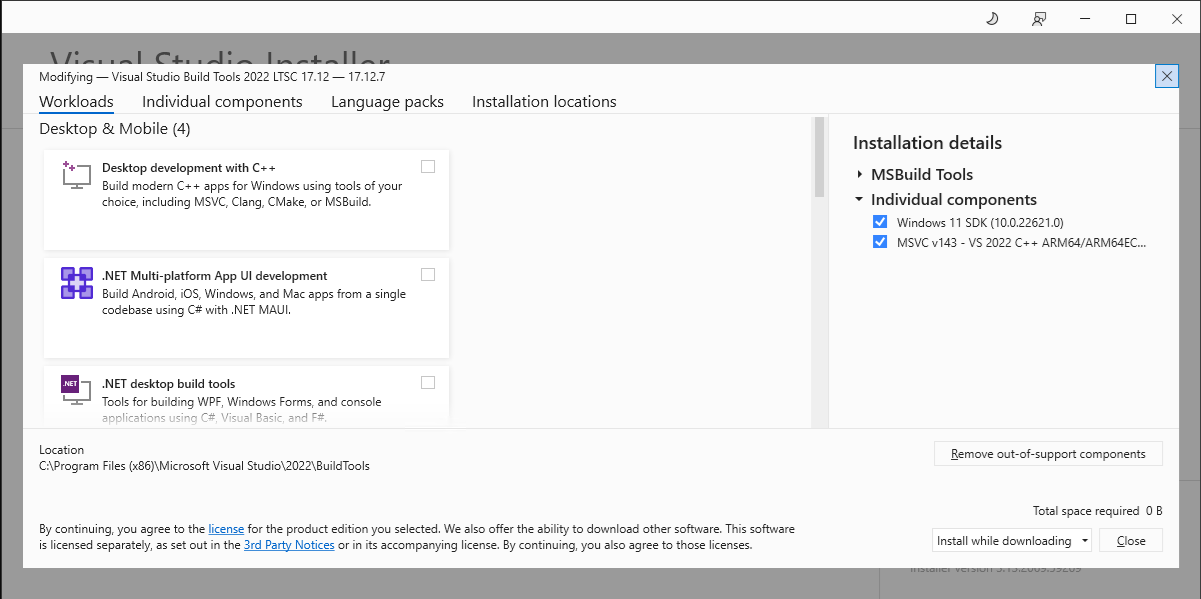
At this point, I had the build tools installed with the C++ compiler in C:\progra~2\micros~3\2022\buildt~1\vc\tools\msvc\1443~1.348\bin\hostx64\arm64\cl.exe. I opened the VS Installer and installed the ARM64 compiler tools. This was necessary because this script was not present on my machine:
Running vcvarsamd64_arm64.bat initialized the environment for ‘x64_arm64’ (cross-compilation targeting ARM64). I then ran dumpbin to see which symbols were in the .lib file VS generated.
cd /d C:\repos\libffi
dumpbin /all /out:ffi-arm64.txt libffi.lib

cd /d D:\repos\libffi
dumpbin /all /out:ffi-x64.txt libffi.lib
The symbols were very different, which was my sign that I just needed to try building for ARM64 in MSYS2. I also upgraded VS some of the paths use 14.44 and others were 14.43. I started MSYS2 then added the arm64 compiler to the PATH. I tried the long path again but only the 8.3 filename format path worked.
export PATH="/c/Program\ Files/Microsoft\ Visual\ Studio/2022/Enterprise/VC/Tools/MSVC/14.44.35207/bin/Hostx64/arm64/:$PATH"

export PATH="$PATH:/c/Program\ Files/Microsoft\ Visual\ Studio/2022/Enterprise/VC/Tools/MSVC/14.44.35207/bin/Hostx64/arm64/"

# Only this one works.
$ export PATH="$PATH:/c/Progra~1/MIB055~1/2022/Enterprise/VC/Tools/MSVC/14.44.35207/bin/Hostx64/arm64/"

$ where cl.exe
I then switched the repo back to v3.4.8 and ran autogen.sh. This time I specified the –target option to request a aarch64 build. See Specifying Target Triplets (Autoconf) for an overview of the target triplets.
I asked Copilot Which autoconf macro outputs “checking whether the C compiler works” and it said that’s the AC_PROG_CC macro. That string showed up in 3 spots in the codebase but they weren’t what I was looking for. The “checking for C compiler version” was in the generated configure script though.
# Provide some information about the compiler.
printf "%s\n" "$as_me:${as_lineno-$LINENO}: checking for C compiler version" >&5
set X $ac_compile
ac_compiler=$2
for ac_option in --version -v -V -qversion -version; do
  { { ac_try="$ac_compiler $ac_option >&5"
case "(($ac_try" in
  *\"* | *\`* | *\\*) ac_try_echo=\$ac_try;;
  *) ac_try_echo=$ac_try;;
esac
This explained where those odd arguments in the config.log snippet were coming from. The question was now how this was different from the x64 case where it just worked? The diff showed that I was actually still on 3.3-rc0 so I needed to rerun autogen.sh on v3.4.8. I didn’t think I needed the --target option since the correct compiler was selected (as far as I could tell from the --verbose output above).
The configure files were identical in both scenarios. However, there was a key difference in the config logs! Here is a snippet from the working x64 build’s config.log. Notice that the version detection errors were present in this case too (that was a red herring)!
configure:4679: /d/repos/libffi/msvcc.sh -m64 -version >&5
cl : Command line warning D9002 : ignoring unknown option '-version'
cl : Command line error D8003 : missing source filename
configure:4690: $? = 0
configure:4710: checking whether the C compiler works
configure:4732: /d/repos/libffi/msvcc.sh -m64  -DFFI_BUILDING_DLL  conftest.c  >&5
configure:4736: $? = 0
configure:4787: result: yes
configure:4679: /c/repos/libffi/msvcc.sh -marm64 -version >&5
cl : Command line warning D9002 : ignoring unknown option '-version'
cl : Command line error D8003 : missing source filename
configure:4690: $? = 0
configure:4710: checking whether the C compiler works
configure:4732: /c/repos/libffi/msvcc.sh -marm64  -DFFI_BUILDING_DLL  conftest.c  >&5
LINK : fatal error LNK1104: cannot open file 'MSVCRT.lib'
configure:4736: $? = 0
configure:4777: result: no
The linker error was really what I needed to address here. I created this conftest.c file to address the command line compilation issue:
int main (void)
{
  return 0;
}
$ cl -MD -W3 conftest.c
Microsoft (R) C/C++ Optimizing Compiler Version 19.44.35207.1 for ARM64
Copyright (C) Microsoft Corporation.  All rights reserved.

conftest.c
Microsoft (R) Incremental Linker Version 14.44.35207.1
Copyright (C) Microsoft Corporation.  All rights reserved.

/out:conftest.exe
conftest.obj
LINK : fatal error LNK1104: cannot open file 'MSVCRT.lib'
How does OpenJDK get around this? Interestingly, this was when I noticed that the OpenJDK log also had all the version checking errors (-v -V –version, etc). This is the snippet from OpenJDK’s config.log (notice the -libpaths):
configure:105502: checking whether the C compiler works
configure:105524: /cygdrive/d/java/forks/TheShermanTanker/jdk/build/windows-aarch64-zero-slowdebug/fixpath exec /cygdrive/c/progra~1/mib055~1/2022/enterp~1/vc/tools/msvc/1443~1.348/bin/hostx64/arm64/cl.exe   -I/cygdrive/c/progra~1/mib055~1/2022/enterp~1/vc/tools/msvc/1443~1.348/include -I/cygdrive/c/progra~1/mib055~1/2022/enterp~1/vc/tools/msvc/1443~1.348/atlmfc/include -I/cygdrive/c/progra~1/mib055~1/2022/enterp~1/vc/auxili~1/vs/include -I/cygdrive/c/progra~2/wi3cf2~1/10/include/100226~1.0/ucrt -I/cygdrive/c/progra~2/wi3cf2~1/10/include/100226~1.0/um -I/cygdrive/c/progra~2/wi3cf2~1/10/include/100226~1.0/shared -I/cygdrive/c/progra~2/wi3cf2~1/10/include/100226~1.0/winrt -I/cygdrive/c/progra~2/wi3cf2~1/10/include/100226~1.0/cppwinrt -I/cygdrive/c/progra~2/wi3cf2~1/netfxsdk/4.8/include/um   -I/cygdrive/c/progra~1/mib055~1/2022/enterp~1/vc/tools/msvc/1443~1.348/include -I/cygdrive/c/progra~1/mib055~1/2022/enterp~1/vc/tools/msvc/1443~1.348/atlmfc/include -I/cygdrive/c/progra~1/mib055~1/2022/enterp~1/vc/auxili~1/vs/include -I/cygdrive/c/progra~2/wi3cf2~1/10/include/100226~1.0/ucrt -I/cygdrive/c/progra~2/wi3cf2~1/10/include/100226~1.0/um -I/cygdrive/c/progra~2/wi3cf2~1/10/include/100226~1.0/shared -I/cygdrive/c/progra~2/wi3cf2~1/10/include/100226~1.0/winrt -I/cygdrive/c/progra~2/wi3cf2~1/10/include/100226~1.0/cppwinrt -I/cygdrive/c/progra~2/wi3cf2~1/netfxsdk/4.8/include/um  conftest.c  -link   -libpath:/cygdrive/c/progra~1/mib055~1/2022/enterp~1/vc/tools/msvc/1443~1.348/lib/arm64 -libpath:/cygdrive/c/progra~2/wi3cf2~1/10/lib/100226~1.0/ucrt/arm64 -libpath:/cygdrive/c/progra~2/wi3cf2~1/10/lib/100226~1.0/um/arm64 -profile >&5
Microsoft (R) C/C++ Optimizing Compiler Version 19.43.34810 for ARM64
Copyright (C) Microsoft Corporation.  All rights reserved.

conftest.c
Microsoft (R) Incremental Linker Version 14.43.34810.0
Copyright (C) Microsoft Corporation.  All rights reserved.

/out:conftest.exe
-libpath:c:\progra~1\mib055~1\2022\enterp~1\vc\tools\msvc\1443~1.348\lib\arm64
-libpath:c:\progra~2\wi3cf2~1\10\lib\100226~1.0\ucrt\arm64
-libpath:c:\progra~2\wi3cf2~1\10\lib\100226~1.0\um\arm64
-profile
conftest.obj
configure:105528: $? = 0
configure:105579: result: yes
Searching that codebase for libpath led to the location where the -libpath arguments are built in jdk/make/autoconf/toolchain_microsoft.m4. I should do the same thing and set the LDFLAGS.
$ cl -MD -W3 conftest.c -link -libpath:/c/Progra~1/MIB055~1/2022/Enterprise/VC/Tools/MSVC/14.44.35207/lib/arm64 -libpath:/c/progra~2/wi3cf2~1/10/lib/100226~1.0/ucrt/arm64 -libpath:/c/progra~2/wi3cf2~1/10/lib/100226~1.0/um/arm64
Microsoft (R) C/C++ Optimizing Compiler Version 19.44.35207.1 for ARM64
Copyright (C) Microsoft Corporation.  All rights reserved.

conftest.c
Microsoft (R) Incremental Linker Version 14.44.35207.1
Copyright (C) Microsoft Corporation.  All rights reserved.

/out:conftest.exe
-libpath:C:/Progra~1/MIB055~1/2022/Enterprise/VC/Tools/MSVC/14.44.35207/lib/arm64
-libpath:C:/progra~2/wi3cf2~1/10/lib/100226~1.0/ucrt/arm64
-libpath:C:/progra~2/wi3cf2~1/10/lib/100226~1.0/um/arm64
conftest.obj
That succeeded so I tried to set the LDFLAGS for libffi.
Looks like the other paths are being dropped by the script. Further inspection of the script reveals that it has a -L option for these libraries. I tried the -link option but something wasn’t working so I moved on to -L. These are the libraries I needed:
With the above command, the next issue was around cross compiling:
configure: loading site script /etc/config.site
checking build system type... x86_64-w64-mingw32
checking host system type... x86_64-w64-mingw32
checking target system type... x86_64-w64-mingw32
continue configure in default builddir "./x86_64-w64-mingw32"
....exec /bin/sh ../configure "--srcdir=.." "--enable-builddir=x86_64-w64-mingw32" "mingw32"
configure: loading site script /etc/config.site
checking build system type... x86_64-w64-mingw32
checking host system type... x86_64-w64-mingw32
checking target system type... x86_64-w64-mingw32
checking for gsed... sed
checking for a BSD-compatible install... /usr/bin/install -c
checking whether sleep supports fractional seconds... yes
checking filesystem timestamp resolution... 0.01
checking whether build environment is sane... yes
checking for a race-free mkdir -p... /usr/bin/mkdir -p
checking for gawk... gawk
checking whether make sets $(MAKE)... yes
checking whether make supports nested variables... yes
checking xargs -n works... yes
checking for gcc... /c/repos/libffi/msvcc.sh -marm64 -L /c/Progra~1/MIB055~1/2022/Enterprise/VC/Tools/MSVC/14.44.35207/lib/arm64 -L /c/progra~2/wi3cf2~1/10/lib/100226~1.0/ucrt/arm64 -L /c/progra~2/wi3cf2~1/10/lib/100226~1.0/um/arm64
checking whether the C compiler works... yes
checking for C compiler default output file name... conftest.exe
checking for suffix of executables... .exe
checking whether we are cross compiling... configure: error: in '/c/repos/libffi/x86_64-w64-mingw32':
configure: error: cannot run C compiled programs.
If you meant to cross compile, use '--host'.
See 'config.log' for more details
At least this error message let me know what I needed to do to.
Next error after that change in the checking how to run the C++ preprocessor step, specifically error: C++ preprocessor "cl -nologo -EP" fails sanity check.
configure:14431: checking how to run the C++ preprocessor
configure:14498: result: cl -nologo -EP
configure:14512: cl -nologo -EP -DFFI_BUILDING_DLL conftest.cpp
conftest.cpp
conftest.cpp(12): fatal error C1034: limits.h: no include path set
configure:14512: $? = 2
configure: failed program was:
| /* confdefs.h */
| #define PACKAGE_NAME "libffi"
| #define PACKAGE_TARNAME "libffi"
| #define PACKAGE_VERSION "3.4.8"
| #define PACKAGE_STRING "libffi 3.4.8"
| #define PACKAGE_BUGREPORT "http://github.com/libffi/libffi/issues"
| #define PACKAGE_URL ""
| #define PACKAGE "libffi"
| #define VERSION "3.4.8"
| #define LT_OBJDIR ".libs/"
| /* end confdefs.h.  */
| #include <limits.h>
| 		     Syntax error
configure:14512: cl -nologo -EP -DFFI_BUILDING_DLL conftest.cpp
conftest.cpp
conftest.cpp(12): fatal error C1034: limits.h: no include path set
configure:14512: $? = 2
configure: failed program was:
| /* confdefs.h */
| #define PACKAGE_NAME "libffi"
| #define PACKAGE_TARNAME "libffi"
| #define PACKAGE_VERSION "3.4.8"
| #define PACKAGE_STRING "libffi 3.4.8"
| #define PACKAGE_BUGREPORT "http://github.com/libffi/libffi/issues"
| #define PACKAGE_URL ""
| #define PACKAGE "libffi"
| #define VERSION "3.4.8"
| #define LT_OBJDIR ".libs/"
| /* end confdefs.h.  */
| #include <limits.h>
| 		     Syntax error
configure:14547: error: in '/c/repos/libffi/aarch64-w64-mingw32':
configure:14549: error: C++ preprocessor "cl -nologo -EP" fails sanity check
See 'config.log' for more details
The configure script now completed! I had a feeling I would need to keep adding paths like this during the build process.
...
checking size of long double... 0
checking whether byte ordering is bigendian... no
checking assembler .cfi pseudo-op support... no
checking whether compiler supports pointer authentication... no
checking for _ prefix in compiled symbols... no
configure: versioning on shared library symbols is no
checking that generated files are newer than configure... done
configure: creating ./config.status
config.status: creating include/Makefile
config.status: creating include/ffi.h
config.status: creating Makefile
config.status: creating testsuite/Makefile
config.status: creating man/Makefile
config.status: creating doc/Makefile
config.status: creating libffi.pc
config.status: creating fficonfig.h
config.status: executing buildir commands
config.status: create top_srcdir/Makefile guessed from local Makefile
config.status: build in aarch64-w64-mingw32 (HOST=)
config.status: executing depfiles commands
config.status: executing libtool commands
config.status: executing include commands
config.status: executing src commands

real    1m29.429s
user    0m32.473s
sys     0m35.396s
Investigating Build Errors
Just as I suspected, there were build errors when I ran make. Specifically, 8 of these C1083 errors:
libtool: compile:  /c/repos/libffi/msvcc.sh -marm64 -I "/c/Progra~1/MIB055~1/2022/Enterprise/VC/Tools/MSVC/14.44.35207/include" -L "/c/Progra~1/MIB055~1/2022/Enterprise/VC/Tools/MSVC/14.44.35207/lib/arm64" -L "/c/progra~2/wi3cf2~1/10/lib/100226~1.0/ucrt/arm64" -L "/c/progra~2/wi3cf2~1/10/lib/100226~1.0/um/arm64" -DHAVE_CONFIG_H -I. -I.. -I. -I../include -Iinclude -I../src -DFFI_BUILDING_DLL -O2 -c ../src/prep_cif.c  -DDLL_EXPORT -DPIC -o src/.libs/prep_cif.obj
C:/repos/libffi/include\ffi.h(66): fatal error C1083: Cannot open include file: 'stddef.h': No such file or directory
That file lives in C:\Program Files (x86)\Windows Kits\10\Include\10.0.22621.0\ucrt. The OpenJDK build includes these 5 paths (among many others) but I didn’t think I’d need the RT-related paths. I added the other 3 to the configure command then ran make again.
This search for commits did not yield anything but a web search of ksarm64.h – Search led me to the [Arm64/Windows] Missing ksarm64.h ? · Issue #7409 · dotnet/runtime GitHub issue, which said that ksarm64.h is part of the Windows SDK. ksarm64.h isn’t include in Windows SDK – Developer Community was the pointer about where it lives: c/progra~2/wi3cf2~1/10/include/100226~1.0/shared. I had excluded this path because I wanted a minimal set of include paths. This was the next command I tried. I should have exported these paths to an environment variable like I have at the top but I just kept moving forward.
libffi/msvcc.sh at v3.4.8 · libffi/libffi uses cygpath -ma, which outputs mixed absolute paths (windows form with forward slashes). Here is the corrected configure command (without the /cygdrive path prefixes):
This resolved the error about the spaces but then failed with:
Microsoft (R) Library Manager Version 14.44.35207.1
Copyright (C) Microsoft Corporation.  All rights reserved.

LINK : fatal error LNK1181: cannot open input file 'src\.libs\prep_cif.obj'
Here’s the next iteration of the configure script:
...
libtool: compile:  /c/repos/libffi/msvcc.sh -marm64 -I "/c/Progra~1/MIB055~1/2022/Enterprise/VC/Tools/MSVC/14.44.35207/include" -I "/c/progra~2/wi3cf2~1/10/include/100226~1.0/ucrt" -I "/c/progra~2/wi3cf2~1/10/include/100226~1.0/um" -I "/c/progra~2/wi3cf2~1/10/include/100226~1.0/shared" "-L/c/Progra~1/MIB055~1/2022/Enterprise/VC/Tools/MSVC/14.44.35207/lib/arm64" "-L/c/progra~2/wi3cf2~1/10/lib/100226~1.0/ucrt/arm64" "-L/c/progra~2/wi3cf2~1/10/lib/100226~1.0/um/arm64" -DHAVE_CONFIG_H -I. -I.. -I. -I../include -Iinclude -I../src -O2 -c ../src/prep_cif.c  -DDLL_EXPORT -DPIC -o src/.libs/prep_cif.obj
D:/repos/dups/libffi/src/prep_cif.c(219): warning C4273: 'ffi_prep_cif': inconsistent dll linkage
D:/repos/dups/libffi/src/prep_cif.c(225): warning C4273: 'ffi_prep_cif_var': inconsistent dll linkage
D:/repos/dups/libffi/src/prep_cif.c(257): warning C4273: 'ffi_prep_closure': inconsistent dll linkage
D:/repos/dups/libffi/src/prep_cif.c(268): warning C4273: 'ffi_get_struct_offsets': inconsistent dll linkage
...
libtool: compile:  /c/repos/libffi/msvcc.sh -marm64 -I "/c/Progra~1/MIB055~1/2022/Enterprise/VC/Tools/MSVC/14.44.35207/include" -I "/c/progra~2/wi3cf2~1/10/include/100226~1.0/ucrt" -I "/c/progra~2/wi3cf2~1/10/include/100226~1.0/um" -I "/c/progra~2/wi3cf2~1/10/include/100226~1.0/shared" "-L/c/Progra~1/MIB055~1/2022/Enterprise/VC/Tools/MSVC/14.44.35207/lib/arm64" "-L/c/progra~2/wi3cf2~1/10/lib/100226~1.0/ucrt/arm64" "-L/c/progra~2/wi3cf2~1/10/lib/100226~1.0/um/arm64" -DHAVE_CONFIG_H -I. -I.. -I. -I../include -Iinclude -I../src -O2 -c ../src/types.c  -DDLL_EXPORT -DPIC -o src/.libs/types.obj
D:/repos/dups/libffi/src/types.c(77): error C2491: 'ffi_type_void': definition of dllimport data not allowed
D:/repos/dups/libffi/src/types.c(81): error C2491: 'ffi_type_uint8': definition of dllimport data not allowed
D:/repos/dups/libffi/src/types.c(82): error C2491: 'ffi_type_sint8': definition of dllimport data not allowed
D:/repos/dups/libffi/src/types.c(83): error C2491: 'ffi_type_uint16': definition of dllimport data not allowed
D:/repos/dups/libffi/src/types.c(84): error C2491: 'ffi_type_sint16': definition of dllimport data not allowed
D:/repos/dups/libffi/src/types.c(85): error C2491: 'ffi_type_uint32': definition of dllimport data not allowed
D:/repos/dups/libffi/src/types.c(86): error C2491: 'ffi_type_sint32': definition of dllimport data not allowed
D:/repos/dups/libffi/src/types.c(87): error C2491: 'ffi_type_uint64': definition of dllimport data not allowed
D:/repos/dups/libffi/src/types.c(88): error C2491: 'ffi_type_sint64': definition of dllimport data not allowed
D:/repos/dups/libffi/src/types.c(90): error C2491: 'ffi_type_pointer': definition of dllimport data not allowed
D:/repos/dups/libffi/src/types.c(92): error C2491: 'ffi_type_float': definition of dllimport data not allowed
D:/repos/dups/libffi/src/types.c(93): error C2491: 'ffi_type_double': definition of dllimport data not allowed
D:/repos/dups/libffi/src/types.c(111): error C2491: 'ffi_type_longdouble': definition of dllimport data not allowed
This seemed pretty odd, considering these errors didn’t show up for x64. I didn’t see any defines related to DLLs. Upon further inspection, I realized that I had removed the CPPFLAGS variable somewhere along the way! Restoring it finally got the job done! No make errors at all, phew!
I needed to build the zero variant of the HotSpot JVM for the Windows platform recently. libffi is one of the prerequisites for the zero variant. It provides “a portable, high level programming interface to various calling conventions.” I decided to build libffi/libffi at v3.4.8 since it looks like the latest version. I used a Windows x64 machine for this entire process. Visual C++ and MSYS need to be installed to do this. Launch MSYS2 and get the sources from GitHub:
Install automake and libtool using these commands:
pacman -S automake
pacman -S libtool
The Visual C++ compiler needs to be available in the path as well. Run cl without any parameters to ensure the compiler is available. It most likely won’t be by default. If it isn’t, add it to the path as follows:
Note that the name of the Visual C++ linker is link.exe, which clashes with the built in “link” command. Prepending the C++ compiler path means that the built-in link command will not be available. Appending the C++ compiler path means that the linker cannot be invoked without specifying its full path.
Generating the configure file
With the MSYS prerequisites installed, run the autogen.sh script:
user@machine /d/repos/libffi
$ ./autogen.sh
This creates a configure script in the root of the repository. Run it using bash:
Running configure takes about a minute and a half on my 24-core (32 logical processor) machine with 128GB RAM.
Building the Source Code
Simply run make in the root of the repo. The generated LIB and DLL files should be in the x86_64-w64-mingw32/.libs/ subdirectory of the repo root. There will also be ffi.h and ffitarget.h include files in the x86_64-w64-mingw32/include/ subdirectory of the repo root. These 4 files are typically what will be required by other projects with a libffi dependency (like OpenJDK).
$ ls -1 x86_64-w64-mingw32/.libs/
libffi.la
libffi.lai
libffi_convenience.la
libffi_convenience.lib
libffi-8.dll*
libffi-8.exp
libffi-8.lib
$ ls -1 x86_64-w64-mingw32/include/
ffi.h
ffitarget.h
Makefile
My Motivation for Building libffi
I was trying to configure an OpenJDK build (at commit c3de94cee12471) using this command line:
...
checking if hsdis should be bundled... no
checking for --enable-libffi-bundling... disabled, default
checking for LIBFFI... checking for ffi.h... no
configure: error: Could not find libffi!
configure exiting with result code 1
...
checking for --enable-libffi-bundling... disabled, default
checking if libffi works... no
configure: error: Found libffi but could not link and compile with it.
configure exiting with result code 1
This was my hint that I probably need to build libffi first. libffi/README.md at v3.4.8 · libffi/libffi explains that the configure script can be generated by running autogen.sh. I first need to fix the line endings. This copilot prompt “convert all existing files in a repo from windows to unix line endings” gets me the solution:
# Tells Git to convert CRLF to LF on commit
# but not the other way around on checkout.
git config core.autocrlf input
# resets the working directory and re-checks
# out the files using the current core.autocrlf setting
git reset --hard
Now autogen.sh can be executed. I didn’t read the instructions all the way through to see what prerequisites are required. Even so, which ones can I get away without?
user@machine /cygdrive/d/repos/libffi
$ ./autogen.sh
autoreconf-2.71: export WARNINGS=
autoreconf-2.71: Entering directory '.'
autoreconf-2.71: configure.ac: not using Gettext
autoreconf-2.71: running: aclocal -I m4
Can't exec "aclocal": No such file or directory at /usr/share/autoconf2.7/Autom4te/FileUtils.pm line 274.
autoreconf-2.71: error: aclocal failed with exit status: 1
configure: loading site script /etc/config.site
checking build system type... x86_64-w64-mingw32
checking host system type... x86_64-w64-mingw32
checking target system type... x86_64-w64-mingw32
continue configure in default builddir "./x86_64-w64-mingw32"
....exec /bin/sh ../configure "--srcdir=.." "--enable-builddir=x86_64-w64-mingw32" "mingw32"
configure: loading site script /etc/config.site
checking build system type... x86_64-w64-mingw32
checking host system type... x86_64-w64-mingw32
checking target system type... x86_64-w64-mingw32
checking for gsed... sed
checking for a BSD-compatible install... /usr/bin/install -c
checking whether sleep supports fractional seconds... yes
checking filesystem timestamp resolution... 0.01
checking whether build environment is sane... yes
checking for a race-free mkdir -p... /usr/bin/mkdir -p
checking for gawk... gawk
checking whether make sets $(MAKE)... yes
checking whether make supports nested variables... yes
checking xargs -n works... yes
checking for gcc... /d/repos/libffi/msvcc.sh -m64
checking whether the C compiler works... no
configure: error: in '/d/repos/libffi/x86_64-w64-mingw32':
configure: error: C compiler cannot create executables
See 'config.log' for more details
In Cygwin, that command failed with “configure: error: cannot run /bin/sh ./config.sub“. What could be going wrong in the configure script? M365 Copilot prompt: “change build system type in msys2” refers to gcc – Configuration x86_64-pc-msys not supported – Stack Overflow but those flags seem unnecessary given my platform. I tried removing some of the compiler setting flags to no avail:
$ time bash configure CPPFLAGS="-DFFI_BUILDING_DLL" CPP="cl -nologo -EP" CXXCPP="cl -nologo -EP" --disable-docs --prefix=/d/temp/libffi
configure: loading site script /etc/config.site
checking build system type... x86_64-w64-mingw32
checking host system type... x86_64-w64-mingw32
checking target system type... x86_64-w64-mingw32
continue configure in default builddir "./x86_64-w64-mingw32"
....exec /bin/sh ../configure "--srcdir=.." "--enable-builddir=x86_64-w64-mingw32" "mingw32"
configure: loading site script /etc/config.site
checking build system type... x86_64-w64-mingw32
checking host system type... x86_64-w64-mingw32
checking target system type... x86_64-w64-mingw32
checking for gsed... sed
checking for a BSD-compatible install... /usr/bin/install -c
checking whether sleep supports fractional seconds... yes
checking filesystem timestamp resolution... 0.01
checking whether build environment is sane... yes
checking for a race-free mkdir -p... /usr/bin/mkdir -p
checking for gawk... gawk
checking whether make sets $(MAKE)... yes
checking whether make supports nested variables... yes
checking xargs -n works... yes
checking for gcc... no
checking for cc... no
checking for cl.exe... no
checking for clang... no
configure: error: in '/d/repos/libffi/x86_64-w64-mingw32':
configure: error: no acceptable C compiler found in $PATH
See 'config.log' for more details
The config.log file is in the x86_64-w64-mingw32 folder in the repo root. What I should have verified is that I could run cl.exe in MSYS before trying any of this stuff. That was the primary reason for launch ucrt64.exe from a developer command prompt. Unfortunately, that didn’t work for whatever reason.
user@machine UCRT64 /d/repos/libffi
$ cl
-bash: cl: command not found
user@machine UCRT64 /d/repos/libffi
$ echo $PATH
/ucrt64/bin:/usr/local/bin:/usr/bin:/bin:/c/Windows/System32:/c/Windows:/c/Windows/System32/Wbem:/c/Windows/System32/WindowsPowerShell/v1.0/:/usr/bin/site_perl:/usr/bin/vendor_perl:/usr/bin/core_perl
I tried manually fixing the path as follows but this didn’t work (cl.exe could still not be found):
The dir command can show the short name equivalents of a file name, e.g. dir /x C:\Program Files.
dir /x C:\
...
05/24/2025 11:42 AM <DIR> PROGRA~1 Program Files
04/09/2025 01:31 AM <DIR> PROGRA~2 Program Files (x86)
...
dir /x "C:\Program Files"
11/30/2023 04:40 PM <DIR> MIB055~1 Microsoft Visual Studio
Sure enough, I could now find cl.exe and the configure script worked!
$ where cl.exe
C:\Program Files\Microsoft Visual Studio\2022\Enterprise\VC\Tools\MSVC\14.43.34808\bin\Hostx64\x64\cl.exe
$ bash configure \
   CC="/d/repos/libffi/msvcc.sh -m64" \
   CXX="/d/repos/libffi/msvcc.sh -m64" \
   CPPFLAGS="-DFFI_BUILDING_DLL" \
   LD=link CPP="cl -nologo -EP" CXXCPP="cl -nologo -EP" \
   --disable-docs \
   --prefix=/d/temp/libffi
configure: loading site script /etc/config.site
checking build system type... x86_64-w64-mingw32
checking host system type... x86_64-w64-mingw32
checking target system type... x86_64-w64-mingw32
continue configure in default builddir "./x86_64-w64-mingw32"
....exec /bin/sh ../configure "--srcdir=.." "--enable-builddir=x86_64-w64-mingw32" "mingw32"
configure: loading site script /etc/config.site
checking build system type... x86_64-w64-mingw32
checking host system type... x86_64-w64-mingw32
checking target system type... x86_64-w64-mingw32
checking for gsed... sed
checking for a BSD-compatible install... /usr/bin/install -c
checking whether sleep supports fractional seconds... yes
checking filesystem timestamp resolution... 0.01
checking whether build environment is sane... yes
checking for a race-free mkdir -p... /usr/bin/mkdir -p
checking for gawk... gawk
checking whether make sets $(MAKE)... yes
checking whether make supports nested variables... yes
checking xargs -n works... yes
checking for gcc... /d/repos/libffi/msvcc.sh -m64
checking whether the C compiler works... yes
checking for C compiler default output file name... conftest.exe
checking for suffix of executables... .exe
checking whether we are cross compiling... no
checking for suffix of object files... obj
checking whether the compiler supports GNU C... no
checking whether /d/repos/libffi/msvcc.sh -m64 accepts -g... yes
checking for /d/repos/libffi/msvcc.sh -m64 option to enable C11 features... unsupported
checking for /d/repos/libffi/msvcc.sh -m64 option to enable C99 features... unsupported
checking for /d/repos/libffi/msvcc.sh -m64 option to enable C89 features... unsupported
checking whether /d/repos/libffi/msvcc.sh -m64 understands -c and -o together... yes
checking whether make supports the include directive... yes (GNU style)
checking dependency style of /d/repos/libffi/msvcc.sh -m64... none
checking whether the compiler supports GNU C++... no
checking whether /d/repos/libffi/msvcc.sh -m64 accepts -g... yes
checking for /d/repos/libffi/msvcc.sh -m64 option to enable C++11 features... unsupported
checking for /d/repos/libffi/msvcc.sh -m64 option to enable C++98 features... unsupported
checking dependency style of /d/repos/libffi/msvcc.sh -m64... none
checking dependency style of /d/repos/libffi/msvcc.sh -m64... none
checking for grep that handles long lines and -e... /usr/bin/grep
checking for egrep... /usr/bin/grep -E
checking how to print strings... printf
checking for a sed that does not truncate output... /usr/bin/sed
checking for fgrep... /usr/bin/grep -F
checking for non-GNU ld... link
checking if the linker (link) is GNU ld... no
checking for BSD- or MS-compatible name lister (nm)... /usr/bin/nm -B
checking the name lister (/usr/bin/nm -B) interface... BSD nm
checking whether ln -s works... no, using cp -pR
checking the maximum length of command line arguments... 8192
checking how to convert x86_64-w64-mingw32 file names to x86_64-w64-mingw32 format... func_convert_file_msys_to_w32
checking how to convert x86_64-w64-mingw32 file names to toolchain format... func_convert_file_msys_to_w32
checking for link option to reload object files... -r
checking for file... file
checking for objdump... objdump
checking how to recognize dependent libraries... file_magic ^x86 archive import|^x86 DLL
checking for dlltool... dlltool
checking how to associate runtime and link libraries... func_cygming_dll_for_implib
checking for ranlib... ranlib
checking for ar... ar
checking for archiver @FILE support... @
checking for strip... strip
checking command to parse /usr/bin/nm -B output from /d/repos/libffi/msvcc.sh -m64 object... ok
checking for sysroot... no
checking for a working dd... /usr/bin/dd
checking how to truncate binary pipes... /usr/bin/dd bs=4096 count=1
checking for mt... no
checking if : is a manifest tool... no
checking for stdio.h... yes
checking for stdlib.h... yes
checking for string.h... yes
checking for inttypes.h... yes
checking for stdint.h... yes
checking for strings.h... no
checking for sys/stat.h... yes
checking for sys/types.h... yes
checking for unistd.h... no
checking for dlfcn.h... no
checking for objdir... .libs
checking for /d/repos/libffi/msvcc.sh -m64 option to produce PIC... -DDLL_EXPORT -DPIC
checking if /d/repos/libffi/msvcc.sh -m64 PIC flag -DDLL_EXPORT -DPIC works... yes
checking if /d/repos/libffi/msvcc.sh -m64 static flag works... yes
checking if /d/repos/libffi/msvcc.sh -m64 supports -c -o file.obj... yes
checking if /d/repos/libffi/msvcc.sh -m64 supports -c -o file.obj... (cached) yes
checking whether the /d/repos/libffi/msvcc.sh -m64 linker (link) supports shared libraries... yes
checking dynamic linker characteristics... Win32 ld.exe
checking how to hardcode library paths into programs... immediate
checking whether stripping libraries is possible... yes
checking if libtool supports shared libraries... yes
checking whether to build shared libraries... yes
checking whether to build static libraries... yes
checking how to run the C++ preprocessor... cl -nologo -EP
checking whether the /d/repos/libffi/msvcc.sh -m64 linker (link) supports shared libraries... no
checking for /d/repos/libffi/msvcc.sh -m64 option to produce PIC... -DDLL_EXPORT -DPIC
checking if /d/repos/libffi/msvcc.sh -m64 PIC flag -DDLL_EXPORT -DPIC works... yes
checking if /d/repos/libffi/msvcc.sh -m64 static flag works... yes
checking if /d/repos/libffi/msvcc.sh -m64 supports -c -o file.obj... yes
checking if /d/repos/libffi/msvcc.sh -m64 supports -c -o file.obj... (cached) yes
checking whether the /d/repos/libffi/msvcc.sh -m64 linker (link) supports shared libraries... no
checking dynamic linker characteristics... Win32 ld.exe
checking how to hardcode library paths into programs... immediate
checking for readelf... readelf
checking size of size_t... 8
checking for C compiler vendor... microsoft
checking whether C compiler accepts -O2... yes
checking CFLAGS for most reasonable warnings...
checking whether to enable maintainer-specific portions of Makefiles... no
checking for sys/memfd.h... no
checking for memfd_create... no
checking for egrep... (cached) /usr/bin/grep -E
checking for memcpy... no
checking for alloca.h... no
checking size of double... 8
checking size of long double... 8
checking whether byte ordering is bigendian... no
checking assembler .cfi pseudo-op support... no
checking assembler supports pc related relocs... yes
checking whether compiler supports pointer authentication... no
checking for _ prefix in compiled symbols... no
configure: versioning on shared library symbols is no
checking that generated files are newer than configure... done
configure: creating ./config.status
config.status: creating include/Makefile
config.status: creating include/ffi.h
config.status: creating Makefile
config.status: creating testsuite/Makefile
config.status: creating man/Makefile
config.status: creating doc/Makefile
config.status: creating libffi.pc
config.status: creating fficonfig.h
config.status: executing buildir commands
config.status: create top_srcdir/Makefile guessed from local Makefile
config.status: build in x86_64-w64-mingw32 (HOST=)
config.status: executing depfiles commands
config.status: executing libtool commands
config.status: executing include commands
config.status: executing src commands
I could now run make as instructed by the readme. Here is the tail of the resulting output:
I manually copied these files to set up the libffi repo for building OpenJDK (the expected LIB filename does not have the -8 suffix by default). I’m guessing make install or something like that is the proper way to do this but I had what I needed so this was good enough for me.
I tested this file to ensure I could compile it. The linking step failed (cl.exe without the -c option).
$ cl -c -I include ffi_test.c
Microsoft (R) C/C++ Optimizing Compiler Version 19.43.34810 for x64
Copyright (C) Microsoft Corporation.  All rights reserved.

ffi_test.c

$ cl -I include ffi_test.c
Microsoft (R) C/C++ Optimizing Compiler Version 19.43.34810 for x64
Copyright (C) Microsoft Corporation.  All rights reserved.

ffi_test.c
Microsoft (R) Incremental Linker Version 14.43.34810.0
Copyright (C) Microsoft Corporation.  All rights reserved.

/out:ffi_test.exe
ffi_test.obj
ffi_test.obj : error LNK2019: unresolved external symbol __imp_ffi_call referenced in function main
ffi_test.exe : fatal error LNK1120: 1 unresolved externals
I tried manually running link.exe but this failed because the wrong link.exe is called.
$ where link.exe
C:\software\msys64\usr\bin\link.exe
C:\Program Files\Microsoft Visual Studio\2022\Enterprise\VC\Tools\MSVC\14.43.34808\bin\Hostx64\x64\link.exe
Prepending the compiler path to $PATH resolved this.
$ cl -I include ffi_test.c -link -libpath:lib libffi.lib
Microsoft (R) C/C++ Optimizing Compiler Version 19.43.34810 for x64
Copyright (C) Microsoft Corporation.  All rights reserved.

ffi_test.c
Microsoft (R) Incremental Linker Version 14.43.34810.0
Copyright (C) Microsoft Corporation.  All rights reserved.

/out:ffi_test.exe
-libpath:lib
libffi.lib
ffi_test.obj

$ ./ffi_test.exe
At this point, things were in good enough shape to build OpenJDK. However, I could not successfully run bash configure ... in Cygwin (to build OpenJDK) now. Perhaps it’s because I had been mucking around with the Cygwin setup. I tried removing automake and libtool but that didn’t fix the problem.
The “Analysis Board” command looks like the place to enter it. Click on the “Edit Position” button.
En Croissant Analysis Board Window
A FEN section appears with a textbox for your FEN. You can click on the EMPTY button to clear the board.
En Croissant Edit Position Window
I pasted my FEN into the FEN position text box then tabbed out of it and it just reverts to the empty board. Very unintuitive behavior – I accidentally discover that I need to press ENTER in that text box to accept my new position. An error appears about this being an invalid position. It would have been nice to have this validation happen instead of deleting my entry on TAB.
Invalid board
This is the corrected FEN:
KR1r4/n7/k7/8/8/8/8/8 w - - 0 1
This leaves me confident that I get the computer to help me analyze this position.
I select “C:\software\stockfish-windows-x86-64-avx2\stockfish\stockfish-windows-x86-64-avx2.exe” as per the wiki.
Add EngineStockfish 17.1 Engine Added
Now that I’ve set the engine to play, why aren’t the arrows labeled? I actually switched to Arena (see below) before returning with a renewed determination to get this to work. On the “Play from Here” screen, notice that the Engine button now displays Stockfish 17.1. Perhaps it’s the UI that’s confusing, looks like a bunch of controls just dumped into a panel. Switch both controls to Engine and adjust the time as desired. I’m using a 3s limit to keep things moving. Finally, click on “Start Game” and watch the engine battle itself.
Here are a few other FEN positions (from various Facebook posts) to play with:
KR1r4/n7/k/8/8/8/8/8 w - - 0 0

kr6/1r1N4/2Q5/8/8/8/8/K7 w - - 0 0

8/7p/1k4p1/4K3/6P1/8/8/8 w - - 0 0

k7/b7/2K5/4B3/8/8/8/Q7 w - - 0 0
Arena (3.5.1)
I had actually installed Arena before En Croissant but didn’t like that it wasn’t open source. I initially struggled getting the engine to play the game in En Croissant and went back to Arena.
Arena 3.5.1 Setup Wizard
I was pleasantly surprised that I could just load the FEN by going to Position > Load FEN from clipboard then have the computer play by going to Game > Move Now.
However, I didn’t like how long it took to make a move. After some exploration, I found that I could go to Levels > Adjust and change from Tournament mode to Time per move mode. It was ironic that I was using Arena without Stockfish for my analysis but still wanted to document my exploration of En Croissant. Perhaps it was this experience with the time setting in Arena that allowed me to adjust the time settings for the engine in En Croissant and actually see the Stockfish engine in action!
Improvements?
I wonder if I could add this Load FEN from clipboard option to En Croissant since it is open source. Such a command should automatically open the Analysis Board window. As I’m wrapping up this post, I just noticed the error below when I switched back to the En Croissant window.
Minified React Error
Making that UI change could be a good entry for me into the React world.
Cellular networks are a ubiquitous part of modern daily life. The history of cellular technology is definitely worth knowing, even if only at the high level presented in this video on the Evolution of Mobile Standards (1G, 2G, 3G, 4G, and 5G).
Evolution of Mobile Standards [1G, 2G, 3G, 4G, 5G]
2G introduced digital modulation and came in variants like TDMA, CDMA, and GSM. 3G uses spread spectrum in the radio portion of the network whereas 4G uses Orthogonal Frequency Division Mutiplexing (OFDM). 4G also separates the user and control planes whereas they were on the same hardware in 3G (and therefore couldn’t scale independently). The following videos from Sunny Classroom are brief but helpful explanations of these communications concepts.
FHSS – Frequency Hopping Spread Spectrum
DSSS – Direct Sequence Spread Spectrum
OFDM – Orthogonal Frequency Division Multiplexing
5G offers lower end-to-end latency and higher uplink and downlink throughput than 4G because it has more bands (low, mid, and high) vs just low and high with 4G. It is also a programmable network, which lets developers access network stats via APIs.
Mobility
The discussion in the class proceeded to mobility, introducing the concept of cellular handoff, which can broadly be classified into mobile assisted and mobile controlled handover. See Handoff in Wireless Mobile Networks for more details. Another classification of types of handover is based on when the UE disconnects from one cell: hard handoff vs soft handoff. Soft handoff ensures that calls are not dropped. The professor was drawing hexagonal cells when illustrating these and I realized I had no idea why they are hexagonal. Here’s why:
antennas in a coverage area are in a hexagonal pattern… because it requires fewer cells to represent a hexagon compared to triangle or square – meaning network carriers can cover a wider area with less base stations. – The Fundamentals of Cellular System Design
An interesting aspect of the LTE packet core is that a 5G base station can be attached to it. Contrast this mode, known as 5G non-standalone to 5G standalone mode, where a 5G radio is connected to a 5G packet core. See this post on Non-standalone and Standalone: two standards-based paths to 5G for a detailed review of these modes. One advantage of the 5G packet core is that it allows for cloud-based implementations. The Boost Mobile Network, for example, is 100% implemented in the cloud. Is AWS set to flex cloud on telecom? has a discussion of such a transition (to the cloud) in the telecom space.
The antennas used on the base stations can be of multiple types, e.g. SISO and MIMO. MIMO Antennas Explained: An In-Depth Guide provides more details on the differences between these designs. A key benefit of MIMO is that it eliminates performance degradation caused by multipath wave propagation.
We also dug into the LTE and 5G network evolution, from network deployment, to network growth, then finally coverage and capacity optimization. Deployment may involve dual-radio in UEs and EPC capabilities to support interoperability with earlier generations like 2G/3G. 5G is currently in the deployment phase since 5G SA has not yet been fully rolled out. Network growth may involve cell splitting in the RAN for capacity as well as expansion of the core network. Coverage and capacity optimization may involve spectrum aggregation, advanced network topologies, and advanced antenna techniques.
The continued growth in application and device diversity, RAN complexity, and QoS variance is making networks more complex and thus harder to optimize under the current network management paradigm. Self-organizing networks (SON) were designed to address this problem. Here is an overview of SON.
3GPP SON Series: An Introduction to Self-Organizing Networks (SON)
SON is used to set many required configuration parameters when introducing a new eNB or gNB to a network e.g. IP addresses from DHCP, transmit power, beam width, supported connections, connecting to neighboring base stations via the X2 (4G) or XN (5G) connection, etc. SON can also be used for driving energy savings by shutting down carriers when less capacity is required e.g. in the middle of the night (without dropping emergency calls). Another application is coverage and capacity optimization, which involves adjusting transmission power and continuously adjusting antenna tilt to increase capacity (thus decreasing coverage) or to increase coverage (thus decreasing capacity). Mobility handover optimization is also required to avoid too early/too late handover or a ping pong between base stations. The SON architecture can be centralized, distributed, or hybrid.
5G
Finally, we took a look at 5G technology, which has much lower latencies, much higher throughput, and high capacity. Some of the key technologies I learn about include Fixed Wireless Access, in which the UE does not move, and mmWave. More info on the latter is available at What is mmWave and how does it relate to 5G? 5G also supports modified air interfaces (modified OFDM), massive MIMO, device-to-device communication, separated user and control planes, and network virtualization.
An important capability that 5G introduced is positioning, which has many potential use cases e.g. industrial, automotive, and AR/VR. See 5G positioning: What you need to know for more details. In the industrial setting, for example, 5g all in one boxes are deployed in the 5G private networks. They have a base station and a packet core in a single piece of hardware, e.g. RAK All-in-One 5G box (the first one in the search results).
The 5G core network architecture is significantly different from the LTE packet core (eNB, SGW, PGW, MME, HSS, and PCRF). It moved to a service based architecture where microservices expose functionality via APIs. This makes the 5G network programmable and extensible. This 5G System Overview covers the overall 5G architecture. These are a few of the 5G components:
Network Slice Selection Function (NSSF), which allocates slices to users
Authentication Server Function (AUSF)
Policy Control Function (PCF)
Unified Data Management (UDM), which is functionally similar to 3G and 4G’s HSS
Application Function (AF), which can let applications retrieve data like latencies
Summary
This is the final post in the Introduction to Networks series of posts. It has been an extremely enlightening course. I have appreciated how much more extensive it was than I expected from an introductory course as I try to stay on top of the fast moving tech space.
The 8353009: Improve documentation for Windows AArch64 builds PR has a comment stating that “the BuildTools distribution of Visual Studio do not include aarch64-hosted compilers, so to be able to run native builds without the Prism emulation, you need to install the full Visual Studio, including the IDE.” This post describes how I determined this to be false.
Running bash configure --with-boot-jdk=<PATH> failed with the error that it could not find a C compiler:
...
checking for cacerts file... default
checking for cacerts source... default
checking for --enable-unlimited-crypto... enabled, default
checking for jni library path... default
configure: Using default toolchain microsoft (Microsoft Visual Studio)
configure: Found Visual Studio installation at /cygdrive/c/progra~2/micros~2/2022/BuildTools using well-known name
configure: Found Microsoft Visual Studio 2022
configure: Trying to extract Visual Studio environment variables for aarch64
configure: using /cygdrive/c/progra~2/micros~2/2022/BuildTools/vc/auxiliary/build/vcvarsarm64.bat
configure: Setting extracted environment variables for aarch64
checking that Visual Studio variables have been correctly extracted... ok
checking for cl... [not found]
configure: error: Could not find a C compiler.
configure exiting with result code 1
The TOOLCHAIN_FIND_COMPILER macro calls the UTIL_LOOKUP_TOOLCHAIN_PROGS macro to find the C compiler. I verified that the last argument is “cl” with an AC_MSG_NOTICE. At this point, I compared the TOOLCHAIN_PATH in config.log with that on a different ARM64 machine with a full VS install. Sure enough, it didn’t contain the bin/hostarm64/arm64 path with the buildtools setup, even though the path exists on disk. TOOLCHAIN_PATH is coming from VS_PATH in toolchain_microsoft.m4. Here is the build\windows-aarch64-server-slowdebug\configure-support\vs-env-aarch64\set-vs-env.sh file.
Notice that VS_PATH only has what VS_ENV_CMD added to the PATH! This was a clue that I need to take another step back – I realized that I couldn’t even run cl.exe in the developer command prompt! Then again, the command line for the terminal is:
Changing the host architecture to arm64 did not help. I launched the VS installer and noticed that the “Desktop development with C++” workload was not installed so I must have been missing additional components.
Visual Studio Build Tools 2022 LTSC 17.12 Workloads
I didn’t want to install the whole workload though, just the necessary individual components. I noticed the C++ Build Tools core features component wasn’t installed so I selected it. The Windows Universal C Runtime component is automatically selected as well:
Visual Studio Build Tools 2022 LTSC 17.12 Individual Components
Once the installation completed, I could run cl.exe in the developer command prompt!
**********************************************************************
** Visual Studio 2022 Developer Command Prompt v17.12.7
** Copyright (c) 2022 Microsoft Corporation
**********************************************************************

C:\Program Files (x86)\Microsoft Visual Studio\2022\BuildTools>cl
Microsoft (R) C/C++ Optimizing Compiler Version 19.42.34441 for ARM64
Copyright (C) Microsoft Corporation.  All rights reserved.

usage: cl [ option... ] filename... [ /link linkoption... ]

C:\Program Files (x86)\Microsoft Visual Studio\2022\BuildTools>
The VS installer log in %TEMP% contained these components:
Copilot informed me that the caret was the way to split a command across multiple lines in the Windows Command Prompt. This was the final command I used to complete the 8353009: Improve documentation for Windows AArch64 builds PR.