# Download and install nvm:
curl -o- https://raw.githubusercontent.com/nvm-sh/nvm/v0.40.3/install.sh | bash

# in lieu of restarting the shell
\. "$HOME/.nvm/nvm.sh"

# Download and install Node.js:
nvm install 22

# Verify the Node.js version:
node -v # Should print "v22.20.0".

# Verify npm version:
npm -v # Should print "10.9.3".
Installing Node.js on Windows
The post on my Introduction to Tauri required me to install Node.js on my Windows (x64) desktop. Interestingly, the node and npm commands cannot be found now even though "C:\Program Files\nodejs\node" -v outputs v22.16.0. Installing the latest MSI fixes this. Running node -v from any directory outputs v22.20.0.
npm warn deprecated npmlog@2.0.4: This package is no longer supported.
npm warn deprecated gauge@1.2.7: This package is no longer supported.
npm warn deprecated are-we-there-yet@1.1.7: This package is no longer supported.
npm warn deprecated boolean@3.2.0: Package no longer supported. Contact Support at https://www.npmjs.com/support for more info.

added 941 packages in 24s

151 packages are looking for funding
  run `npm fund` for details
npm notice
npm notice New major version of npm available! 10.9.3 -> 11.6.2
npm notice Changelog: https://github.com/npm/cli/releases/tag/v11.6.2
npm notice To update run: npm install -g npm@11.6.2
npm notice
I then updated npm before proceeding:
npm install -g npm@11.6.2

added 1 package in 4s

28 packages are looking for funding
  run `npm fund` for details
Creating my First VS Code Extension
The initial idea I had was for an extension to create a named branch and create a file in a specific subdirectory of the repo. I usually need to do this in OpenJDK development, so it seemed like a good idea for a time saving extension. Naming is hard though, so I went with the name “createfileinbranch” for my extension.
C:\repos\createfileinbranch>yo code

     _-----_     ╭──────────────────────────╮
    |       |    │   Welcome to the Visual  │
    |--(o)--|    │   Studio Code Extension  │
   `---------´   │        generator!        │
    ( _´U`_ )    ╰──────────────────────────╯
    /___A___\   /
     |  ~  |
   __'.___.'__
 ´   `  |° ´ Y `

? What type of extension do you want to create? (Use arrow keys)
> New Extension (TypeScript)
  New Extension (JavaScript)
  New Color Theme
  New Language Support
  New Code Snippets
  New Keymap
  New Extension Pack
  New Language Pack (Localization)
  New Web Extension (TypeScript)
  New Notebook Renderer (TypeScript)
? What type of extension do you want to create? New Extension (TypeScript)
? What's the name of your extension? fileforbranch
? What's the identifier of your extension? fileforbranch
? What's the description of your extension? Create a file from a template in a given branch
? Initialize a git repository? Yes
? Which bundler to use? (Use arrow keys)
> unbundled
  webpack
  esbuild
The package manager choices were npm, yarn, or pnpm. I selected npm.
C:\repos\createfileinbranch>yo code

     _-----_     ╭──────────────────────────╮
    |       |    │   Welcome to the Visual  │
    |--(o)--|    │   Studio Code Extension  │
   `---------´   │        generator!        │
    ( _´U`_ )    ╰──────────────────────────╯
    /___A___\   /
     |  ~  |
   __'.___.'__
 ´   `  |° ´ Y `

? What type of extension do you want to create? New Extension (TypeScript)
? What's the name of your extension? fileforbranch
? What's the identifier of your extension? fileforbranch
? What's the description of your extension? Create a file from a template in a given branch
? Initialize a git repository? Yes
? Which bundler to use? unbundled
? Which package manager to use? npm

Writing in C:\repos\createfileinbranch\fileforbranch...
   create fileforbranch\.vscode\extensions.json
   create fileforbranch\.vscode\launch.json
   create fileforbranch\.vscode\settings.json
   create fileforbranch\.vscode\tasks.json
   create fileforbranch\package.json
   create fileforbranch\tsconfig.json
   create fileforbranch\.vscodeignore
   create fileforbranch\vsc-extension-quickstart.md
   create fileforbranch\.gitignore
   create fileforbranch\README.md
   create fileforbranch\CHANGELOG.md
   create fileforbranch\src\extension.ts
   create fileforbranch\src\test\extension.test.ts
   create fileforbranch\.vscode-test.mjs
   create fileforbranch\eslint.config.mjs

Changes to package.json were detected.

Running npm install for you to install the required dependencies.
npm warn deprecated inflight@1.0.6: This module is not supported, and leaks memory. Do not use it. Check out lru-cache if you want a good and tested way to coalesce async requests by a key value, which is much more comprehensive and powerful.
npm warn deprecated glob@7.2.3: Glob versions prior to v9 are no longer supported

added 260 packages, and audited 261 packages in 9s

74 packages are looking for funding
  run `npm fund` for details

found 0 vulnerabilities

Your extension fileforbranch has been created!

To start editing with Visual Studio Code, use the following commands:

     code fileforbranch

Open vsc-extension-quickstart.md inside the new extension for further instructions
on how to modify, test and publish your extension.

For more information, also visit http://code.visualstudio.com and follow us @code.


? Do you want to open the new folder with Visual Studio Code? (Use arrow keys)
> Open with `code`
  Skip
VS Code asked if I wanted to install the recommended extensions for this project. I agreed, and the suggestions were ESLint – Pluggable JavaScript Linter and the Extension Test Runner. They were shown in the extensions tab with “@recommended” in the search box. I could successfully F5 the extension and obtain the message it displayed in VS Code.
The Open in GitHub Extension
I noticed though that something I do a lot is find files in on GitHub by copying their relative path and pasting it into the search box on the GitHub website. Why can’t I automatically just open that URL? This seemed like a more impactful extension to build! I initially used the fileforbranch extension to experiment with this idea.
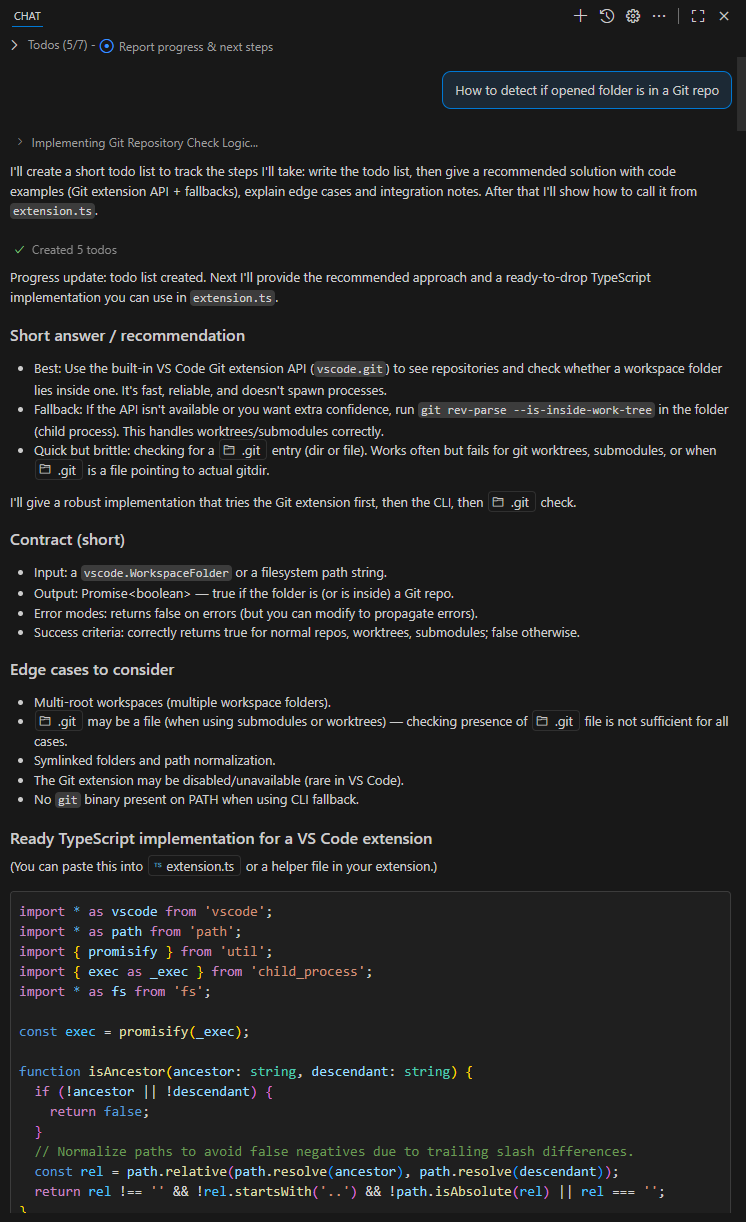
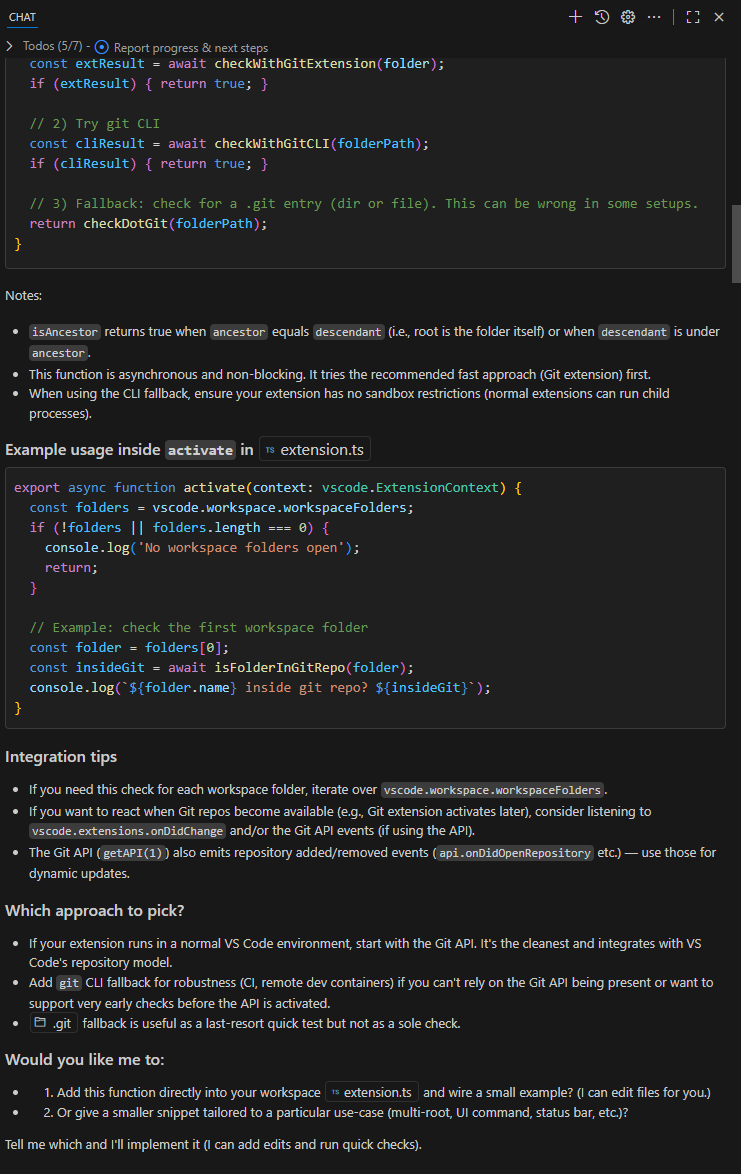
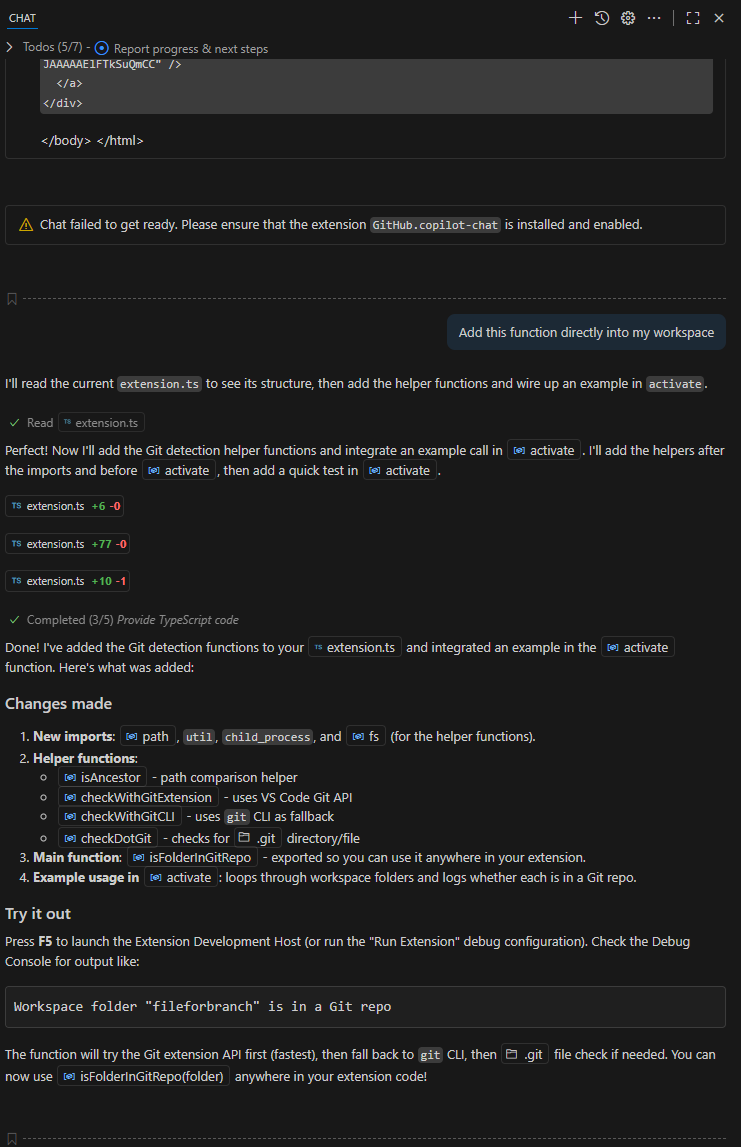
I decided to use Copilot to see if I could move things along. I was quite surprised to find that the agent implemented a fully functional extension! Granted it’s not complex, but still, it was surprising that it just worked! The first prompt I used when I opened the extension folder in VS Code was “How to detect if opened folder is in a Git repo”
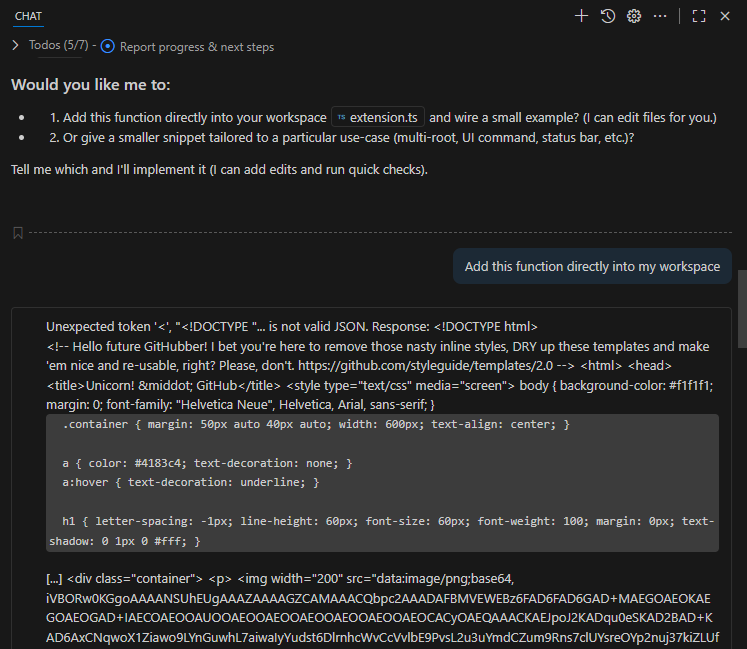
I returned to this task a few days later and told the agent that I would like to “Add this function directly into my workspace”.
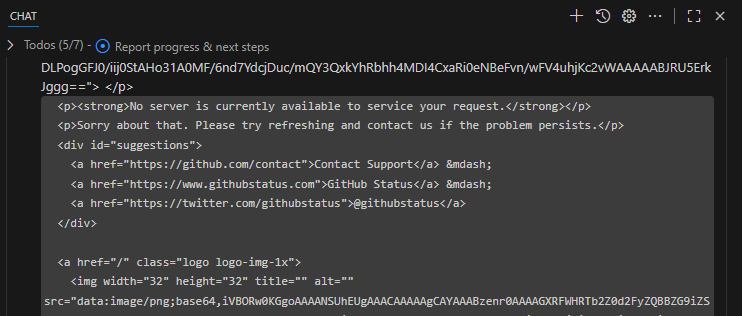
Scrolling through the HTML revealed the paragraphs explaining that no server is available. Seems like the agent should handle this type of failure more gracefully.
The operation succeeded after I retried (I must have been logged out):
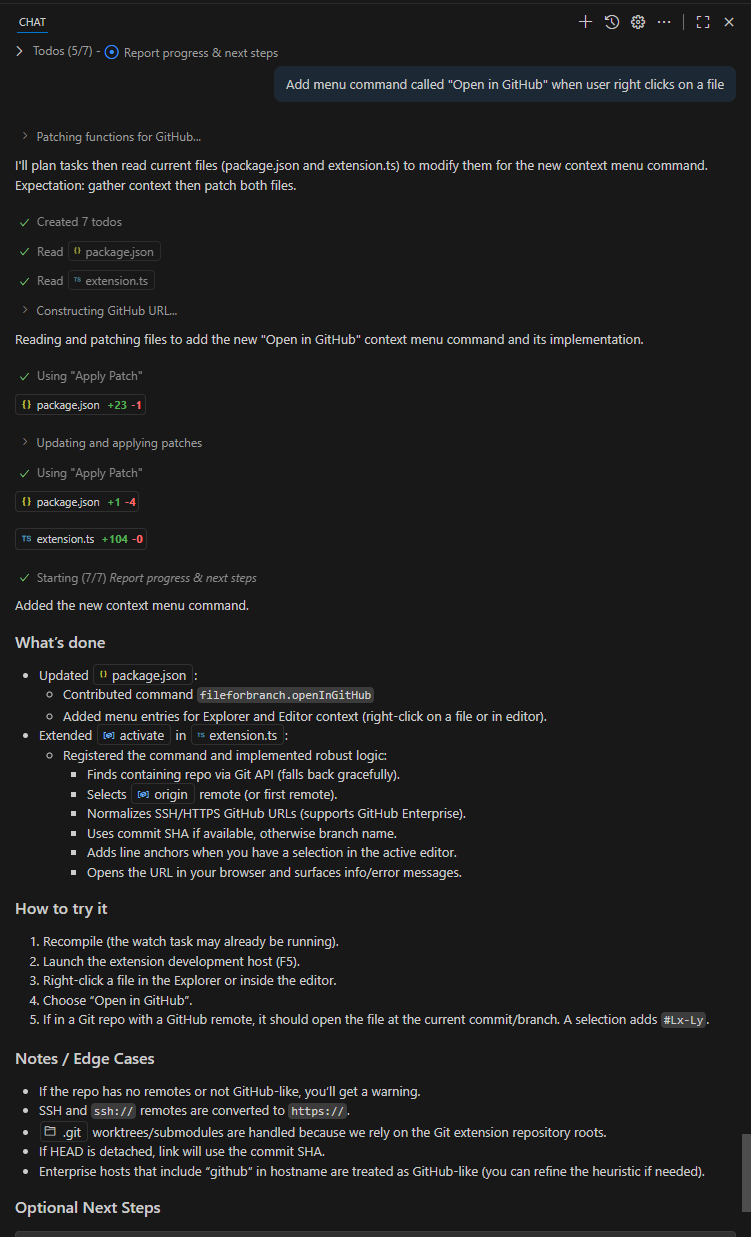
It was at this point that I decided to ask the agent to implement the whole thing using this prompt:
Add menu command called "Open in GitHub" when user right clicks on a file
I ran the extension and was pleased to see that it worked perfectly! It even included the current commit to give a stable link!
Creating the Extension in a New Repo
I used the agent in the first extension I had created but I wanted a separate repo to house my (potential) extension collection. I created my swesonga/vscode-extensions repo for this using the GitHub UI then cloned it and created a local folder for the extension.
I initialized the extension using the steps at the beginning of this post. This is the log from the initialization of the new extension. Notice that I selected no when asked to create a Git repo since I was already in the repo I had created in GitHub. I didn’t find any options for a TypeScript or JavaScript .gitignore file in the GitHub UI though so it didn’t have a .gitignore file. The first thing I did after the extension was created was git add . to add all the files to my repo. There were thousands of files added though, which led me to this question: node.js – Should the “node_modules” folder be included in the Git repository? – Stack Overflow. I decided to leave them in the repo for now.
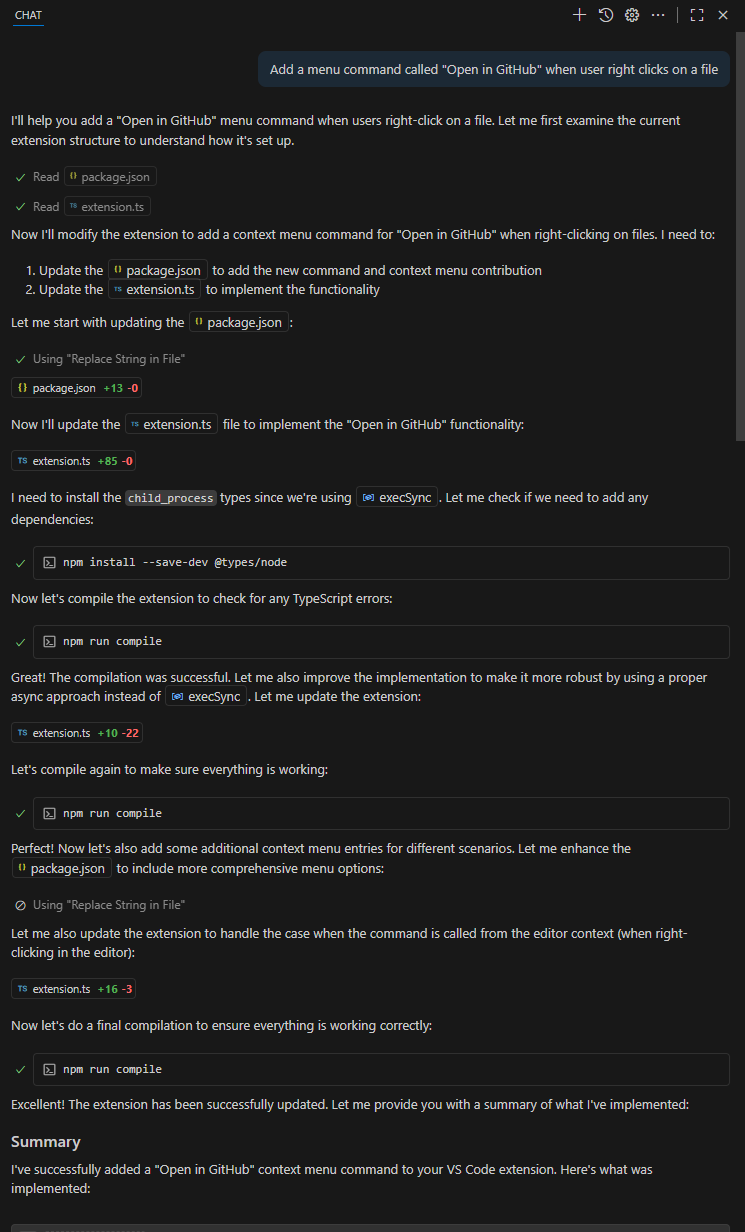
I then used the same prompt to create the extension: Add a menu command called “Open in GitHub” when user right clicks on a file. The image below shows the various steps the agent took.
Claude Sonnet 4’s Summary
I’ve successfully added a “Open in GitHub” context menu command to your VS Code extension. Here’s what was implemented:
Changes Made:
Updated package.json:
Added a new command openingithub.openInGitHub with the title “Open in GitHub”
Added menu contributions for the explorer context menu that appears when right-clicking on files (not folders)
Enhanced extension.ts:
Added the command handler for the “Open in GitHub” functionality
Implemented getGitHubUrl() function that:
Gets the Git remote URL for the current workspace
Converts Git URLs (both HTTPS and SSH) to GitHub web URLs
Gets the current branch name
Constructs the full GitHub URL for the specific file
Added error handling for various scenarios
Made the command work both from explorer context menu and when no URI is provided
Features:
Right-click context menu: Users can right-click on any file in the Explorer and select “Open in GitHub”
Git integration: Automatically detects the GitHub repository URL from Git remotes
Branch awareness: Opens the file on the current Git branch
Error handling: Provides helpful error messages when GitHub URL cannot be determined
Cross-platform: Works with both SSH and HTTPS Git remotes
How it works:
When a user right-clicks on a file and selects “Open in GitHub”
The extension determines the workspace folder and Git repository
It executes Git commands to get the remote URL and current branch
Converts the Git URL to a GitHub web URL
Constructs the full GitHub file URL with the correct branch and file path
Opens the URL in the default browser
The extension will now show “Open in GitHub” in the context menu when right-clicking on files in the VS Code Explorer, and it will open the corresponding GitHub page for that file in the browser.
Committing Claude Sonnet 4’s Changes
Looking at the changed files in the Source Control view, I noticed that there were files in the out/ subdirectory that I didn’t notice in the filefrombranch extension. This was when I noticed that the filefrombranch extension had a .gitignore file. I therefore decided to remove the node_modules folder from the repo. I used git rm -r openingithub/node_modules then committed that change. Next, I just needed to rebase with fixup to get that change out of the first commit. I tried rebasing using HEAD~5 because there were now 5 commits in the repo.
$ git rebase -i HEAD~5
fatal: invalid upstream 'HEAD~5'
With the node_modules folder deleted, I needed to run npm install again before I could run the extension.
PS C:\repos\vscode-extensions\openingithub> npm install
npm warn deprecated inflight@1.0.6: This module is not supported, and leaks memory. Do not use it. Check out lru-cache if you want a good and tested way to coalesce async requests by a key value, which is much more comprehensive and powerful.
npm warn deprecated glob@7.2.3: Glob versions prior to v9 are no longer supported

added 260 packages, and audited 261 packages in 2s

74 packages are looking for funding
  run `npm fund` for details

found 0 vulnerabilities
Opening URLs at the Current Commit
The first iteration of this implementation (in the fileforbranch extension) had the handy feature of including the current commit in the URL that was opened. I like this feature so I added it using this prompt:
Add another context menu command to open the URL at the current commit
The final question was how to install this extension on another computer. The Publishing Extensions | Visual Studio Code Extension API page explains how to package the extension into a .vsix file and install it on another computer.
$ npm install -g @vscode/vsce

added 319 packages in 13s

88 packages are looking for funding
  run `npm fund` for details

$ which vsce
/c/Users/saint/AppData/Roaming/npm/vsce

$ vsce package
Executing prepublish script 'npm run vscode:prepublish'...

> openingithub@0.0.1 vscode:prepublish
> npm run compile


> openingithub@0.0.1 compile
> tsc -p ./

 ERROR  It seems the README.md still contains template text. Make sure to edit the README.md file before you package or publish your extension.
I was surprised that I couldn’t publish the extension because the README file still contained template text. Neat check! After stripping it down, I was able to create a .VSIX file and install it on another computer.
Executing prepublish script 'npm run vscode:prepublish'...

> openingithub@0.0.1 vscode:prepublish
> npm run compile


> openingithub@0.0.1 compile
> tsc -p ./

 WARNING  A 'repository' field is missing from the 'package.json' manifest file.
Use --allow-missing-repository to bypass.
Do you want to continue? [y/N] y
 WARNING  LICENSE, LICENSE.md, or LICENSE.txt not found
Do you want to continue? [y/N] y
 INFO  Files included in the VSIX:
openingithub-0.0.1.vsix
├─ [Content_Types].xml
├─ extension.vsixmanifest
└─ extension/
   ├─ changelog.md [0.23 KB]
   ├─ initial-setup-output.txt [2.48 KB]
   ├─ package.json [1.54 KB]
   ├─ readme.md [0.25 KB]
   └─ out/
      ├─ extension.js [8.22 KB]
      └─ test/
         └─ extension.test.js [1.94 KB]

 DONE  Packaged: C:\repos\vscode-extensions\openingithub\openingithub-0.0.1.vsix (8 files, 6.67 KB)
Key Takeaways
These AI Agents are fantastic! I went from never having written an extension to having a practical “Hello World” extension for opening files in their GitHub repos! Reading the agent’s code gave me some insight into the structure of an extension. Using the agent drastically cut down the amount of time it would have taken me to write this extension.
The test fails with the output below. The key line is Native frames: <unavailable>.
STDOUT:
Command line: [C:\java\forks\openjdk\jdk\build\windows-aarch64-server-slowdebug\images\jdk\bin\java.exe -cp C:\java\forks\openjdk\jdk\JTwork\classes\runtime\jni\nativeStack\TestNativeStack.d;C:\java\forks\openjdk\jdk\test\hotspot\jtreg\runtime\jni\nativeStack;C:\java\forks\openjdk\jdk\JTwork\classes\test\lib;C:\java\binaries\jtreg\jtreg-7.5.2\lib\javatest.jar;C:\java\binaries\jtreg\jtreg-7.5.2\lib\jtreg.jar;C:\java\binaries\jtreg\jtreg-7.5.2\lib\junit-platform-console-standalone-1.11.0.jar;C:\java\binaries\jtreg\jtreg-7.5.2\lib\testng-7.3.0.jar;C:\java\binaries\jtreg\jtreg-7.5.2\lib\guice-5.1.0.jar;C:\java\binaries\jtreg\jtreg-7.5.2\lib\jcommander-1.82.jar -Xmx512m -Xcheck:jni -Djava.library.path=C:\java\forks\openjdk\jdk\build\windows-aarch64-server-slowdebug\support\test\hotspot\jtreg\native\lib TestNativeStack$Main ]
[2025-09-04T15:54:18.312130500Z] Gathering output for process 22380
[2025-09-04T15:54:18.753851700Z] Waiting for completion for process 22380
[2025-09-04T15:54:18.756861300Z] Waiting for completion finished for process 22380
Output and diagnostic info for process 22380 was saved into 'pid-22380-output.log'
STDERR:
 stdout: [Triggering a JNI warning
WARNING in native method: JNI call made without checking exceptions when required to from CallStaticObjectMethod
Native frames: <unavailable>
];
 stderr: [WARNING: A restricted method in java.lang.System has been called
WARNING: java.lang.System::loadLibrary has been called by TestNativeStack in an unnamed module (file:/C:/java/forks/openjdk/jdk/JTwork/classes/runtime/jni/nativeStack/TestNativeStack.d/)
WARNING: Use --enable-native-access=ALL-UNNAMED to avoid a warning for callers in this module
WARNING: Restricted methods will be blocked in a future release unless native access is enabled

]
 exitValue = -2147483645

java.lang.RuntimeException: Expected to get exit value of [0], exit value is: [-2147483645]
        at jdk.test.lib.process.OutputAnalyzer.shouldHaveExitValue(OutputAnalyzer.java:522)
        at TestNativeStack.main(TestNativeStack.java:57)
        at java.base/jdk.internal.reflect.DirectMethodHandleAccessor.invoke(DirectMethodHandleAccessor.java:104)
        at java.base/java.lang.reflect.Method.invoke(Method.java:565)
        at com.sun.javatest.regtest.agent.MainActionHelper$AgentVMRunnable.run(MainActionHelper.java:335)
        at java.base/java.lang.Thread.run(Thread.java:1474)
I added a DebugBreak call to the line outputing that message to see how we got there:
KernelBase.dll!...DebugBreak() Line 2582	C++
jvm.dll!NativeStackPrinter::print_stack_from_frame(outputStream * st, frame fr, char * buf, int buf_size, bool print_source_info, int max_frames) Line 80	C++
jvm.dll!NativeStackPrinter::print_stack_from_frame(outputStream * st, char * buf, int buf_size, bool print_source_info, int max_frames) Line 104	C++
jvm.dll!NativeStackPrinter::print_stack(outputStream * st, char * buf, int buf_size, unsigned char * & lastpc, bool print_source_info, int max_frames) Line 40	C++
jvm.dll!JavaThread::print_jni_stack() Line 1775	C++
jvm.dll!check_pending_exception(JavaThread * thr) Line 192	C++
jvm.dll!functionEnter(JavaThread * thr) Line 218	C++
jvm.dll!checked_jni_CallStaticObjectMethod(JNIEnv_ * env, _jclass * clazz, _jmethodID * methodID, ...) Line 1321	C++
nativeStack.dll!generateWarning(const JNINativeInterface_ * * env) Line 66	C
nativeStack.dll!thread_start(void * unused) Line 92	C
ucrtbase.dll!00007ffb0970b028()	Unknown
kernel32.dll!00007ffb0bbd8740()	Unknown
ntdll.dll!RtlUserThreadStart(long(*)(void *) StartAddress, void * Argument) Line 1184	C
Triggering a JNI warning
WARNING: A restricted method in java.lang.System has been called
WARNING: java.lang.System::loadLibrary has been called by TestNativeStack in an unnamed module (file:/C:/java/forks/openjdk/jdk/JTwork/classes/runtime/jni/nativeStack/TestNativeStack.d/)
WARNING: Use --enable-native-access=ALL-UNNAMED to avoid a warning for callers in this module
WARNING: Restricted methods will be blocked in a future release unless native access is enabled

Native thread is running and attaching as daemon ...
About to trigger JNI Warning
WARNING in native method: JNI call made without checking exceptions when required to from CallStaticObjectMethod
Native frames: (J=compiled Java code, j=interpreted, Vv=VM code, C=native code)
V  [jvm.dll+0x10e8aa8]  os::win32::platform_print_native_stack+0x58  (os_windows_aarch64.cpp:143)
V  [jvm.dll+0x10598ac]  os::platform_print_native_stack+0x34  (os_windows_aarch64.inline.hpp:38)
V  [jvm.dll+0x1059588]  NativeStackPrinter::print_stack+0x48  (nativeStackPrinter.cpp:35)
V  [jvm.dll+0xba74a0]  JavaThread::print_jni_stack+0x120  (javaThread.cpp:1775)
V  [jvm.dll+0xcb0e84]  check_pending_exception+0x84  (jniCheck.cpp:192)
V  [jvm.dll+0xcb0f24]  functionEnter+0x4c  (jniCheck.cpp:218)
V  [jvm.dll+0xcbbb70]  checked_jni_CallStaticObjectMethod+0xf0  (jniCheck.cpp:1321)
C  [nativeStack.dll+0x1264]  generateWarning+0x13c  (libnativeStack.c:66)
C  [nativeStack.dll+0x1364]  thread_start+0xa4  (libnativeStack.c:92)
C  [ucrtbase.dll+0x2b028]  (no source info available)
C  [KERNEL32.DLL+0x8740]  (no source info available)
C  [ntdll.dll+0xd47a4]  (no source info available)

Native thread terminating

C:\java\forks\openjdk\jdk\build\windows-aarch64-server-slowdebug\images\jdk\bin\java.exe (process 30308) exited with code 0 (0x0).
To automatically close the console when debugging stops, enable Tools->Options->Debugging->Automatically close the console when debugging stops.
Press any key to close this window . . .
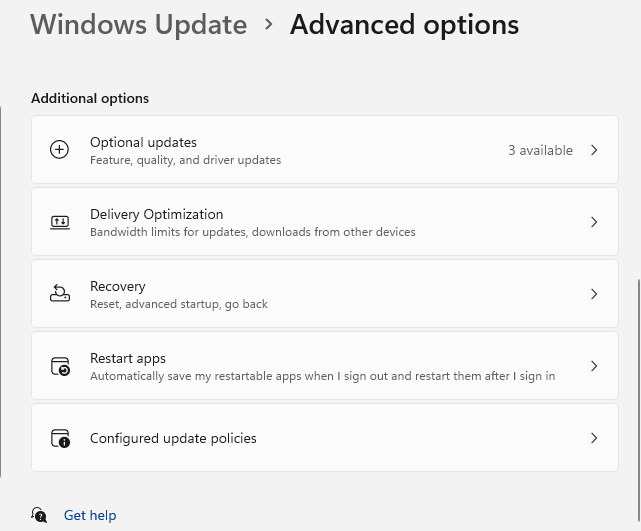
Earlier this year I had trouble connecting to the VPN on one of my devices (Windows 11 Pro 24H2). I also got this error from Teams: We Couldn’t authenticate you. This could be due to a device or network problem, or Teams could be experiencing a technical issue – Microsoft Q&A. It was an interesting learning experience, getting to see parts of the OS/networking stack in action that I don’t usually even think about. The troubleshooting process started with the usual tasks: install all Windows updates, including the optional updates. That option (from my desktop) is shown below:
The Azure VPN Client had this error message: Failure in acquiring Microsoft Entra Token: Provider Error <number>: The server or proxy was not found. Someone else ran into this issue in Azure P2S VPN Disconnecting – Microsoft Q&A. This was unusual in my case because the Access work or school pane said that I was connected.
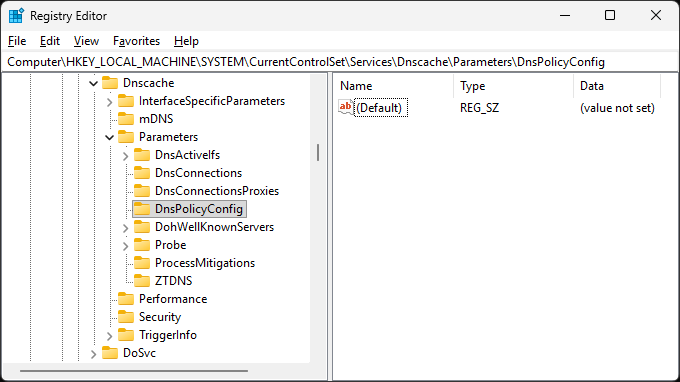
Next, we examined this registry key: HKEY_LOCAL_MACHINE\SYSTEM\CurrentControlSet\Services\Dnscache\Parameters\DnsPolicyConfig. Here is a screenshot from my desktop (not the device in question).
It turned out that there was a subkey with outdated configuration information! Deleting that subkey resolved all the connectivity issues. This was interesting to me because I assumed that general internet connectivity meant that there shouldn’t be any DNS issues whatsoever. I clearly didn’t have a good picture of how DNS is set up in these configurations and how these setups can go wrong.
Last month, I investigated OpenJDK gtest failures on Windows. The error message was that the gtests Caught std::exception-derived exception escaping the death test statement. I tracked the commit responsible for the failures to 8343756: CAN_SHOW_REGISTERS_ON_ASSERT for Windows · openjdk/jdk@0054bbe.
// Asserts that a given `statement` causes the program to exit, with an
// integer exit status that satisfies `predicate`, and emitting error output
// that matches `matcher`.
#define ASSERT_EXIT(statement, predicate, matcher) \
  GTEST_DEATH_TEST_(statement, predicate, matcher, GTEST_FATAL_FAILURE_)
I was trying to ensure my understanding of the exit code being an exact match is correct. The line EXPECT_EXIT(_exit(1), testing::ExitedWithCode(1), ""); from googletest/googletest/test/googletest-death-test-test.cc at v1.14.0 · google/googletest supports this hypothesis. The EXPECT_EXIT macro comment (below) left me wondering how ASSERT_EXIT does not continue on to successive tests. The difference between these two macros is in the final parameter, which is GTEST_NONFATAL_FAILURE_ for the EXPECT_EXIT macro.
// Like `ASSERT_EXIT`, but continues on to successive tests in the
// test suite, if any:
#define EXPECT_EXIT(statement, predicate, matcher) \
  GTEST_DEATH_TEST_(statement, predicate, matcher, GTEST_NONFATAL_FAILURE_)
creates a child process with the same executable as the current process to run the death test. The child process is given the –gtest_filter and –gtest_internal_run_death_test flags such that it knows to run the current death test only.
The question now became, why were we catching this std::exception? I asked copilot: how does a windows access violation turn into a std::exception? Part of its answer mentioned the /EHsc compiler flag so I decided to examine the flags used to compile the JVM binaries. I searched for the regex out:[^\s]+jvm.dll in the build logs and found this jvm.dll linker command. Note that 2 separate jvm.dll files get built, one for the product and another for the gtests. The /IMPLIB (Name Import Library) | Microsoft Learn flag was present, but didn’t look relevant.
checking for apk... [not found]
checking for pandoc... [not found]
/cygdrive/d/java/forks/openjdk/jdk/build/.configure-support/generated-configure.sh: line 64028: syntax error: unexpected end of file
configure exiting with result code 2
That file appeared to be truncated??? VSCode was doing something related to building the Java projects in the repo. It is possible that something in VSCode could have interrupted this but I just removed the build folder then reexamined the change.
My include path didn’t appear in the include paths for gtestLauncher.obj! I searched the repo for googlemock and the only place that path could be coming from was CompileGtest.gmk. However, I then noticed that the gtest launcher has its own configuration section. Sheesh. Here is the diff that I used to definitively see how these includes work:
gtestLauncher.exe was now being compiled with -EHsc but the gtests still failed. Since jvm.dll is compiled without -EHsc, I added it to see if the test behavior would change. I started by searching for libjvm in the codebase. This is the additional change I made:
At this point, I looked at the exception handler and it looked like what was happening was that returning EXCEPTION_CONTINUE_EXECUTION let the SEH handler in the gtests continue instead of the code down the report_vm_error path! I decided to create my own handler but needed to look up the syntax. I used Structured Exception Handling (C/C++) | Microsoft Learn.
diff --git a/src/hotspot/share/utilities/debug.hpp b/src/hotspot/share/utilities/debug.hpp
index 12724153659..e40c16c1c59 100644
--- a/src/hotspot/share/utilities/debug.hpp
+++ b/src/hotspot/share/utilities/debug.hpp
@@ -39,7 +39,21 @@ class oopDesc;
 #define CAN_SHOW_REGISTERS_ON_ASSERT
 extern char* g_assert_poison;
 extern const char* g_assert_poison_read_only;
+#if (defined(_WINDOWS))
+// We use structured exception handling when writing to the poison variable.
+// This allows us to continue execution and perform error reporting instead of
+// bailing out to other SEH handlers such as those in the googletest code.
+#include <excpt.h>
+#define TOUCH_ASSERT_POISON                                                  \
+do {                                                                         \
+  __try {                                                                    \
+    (*g_assert_poison) = 'X';                                                \
+  } __except (EXCEPTION_CONTINUE_EXECUTION) {                                \
+  }                                                                          \
+} while (0)
+#else
 #define TOUCH_ASSERT_POISON (*g_assert_poison) = 'X';
+#endif // _WINDOWS
 void initialize_assert_poison();
 void disarm_assert_poison();
 bool handle_assert_poison_fault(const void* ucVoid);
...\jdk\src\hotspot\share\utilities/growableArray.hpp(81): error C2712: Cannot use __try in functions that require object unwinding
...\jdk\src\hotspot\share\classfile/vmClassID.hpp(41): error C3615: constexpr function 'EnumeratorRangeImpl::end_value' cannot result in a constant expression
...\jdk\src\hotspot\share\utilities/enumIterator.hpp(97): note: failure was caused by a statement or an expression that is not valid in a constexpr context
...\jdk\src\hotspot\share\utilities/unsigned5.hpp(190): error C3615: constexpr function 'UNSIGNED5::max_encoded_in_length' cannot result in a constant expression
...\jdk\src\hotspot\share\utilities/unsigned5.hpp(191): note: failure was caused by a statement or an expression that is not valid in a constexpr context
...\jdk\src\hotspot\cpu\x86\register_x86.hpp(61): error C3615: constexpr function 'Register::RegisterImpl::encoding' cannot result in a constant expression
...\jdk\src\hotspot\cpu\x86\register_x86.hpp(61): note: failure was caused by a statement or an expression that is not valid in a constexpr context
...\jdk\src\hotspot\cpu\x86\register_x86.hpp(233): error C3615: constexpr function 'XMMRegister::XMMRegisterImpl::encoding' cannot result in a constant expression
...\jdk\src\hotspot\cpu\x86\register_x86.hpp(233): note: failure was caused by a statement or an expression that is not valid in a constexpr context
...\jdk\src\hotspot\share\runtime/park.hpp(131): error C2712: Cannot use __try in functions that require object unwinding
...\jdk\src\hotspot\share\runtime/mutexLocker.hpp(235): error C2712: Cannot use __try in functions that require object unwinding
...\jdk\src\hotspot\share\runtime/mutexLocker.hpp(240): error C2712: Cannot use __try in functions that require object unwinding
...\jdk\src\hotspot\share\runtime/mutexLocker.hpp(250): error C2712: Cannot use __try in functions that require object unwinding
...\jdk\src\hotspot\share\runtime/mutexLocker.hpp(255): error C2712: Cannot use __try in functions that require object unwinding
At this point, I realized that I needed to disable SEH at the gtest level. I turned off GTEST_HAS_SEH with this change and finally got the gtests to pass!
What was not sure of was whether the JVM reporting code was running (vs the JVM just exiting) and whether there was a narrower way to pass the GTEST_HAS_SEH define – I noticed it in thousands of lines in the compilation log, which might also explain why I was getting error C2712: Cannot use __try in functions that require object unwinding in many more places than I expected when I added the -EHsc flag when compiling jvm.obj. Therefore, it was logical to try to find the minimal diff that would fix the gtests. Here’s one I tried:
This manual approach of finding the minimal change needed was tedious so I decided to add my own defines to see which portions of the gmk files are used and for which compile/link commands:
For location 2, there were 214 lines matching the regex DMYTEST_LOCATION2.+.cpp and 213 lines matching the regex DMYTEST_LOCATION2.+/test/hotspot/gtest/.+.cpp. The location 2 define was therefore correctly scoped to the gtests only. These 213 lines compiled files like test_blocktree.cpp and test_vmerror.cpp. The line that was different between the 2 regexes was the one compiling build/windows-x86_64-server-slowdebug/hotspot/variant-server/libjvm/gtest/objs/BUILD_GTEST_LIBJVM_pch.cpp. Location 3 was only used for compiling test/hotspot/gtest/gtestLauncher.cpp. The challenging case was location 0, which seemed to appear for way more files than it should. Was it really necessary? No it wasn’t! That made life much easier for me.
Inspecting gTest Code Coverage
In the course of this investigation, I considered using time travel debugging to see which code paths were executed. An alternative was to see whether the exception filter code was covered at the end of the gtest execution! The path to the code coverage tool is C:\Program Files\Microsoft Visual Studio\2022\Enterprise\Common7\IDE\Extensions\Microsoft\CodeCoverage.Console\Microsoft.CodeCoverage.Console.exe – it should be in the path by default in the Developer Command Prompt. I kicked it off with these commands:
Search for “exceptionfilter” in the Code Coverage Results pane to view the code coverage for the exception filter.
Verifying Execution Path
The first time I paused execution of the gtests in the debugger, stopped in jdk/src/hotspot/share/utilities/bitMap.cpp. I set a breakpoint there. I liked this location because I could move execution into the failure path (in the assembly view). This was how I saw the gtest structured exception handler kicking in without the JVM’s failure reporting code executing. With the tests now passing, I found the write to the poison location just going through without interruption. Did this mean the test was broken? Or did it mean that the exception filter ran and successfully said to continue execution? I think it has to be the latter but I’ll need time travel debugging to verify this. In the meantime, I sought to at least ensure there were multiple test processes involved.
Verifying Multiple Processes are Started
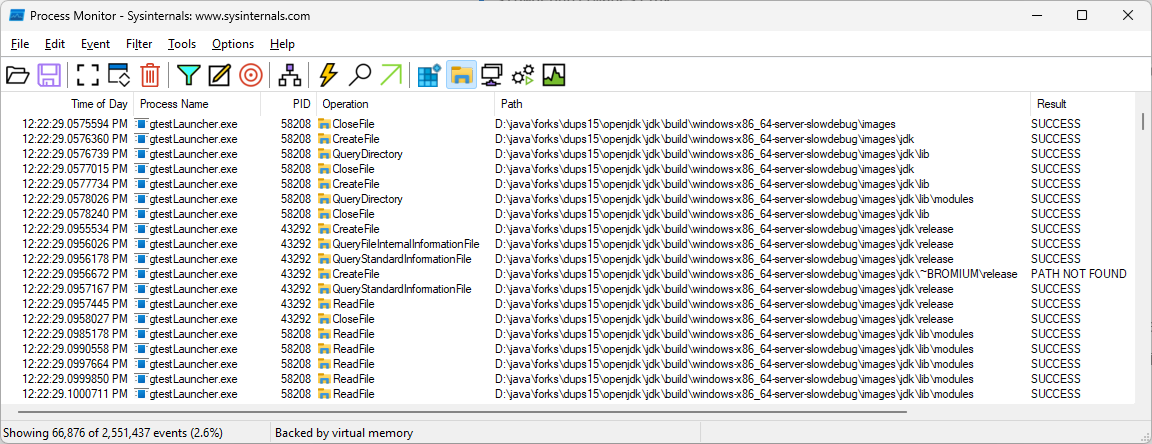
I started Process Monitor and added a filter for path containing “slowdebug”. Notice tons of PIDs for gtestlauncher.exe in the process monitor screenshot below (as expected).
I could successfully execute the error handling path by manually moving the program counter (RIP) after skipping into the failure path of BitMap::verify_range. Why didn’t the PID change in the debugger? Oh wait, was I was still stepping thereby causing recursion? This callstack did not support that hypothesis. Looks like it was just error reporting continuing to execute.
>	jvm.dll!BitMap::verify_range(unsigned __int64 beg, unsigned __int64 end) Line 212	C++
 	jvm.dll!BitMap::clear_range(unsigned __int64 beg, unsigned __int64 end) Line 280	C++
 	jvm.dll!JVMFlag::printFlags(outputStream * out, bool withComments, bool printRanges, bool skipDefaults) Line 706	C++
 	jvm.dll!VMError::report(outputStream * st, bool _verbose) Line 1260	C++
 	jvm.dll!VMError::report_and_die(int id, const char * message, const char * detail_fmt, char * detail_args, Thread * thread, unsigned char * pc, const void * siginfo, const void * context, const char * filename, int lineno, unsigned __int64 size) Line 1847	C++
 	jvm.dll!report_vm_error(const char * file, int line, const char * error_msg, const char * detail_fmt, ...) Line 195	C++
 	jvm.dll!CompressedKlassPointers::check_init<int>(int var) Line 154	C++
 	jvm.dll!CompressedKlassPointers::shift() Line 218	C++
 	jvm.dll!CompressedKlassPointers::print_mode(outputStream * st) Line 301	C++
 	jvm.dll!VMError::report(outputStream * st, bool _verbose) Line 1196	C++
 	jvm.dll!VMError::report_and_die(int id, const char * message, const char * detail_fmt, char * detail_args, Thread * thread, unsigned char * pc, const void * siginfo, const void * context, const char * filename, int lineno, unsigned __int64 size) Line 1847	C++
 	jvm.dll!report_vm_error(const char * file, int line, const char * error_msg, const char * detail_fmt, ...) Line 195	C++
 	jvm.dll!BitMap::verify_limit(unsigned __int64 bit) Line 206	C++
 	jvm.dll!BitMap::to_words_align_down(unsigned __int64 bit) Line 94	C++
 	jvm.dll!BitMap::word_addr(unsigned __int64 bit) Line 144	C++
 	jvm.dll!BitMap::set_bit(unsigned __int64 bit) Line 37	C++
 	jvm.dll!JfrEventVerifier::set_field_bit(unsigned __int64 field_idx) Line 41	C++
 	jvm.dll!JfrEvent<EventTenuringDistribution>::set_field_bit(unsigned __int64 field_idx) Line 267	C++
 	jvm.dll!EventObjectAllocationOutsideTLAB::set_objectClass(const Klass * new_value) Line 7304	C++
 	jvm.dll!trace_flag_changed<bool,EventBooleanFlagChanged>(JVMFlag * flag, const bool old_value, const bool new_value, const JVMFlagOrigin origin) Line 39	C++
 	jvm.dll!TypedFlagAccessImpl<bool,EventBooleanFlagChanged>::check_constraint_and_set(JVMFlag * flag, void * value_addr, JVMFlagOrigin origin, bool verbose) Line 78	C++
 	jvm.dll!FlagAccessImpl_bool::set_impl(JVMFlag * flag, void * value_addr, JVMFlagOrigin origin) Line 98	C++
 	jvm.dll!FlagAccessImpl::set(JVMFlag * flag, void * value, JVMFlagOrigin origin) Line 49	C++
 	jvm.dll!JVMFlagAccess::set_impl(JVMFlag * flag, void * value, JVMFlagOrigin origin) Line 307	C++
 	jvm.dll!JVMFlagAccess::set_or_assert(JVMFlagsEnum flag_enum, int type_enum, void * value, JVMFlagOrigin origin) Line 353	C++
 	jvm.dll!JVMFlagAccess::set<bool,0>(JVMFlagsEnum flag_enum, bool value, JVMFlagOrigin origin) Line 101	C++
 	jvm.dll!Flag_UseLargePagesIndividualAllocation_set(bool value, JVMFlagOrigin origin) Line 69	C++
 	jvm.dll!os::init() Line 4436	C++
 	jvm.dll!Threads::create_vm(JavaVMInitArgs * args, bool * canTryAgain) Line 463	C++
 	jvm.dll!JNI_CreateJavaVM_inner(JavaVM_ * * vm, void * * penv, void * args) Line 3589	C++
 	jvm.dll!JNI_CreateJavaVM(JavaVM_ * * vm, void * * penv, void * args) Line 3680	C++
 	jvm.dll!init_jvm(int argc, char * * argv, bool disable_error_handling, JavaVM_ * * jvm_ptr) Line 94	C++
 	jvm.dll!JVMInitializerListener::OnTestStart(const testing::TestInfo & test_info) Line 124	C++
 	jvm.dll!testing::internal::TestEventRepeater::OnTestStart(const testing::TestInfo & parameter) Line 3858	C++
 	jvm.dll!testing::TestInfo::Run() Line 2821	C++
 	jvm.dll!testing::TestSuite::Run() Line 3015	C++
 	jvm.dll!testing::internal::UnitTestImpl::RunAllTests() Line 5920	C++
 	jvm.dll!testing::internal::HandleSehExceptionsInMethodIfSupported<testing::internal::UnitTestImpl,bool>(testing::internal::UnitTestImpl * object, bool(testing::internal::UnitTestImpl::*)() method, const char * location) Line 2614	C++
 	jvm.dll!testing::internal::HandleExceptionsInMethodIfSupported<testing::internal::UnitTestImpl,bool>(testing::internal::UnitTestImpl * object, bool(testing::internal::UnitTestImpl::*)() method, const char * location) Line 2648	C++
 	jvm.dll!testing::UnitTest::Run() Line 5484	C++
 	jvm.dll!RUN_ALL_TESTS() Line 2317	C++
 	jvm.dll!runUnitTestsInner(int argc, char * * argv) Line 290	C++
 	jvm.dll!runUnitTests(int argc, char * * argv) Line 371	C++
 	gtestLauncher.exe!main(int argc, char * * argv) Line 40	C++
 	[Inline Frame] gtestLauncher.exe!invoke_main() Line 78	C++
 	gtestLauncher.exe!__scrt_common_main_seh() Line 288	C++
 	kernel32.dll!00007ffdcbdce8d7()	Unknown
 	ntdll.dll!00007ffdcc97c34c()	Unknown
One advantage of the stack above is that it showed how the os::init code gets executed (which I was curious about when wondering whether the exception filter was being set up). Disabling the breakpoint just before skipping into the failure path and resuming execution now led to the JVM dying:
[==========] Running 1197 tests from 205 test suites.
[----------] Global test environment set-up.
[----------] 3 tests from AltHashingTest
[ RUN      ] AltHashingTest.halfsiphash_test_ByteArray
[       OK ] AltHashingTest.halfsiphash_test_ByteArray (0 ms)
[ RUN      ] AltHashingTest.halfsiphash_test_CharArray
[       OK ] AltHashingTest.halfsiphash_test_CharArray (0 ms)
[ RUN      ] AltHashingTest.halfsiphash_test_FromReference
[       OK ] AltHashingTest.halfsiphash_test_FromReference (0 ms)
[----------] 3 tests from AltHashingTest (2 ms total)

[----------] 1 test from ThreadsListHandle
[ RUN      ] ThreadsListHandle.sanity_vm
#
# A fatal error has been detected by the Java Runtime Environment:
#
#  Internal Error (d:\java\forks\openjdk\jdk\src\hotspot\share\utilities\bitMap.cpp:208), pid=39132, tid=109872
#  assert(bit <= _size) failed: BitMap limit out of bounds: 0 > 64
#
# JRE version:  ((uninitialized)) (slowdebug build )
# Java VM: OpenJDK 64-Bit Server VM (slowdebug 26-internal-adhoc.saint.jdk, mixed mode, sharing, tiered, compressed class ptrs, unknown gc, windows-amd64)
# Core dump will be written. Default location: D:\java\forks\openjdk\jdk\build\windows-x86_64-server-slowdebug\images\test\hotspot\gtest\server\hs_err_pid39132.mdmp
#
# An error report file with more information is saved as:
# D:\java\forks\openjdk\jdk\build\windows-x86_64-server-slowdebug\images\test\hotspot\gtest\server\hs_err_pid39132.log
#
#

D:\java\forks\openjdk\jdk\build\windows-x86_64-server-slowdebug\images\test\hotspot\gtest\server\gtestLauncher.exe (process 39132) exited with code 1 (0x1).
To automatically close the console when debugging stops, enable Tools->Options->Debugging->Automatically close the console when debugging stops.
Press any key to close this window . . .
c:\progra~1\mib055~1\2022\enterprise\vc\tools\msvc\14.44.35207\include\__msvc_ostream.hpp(781): error C2220: the following warning is treated as an error
c:\progra~1\mib055~1\2022\enterprise\vc\tools\msvc\14.44.35207\include\__msvc_ostream.hpp(781): warning C4530: C++ exception handler used, but unwind semantics are not enabled. Specify /EHsc
c:\progra~1\mib055~1\2022\enterprise\vc\tools\msvc\14.44.35207\include\__msvc_ostream.hpp(781): note: the template instantiation context (the oldest one first) is
c:\repos\googletest\googletest\include\gtest/gtest-message.h(118): note: see reference to function template instantiation 'std::basic_ostream<char,std::char_traits<char>> &std::operator <<<std::char_traits<char>>(std::basic_ostream<char,std::char_traits<char>> &,const char *)' being compiled
I bought new toner for my Brother printer. It’s been a while since I replaced it, but I knew I could count on someone on YouTube to walk me through the process again. The folks that upload these videos deserve an award for their service – I would have wasted time fidgeting around.
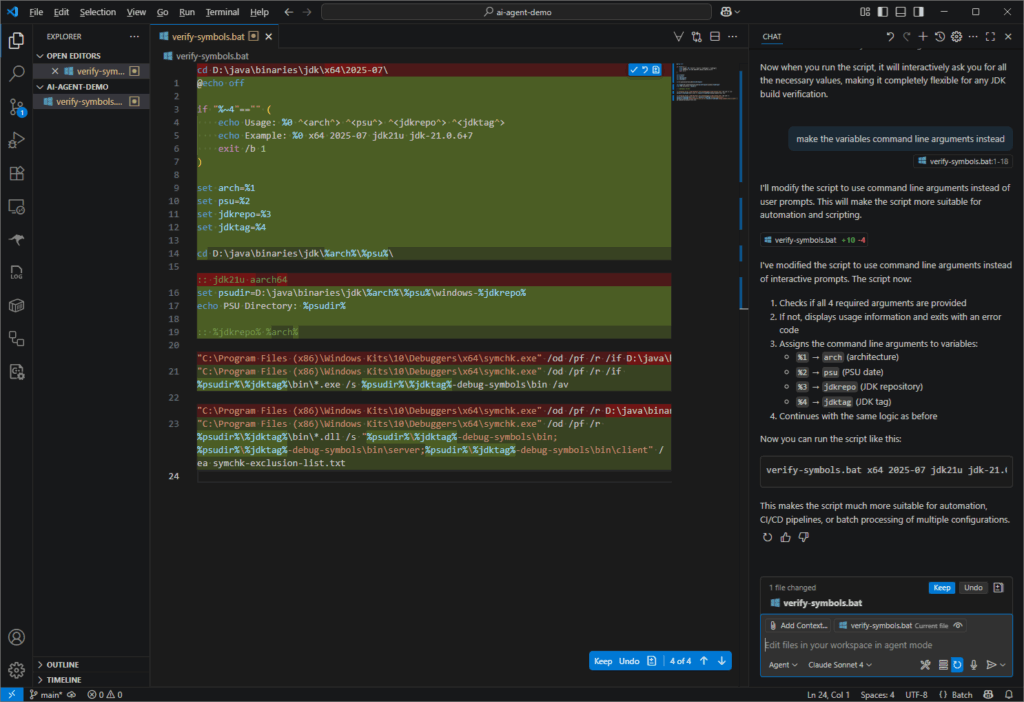
I was reviewing jtreg test failures in some GitHub actions last week. Since I was only interested in the failures, I decided to write a script to extract the failure details from the log files I had downloaded from GitHub. This looked like another task for the VS Code agent so I wrote the algorithm for extracting the failure details into individual text files, which would be easier to review. Below is the prompt I used.
write a python script that processes all the text files in a user-specified folder. For each text file:
- split it into sections using "--------------------------------------------------" as a separator
- generate a filename for the section from the first line after the separator. To do so, use the text after "TEST: " and replace /, #, and . with underscores and append the ".txt" extension.
- if the section contains the string "test jdk:" then write the content of the entire section to a file with the generated name.
I thought I would need to do at least some debugging of the script but I did not! The script worked flawlessly. I didn’t even need to execute it myself because the flow of using the agent included running the script on my raw folder and then generating a README file! See the script and the README at Add scripts generated by Claude Sonnet 4 VS Code agent · swesonga/scratchpad@f5e8057. The agent was using the Claude Sonnet 4 model.
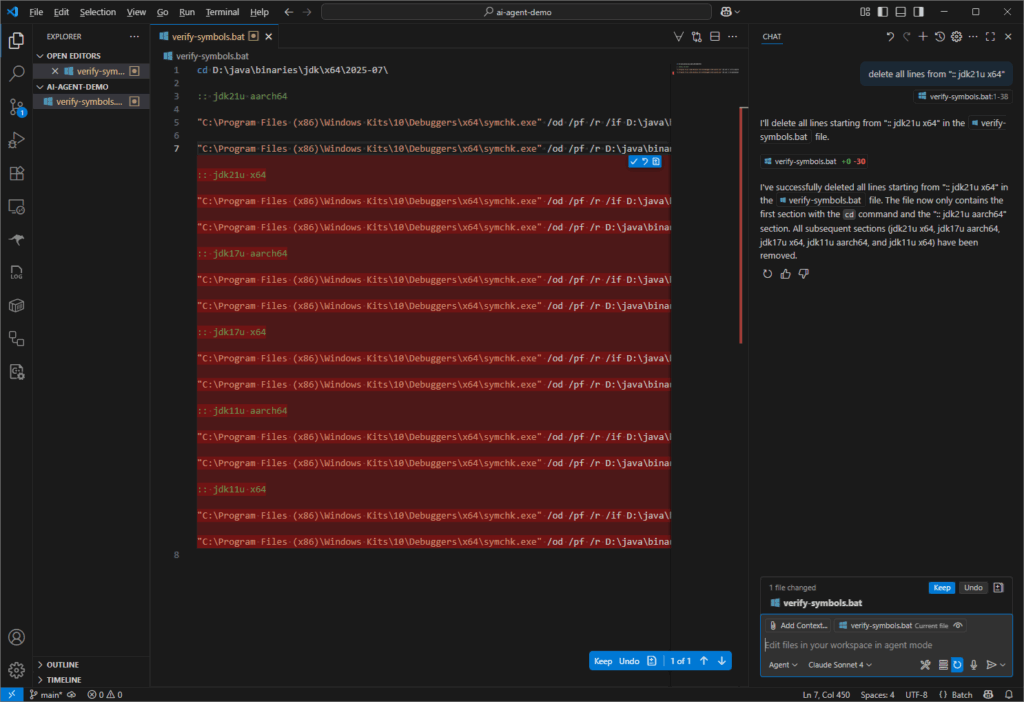
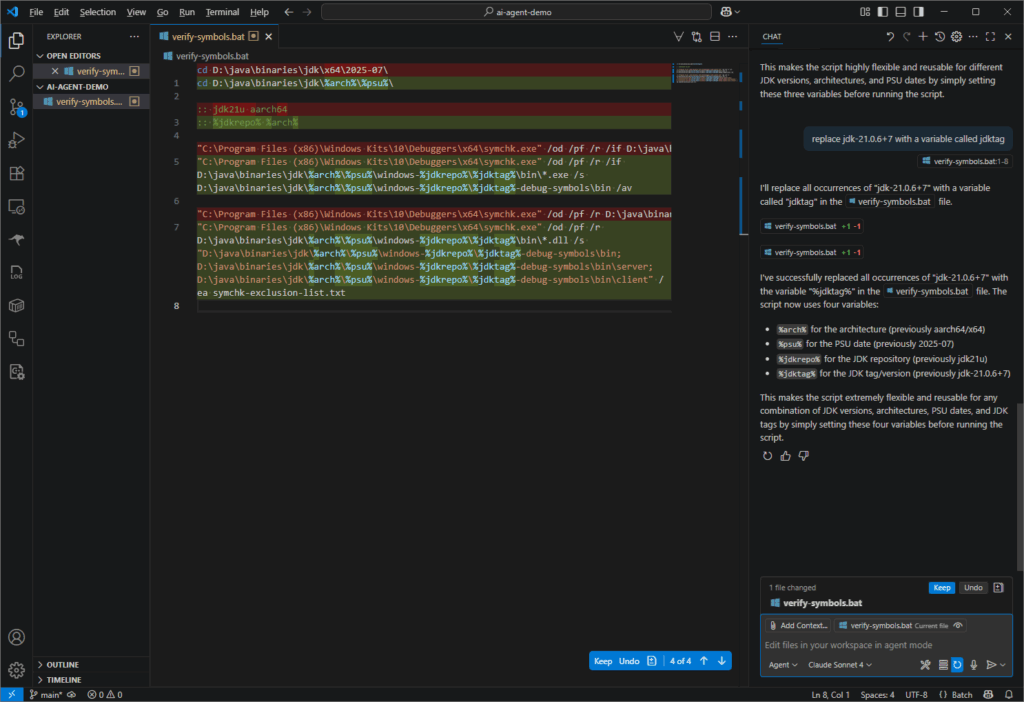
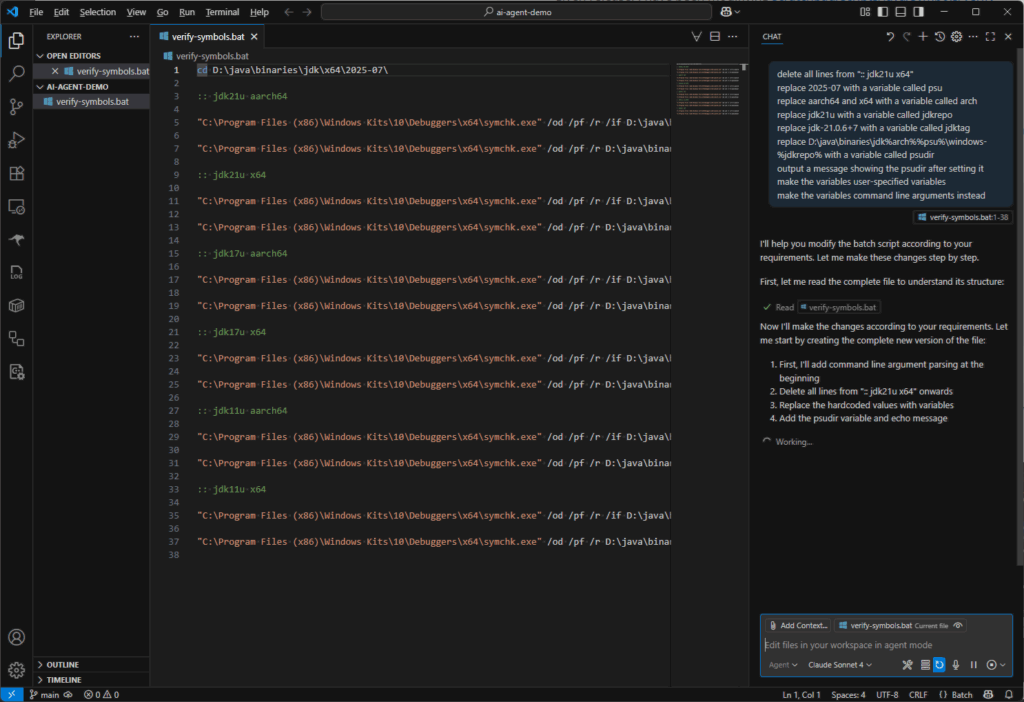
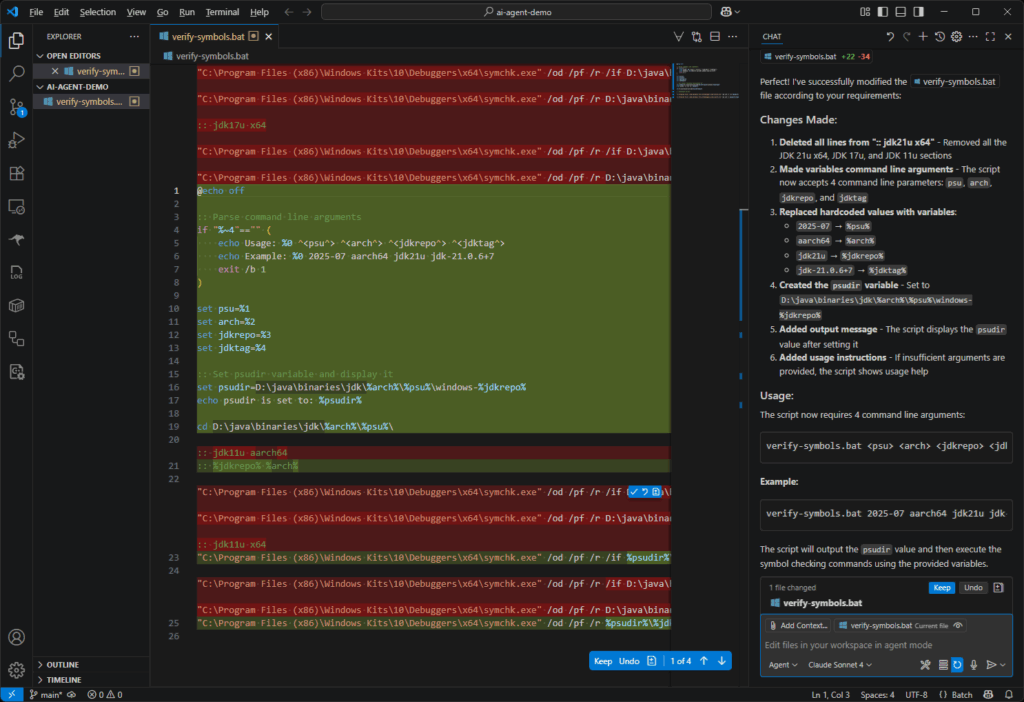
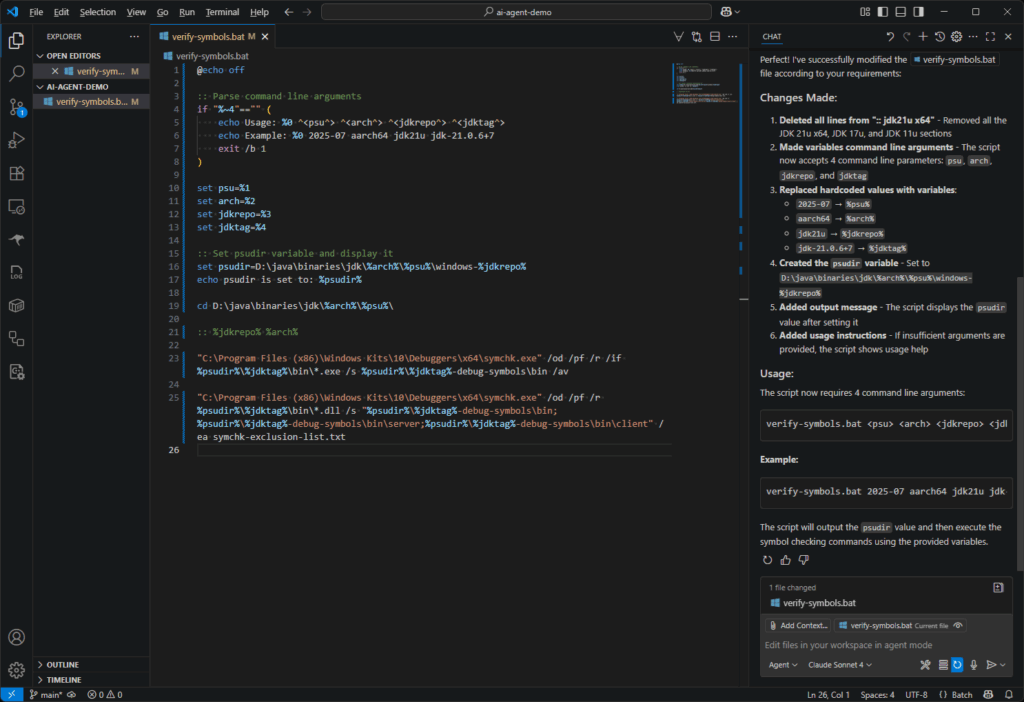
delete all lines from ":: jdk21u x64"
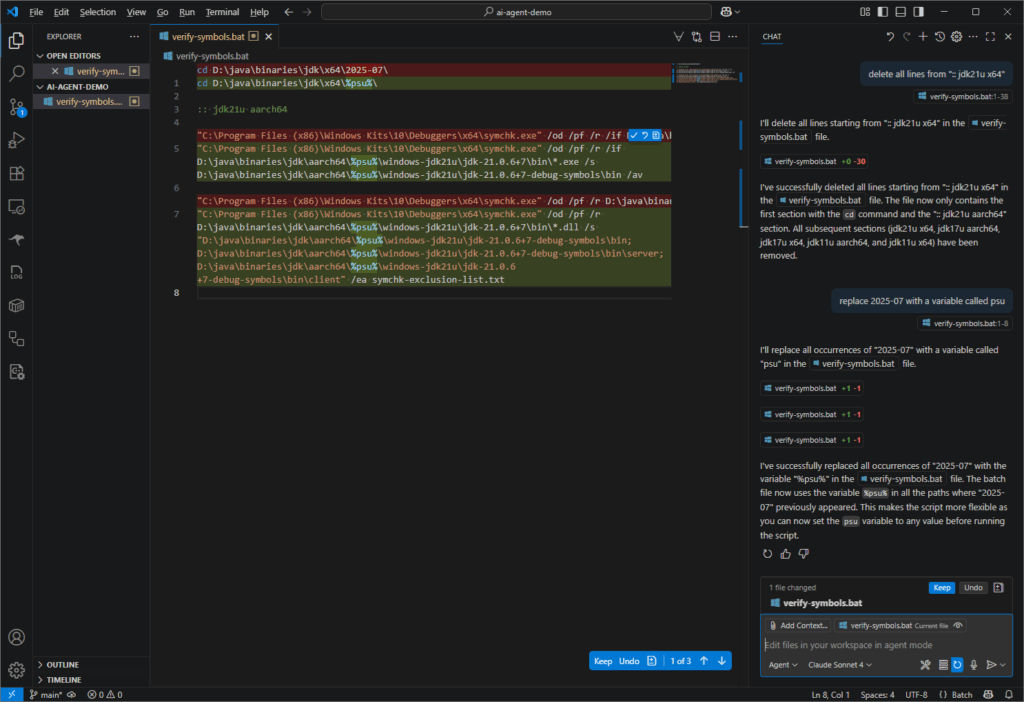
replace 2025-07 with a variable called psu
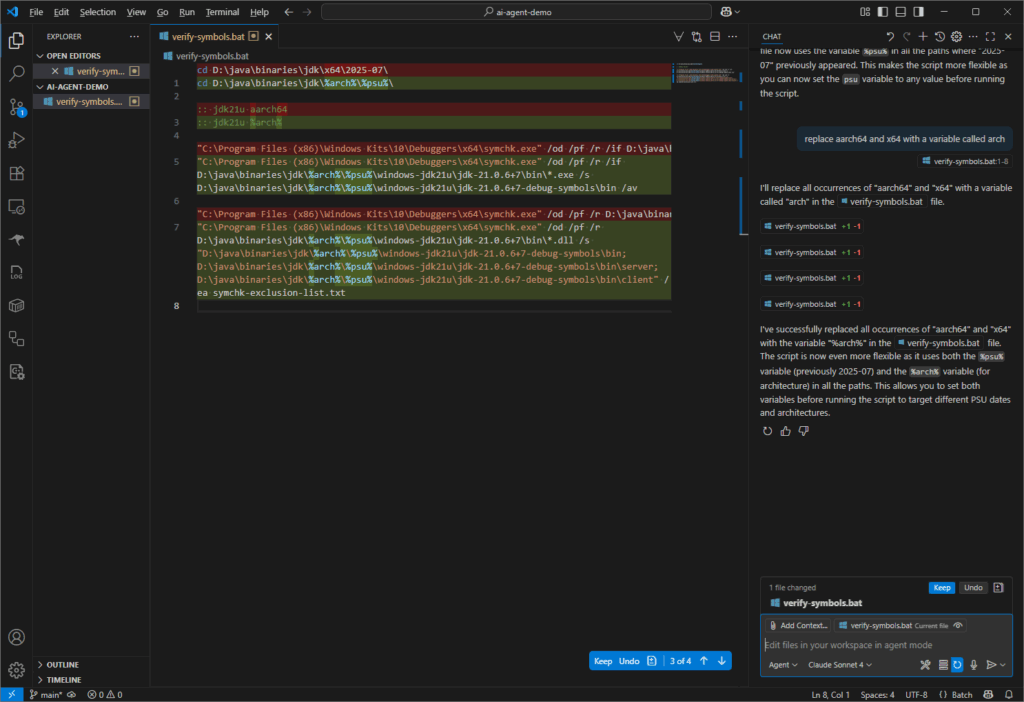
replace aarch64 and x64 with a variable called arch
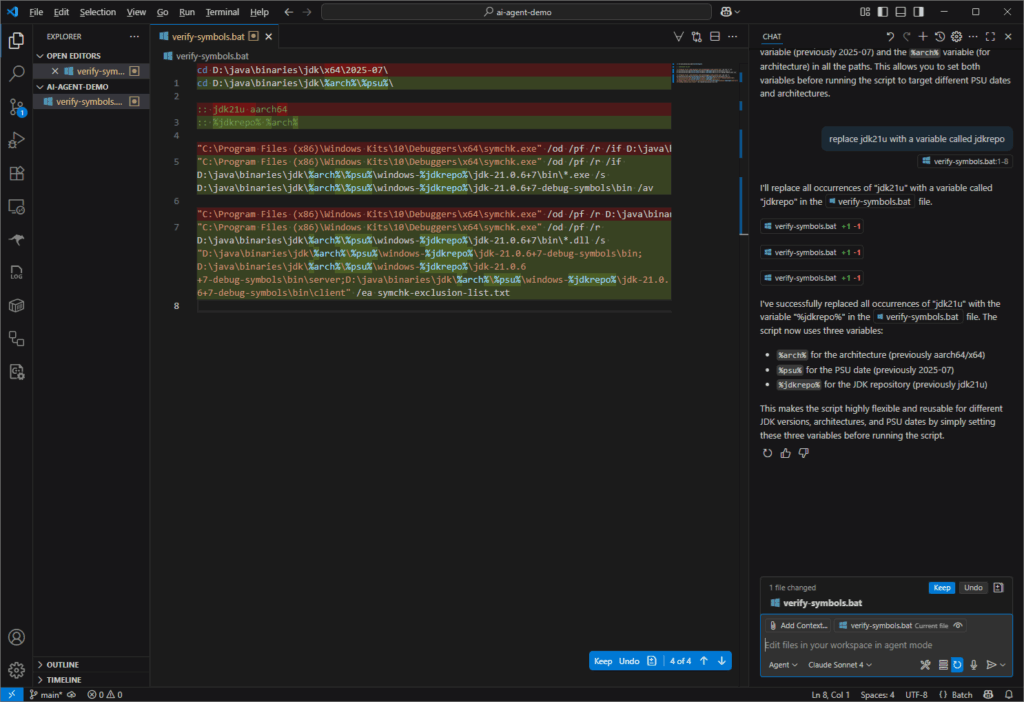
replace jdk21u with a variable called jdkrepo
replace jdk-21.0.6+7 with a variable called jdktag
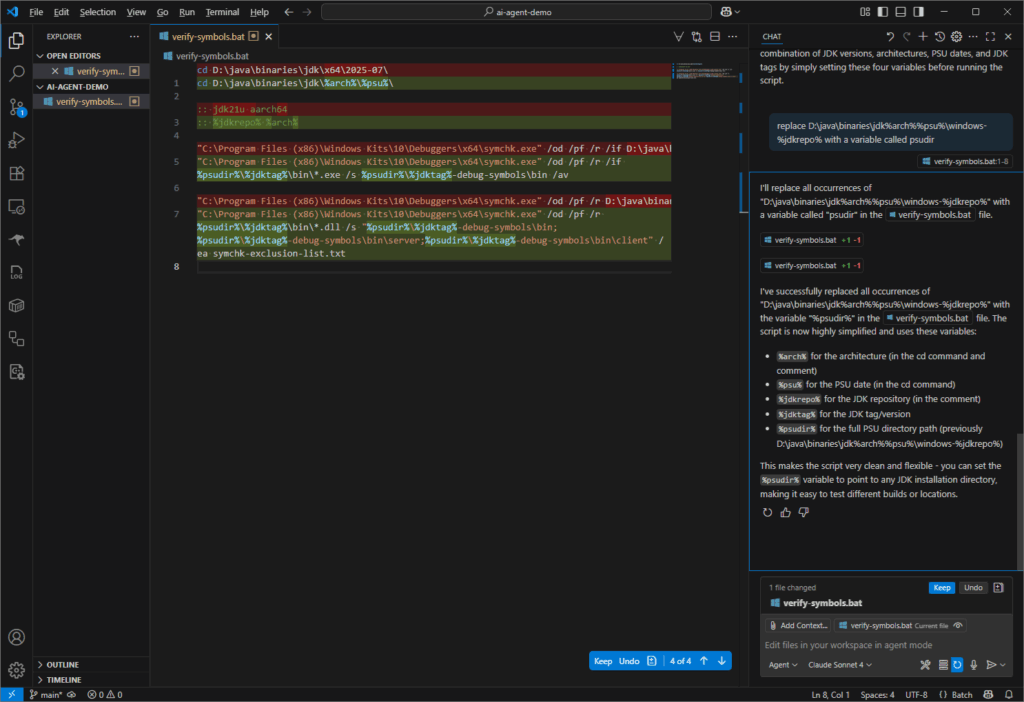
replace D:\java\binaries\jdk\%arch%\%psu%\windows-%jdkrepo% with a variable called psudir
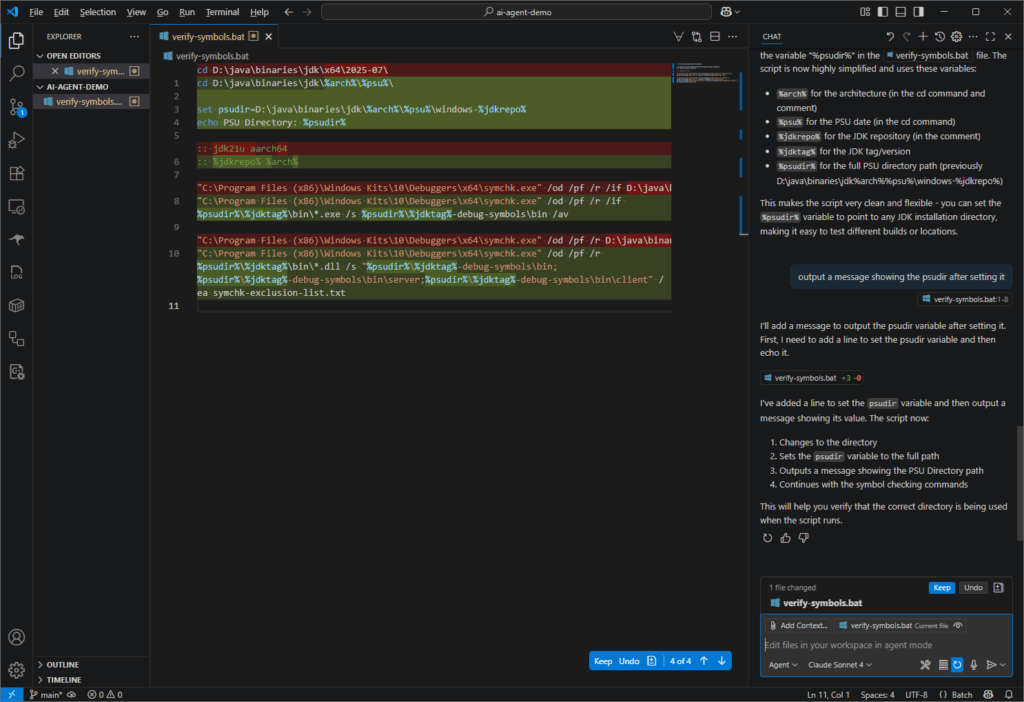
output a message showing the psudir after setting it
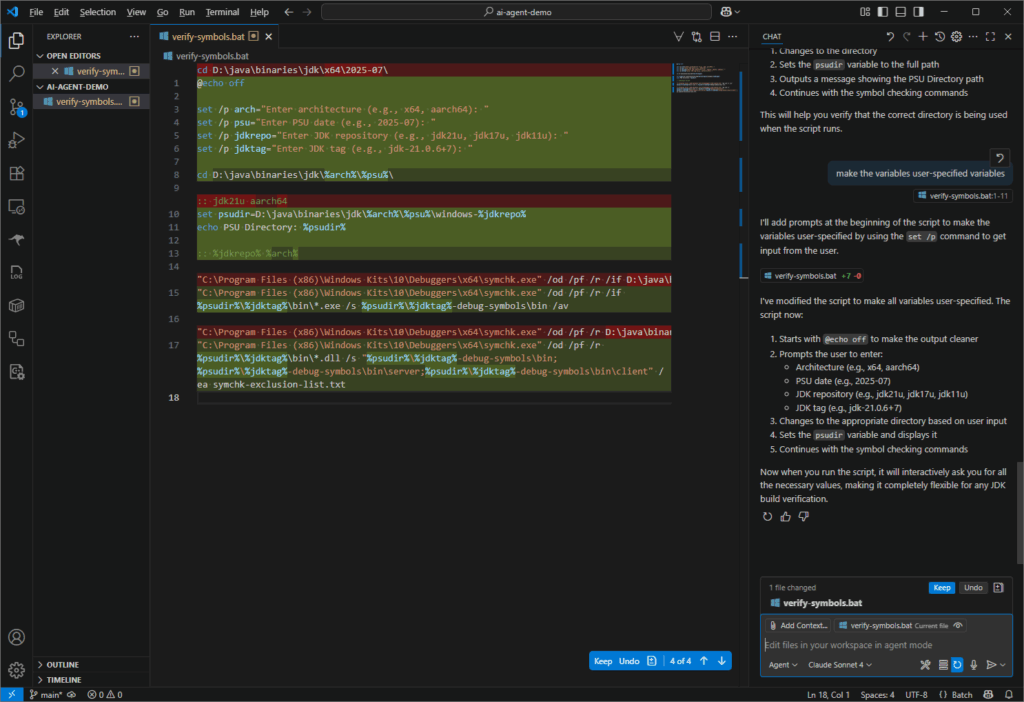
make the variables user-specified variables
make the variables command line arguments instead
I pasted the screenshots of the result of each prompt into the slideshow below. Notice that I was using Agent mode with Anthropic’s Claude Sonnet 4 model. I was not exactly saving much time in this scenario using the VSCode agent, but I was certainly understanding its capabilities.
I created a duplicate directory with the initial .bat file then used a single prompt with all the lines above. I was pleased that I got the same result!
I was a bit confused the 2nd time I worked through these prompts because the behavior of the agent was different! I didn’t notice that I had somehow switched from Agent mode to Ask mode but I have now learned the difference between these two modes.
What is the torch.varkeepDim parameter used for? p101
What about the correction parameter (formerly unbiased)? How does it relate to Bessel’s_correction? p103
Explain the difference between layer normalization and batch normalization. p104
When is layer normalization advantageous? p105
What is a GELU? How can it lead to better optimization properties during training (compared to a ReLU)?
What is one advantage of small non-zero outputs on negative inputs to a GELU? p106
Explain the role of a FeedForward module in enhancing the model’s ability to learn from and generalize data. Compare with Feedforward neural network. p108
Why were shortcut connections originally proposed for deep networks in computer vision? p109
Which PyTorch method computes loss gradients? p112
Explain Pre-LayerNorm and Post-LayerNorm. p115
What does preservation of shape throughout the transformer block architecture enable? p116
Explain weight-tying as used in the original GPT-2 architecture and its advantages. p121
This is the author’s video corresponding to chapter 4 of the book.
Build an LLM from Scratch 4: Implementing a GPT model from Scratch To Generate Text
Math Concepts
The author mentioned that OpenAI used the biased variance option when training their GPT-2 model. The reasons why Bessel’s correction is usually used in statistics is explained well in this video:
Why We Divide by N-1 in the Sample Variance (The Bessel’s Correction)
I didn’t think the reason we need activation functions was expounded upon. This final video provides a great explanation.
Why Do We Need Activation Functions in Neural Networks?
As part of the jdk11u release process, I needed to run some shell tests on my Windows desktop to determine whether they failed due to a product issue or an environment issue. I defaulted to using my Git Bash environment instead of Cygwin. This post shares some errors I ran into as a result of the different shell environment. The key takeaway was to run such tests in Cygwin whenever I encountered path errors.
I confirmed that rmic.exe exists in the bin directory of the jdk.
$ ls -1 /d/java/binaries/jdk/x64/2025-07/windows-jdk11u/jdk-11.0.28+6/bin/rmic*
/d/java/binaries/jdk/x64/2025-07/windows-jdk11u/jdk-11.0.28+6/bin/rmic.exe*
Changing the test to directly refer to rmic.exe instead of rmic (as shown in the diff below) resulted in the test passing on my machine. I concluded that this specific issue must therefore be a test bug (i.e. the test should avoid this issue on Windows). See Shell Tests in jtreg for possible ways to fix this. This is one reason why shell scripts are being discouraged for OpenJDK testing.
STDOUT:
Warning: generation and use of skeletons and static stubs for JRMP
is deprecated. Skeletons are unnecessary, and static stubs have
been superseded by dynamically generated stubs. Users are
encouraged to migrate away from using rmic to generate skeletons and static
stubs. See the documentation for java.rmi.server.UnicastRemoteObject.
This warning is output by the sun.rmi.rmic.Main.compile method. The arguments to rmic.exe are parsed by Main.parseArgs. The -v1.2 argument specifies the non-default generator to use. My local machine must be using a different default generator (or so I thought).
So what does the failing line do? I asked Copilot: what does this command do in a bash script? . ${TESTSRC-.}/common.sh
. (dot command) This is shorthand for source, which executes the contents of a file in the current shell environment rather than in a subshell. This means any variables, functions, or changes made by the script will persist in the current shell.
${TESTSRC-.} This is a parameter expansion. It means:
Use the value of the TESTSRC environment variable if it is set.
If TESTSRC is not set, use . (the current directory) as the default.
/common.sh This appends /common.sh to the path determined above.
This error was a Windows path issue again. Notepad++ could open D:/java/ms/openjdk-jdk11u/test/jdk/sun/tools/jrunscript/common.sh so the path itself was fine. I used this workaround:
diff --git a/test/jdk/sun/tools/jrunscript/jrunscript-eTest.sh b/test/jdk/sun/tools/jrunscript/jrunscript-eTest.sh
index 6a3d4e76ff..94001967b0 100644
--- a/test/jdk/sun/tools/jrunscript/jrunscript-eTest.sh
+++ b/test/jdk/sun/tools/jrunscript/jrunscript-eTest.sh
@@ -30,10 +30,11 @@
 # @run shell jrunscript-eTest.sh
 # @summary Test that output of 'jrunscript -e' matches the dash-e.out file

-. ${TESTSRC-.}/common.sh
+comn=`/mnt/c/software/msys64/usr/bin/cygpath.exe ${TESTSRC-.}/common.sh`
+. "/mnt$comn"

 setup
-${JAVA} ${TESTVMOPTS} ${TESTJAVAOPTS} -cp ${TESTCLASSES} CheckEngine
+${JAVA}.exe ${TESTVMOPTS} ${TESTJAVAOPTS} -cp ${TESTCLASSES} CheckEngine
 if [ $? -eq 2 ]; then
     echo "No js engine found and engine not required; test vacuously passes."
     exit 0
This got me to the actual test error:
STDOUT:
Output of jrunscript -e differ from expected output. Failed.
STDERR:
Warning: Nashorn engine is planned to be removed from a future JDK release
diff: D:/java/ms/openjdk-jdk11u/test/jdk/sun/tools/jrunscript/dash-e.out: No such file or directory
I couldn’t see which command generated the output though, so I added set -ex to the top of the script (like run.sh in the previous test). This was the resulting output:
Aha! Notice the root cause of the filename issues: OS=Linux! This also confirmed that I was using the same diff command. I didn’t get the error message at jdk11u/test/jdk/sun/tools/jrunscript/jrunscript-eTest.sh at jdk-11.0.28+5 · openjdk/jdk11u because because of set -ex (the e means exit immediately if any command fails, which does not match the behavior this test requires). After removing the e, I got this output:
$ ls -1 `cygpath D:/java/ms/openjdk-jdk11u/test/jdk/sun/tools/jrunscript/dash-e.out`
/d/java/ms/openjdk-jdk11u/test/jdk/sun/tools/jrunscript/dash-e.out
I patched the script as shown in the next diff:
diff --git a/test/jdk/sun/tools/jrunscript/jrunscript-eTest.sh b/test/jdk/sun/tools/jrunscript/jrunscript-eTest.sh
index 6a3d4e76ff..4c7130857e 100644
--- a/test/jdk/sun/tools/jrunscript/jrunscript-eTest.sh
+++ b/test/jdk/sun/tools/jrunscript/jrunscript-eTest.sh
@@ -30,10 +30,13 @@
 # @run shell jrunscript-eTest.sh
 # @summary Test that output of 'jrunscript -e' matches the dash-e.out file

-. ${TESTSRC-.}/common.sh
+set -x
+
+comn=`/mnt/c/software/msys64/usr/bin/cygpath.exe ${TESTSRC-.}/common.sh`
+. "/mnt$comn"

 setup
-${JAVA} ${TESTVMOPTS} ${TESTJAVAOPTS} -cp ${TESTCLASSES} CheckEngine
+${JAVA}.exe ${TESTVMOPTS} ${TESTJAVAOPTS} -cp ${TESTCLASSES} CheckEngine
 if [ $? -eq 2 ]; then
     echo "No js engine found and engine not required; test vacuously passes."
     exit 0
@@ -44,7 +47,9 @@ fi
 rm -f jrunscript-eTest.out 2>/dev/null
 ${JRUNSCRIPT} -J-Dnashorn.args.prepend=--no-deprecation-warning -J-Djava.awt.headless=true -l nashorn -e "println('hello')" > jrunscript-eTest.out 2>&1

-$golden_diff jrunscript-eTest.out ${TESTSRC}/dash-e.out
+diffarg=`/mnt/c/software/msys64/usr/bin/cygpath.exe ${TESTSRC}/dash-e.out`
+
+$golden_diff jrunscript-eTest.out "/mnt$diffarg"
 if [ $? != 0 ]
 then
   echo "Output of jrunscript -e differ from expected output. Failed."
Avoiding Path Issues
This madness (in the diff above) that made me realize that I needed to fix the path issues and that perhaps Cygwin was the better environment for these tests. Sure enough, the test passed the first time I executed it in Cygwin:
Executing: D:/java/binaries/jdk/x64/2025-07/windows-jdk11u/jdk-11.0.28+6/bin/java -Xmx512m -jar C:/java/binaries/jtreg/jtreg-7.4+1/lib/jtreg.jar -agentvm -ignore:quiet -automatic -xml -vmoption:-Xmx512m -timeoutFactor:4 -concurrency:1 -testjdk:D:/java/binaries/jdk/x64/2025-07/windows-jdk11u/jdk-11.0.28+6 -verbose:fail,error,summary -nativepath:D:/java/binaries/jdk/x64/2025-07/windows-jdk11u/jdk-11.0.28+6-test-image/hotspot/jtreg/native test/jdk/sun/tools/jrunscript/jrunscript-eTest.sh
XML output  to D:\java\ms\dups\openjdk-jdk11u\JTwork
Passed: sun/tools/jrunscript/jrunscript-eTest.sh
Test results: passed: 1
Moral of the story: run OpenJDK shell tests on Windows in the Cygwin environment! At this point, the only outstanding question is about the difference between the local machine and the test environment the build was executed in. I thought that the fact that I didn’t get the rmic.jrmp.stubs.deprecated warning meant that a different default generator was used on my machine. However, I realized that the stdout messages were not being displayed! That warning was present in the output but I needed to open JTwork\sun\rmi\rmic\defaultStubVersion\run.jtr to see it!
----------System.out:(11/743)----------
Warning: generation and use of skeletons and static stubs for JRMP
is deprecated. Skeletons are unnecessary, and static stubs have
been superseded by dynamically generated stubs. Users are
encouraged to migrate away from using rmic to generate skeletons and static
stubs. See the documentation for java.rmi.server.UnicastRemoteObject.
Warning: generation and use of skeletons and static stubs for JRMP
is deprecated. Skeletons are unnecessary, and static stubs have
been superseded by dynamically generated stubs. Users are
encouraged to migrate away from using rmic to generate skeletons and static
stubs. See the documentation for java.rmi.server.UnicastRemoteObject.
TEST PASSED: default output identical to -v1.2 output
----------System.err:(8/706)----------
+ defdir=./default_output
+ refdir=./reference_output
+ rm -rf ./default_output ./reference_output
+ mkdir ./default_output ./reference_output
+ D:/java/binaries/jdk/x64/2025-07/windows-jdk11u/jdk-11.0.28+6/bin/rmic -classpath D:/java/ms/openjdk-jdk11u/JTwork/classes/sun/rmi/rmic/defaultStubVersion/run.d -keep -nowrite -d ./default_output G1Impl
+ D:/java/binaries/jdk/x64/2025-07/windows-jdk11u/jdk-11.0.28+6/bin/rmic -classpath D:/java/ms/openjdk-jdk11u/JTwork/classes/sun/rmi/rmic/defaultStubVersion/run.d -keep -nowrite -d ./reference_output -v1.2 G1Impl
+ diff -r ./default_output ./reference_output
+ echo 'TEST PASSED: default output identical to -v1.2 output'
This was sufficient for me to confirm that the build behaves as expected in this scenario.