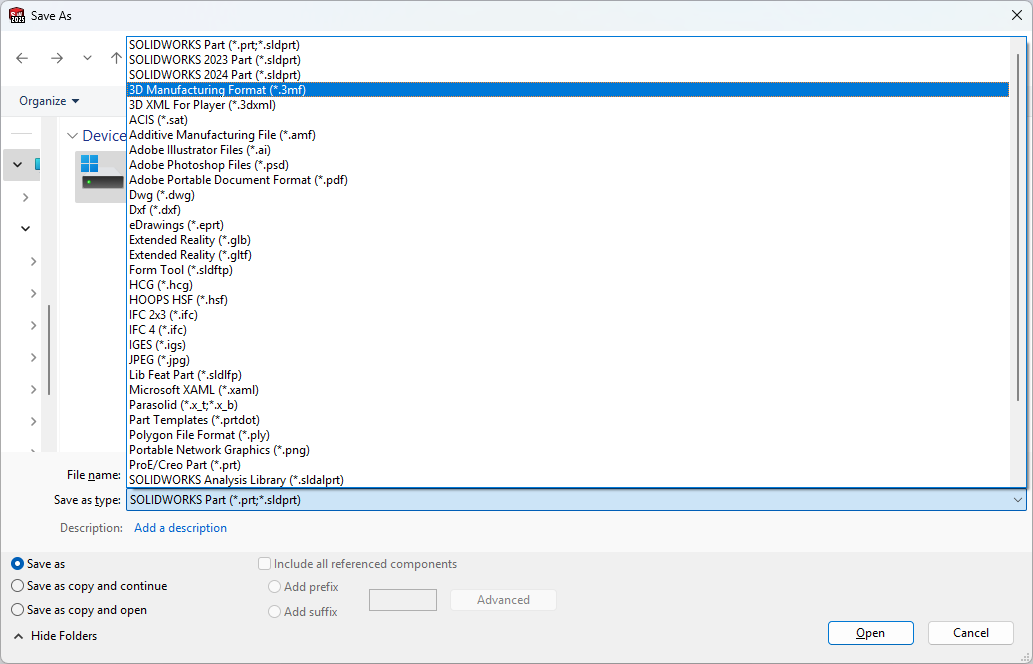
Once I had finished Setting up my First 3D Printer, I wanted to design and print custom models. The Anycubic Slicer Next software can only open 3mf files. Being new to this space means that I had never even heard of this format before. Here are some useful resources for learning more about it:
Download the latest release from the releases page. This is a .zip archive.
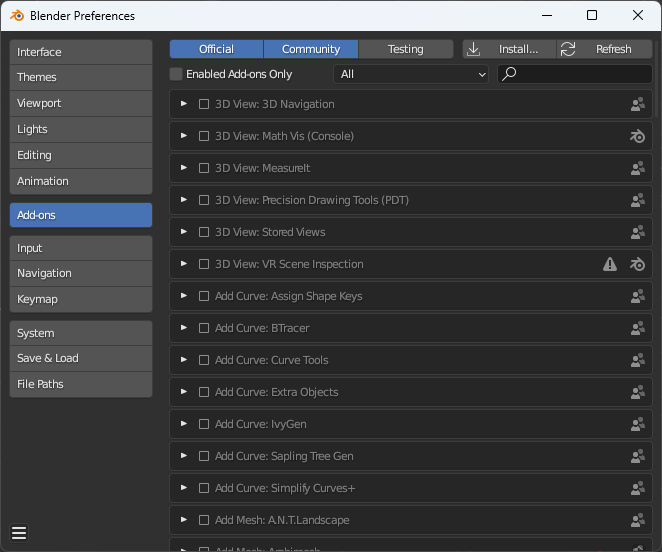
In Blender, go to Edit -> Preferences and open the Add-ons tab on the left.
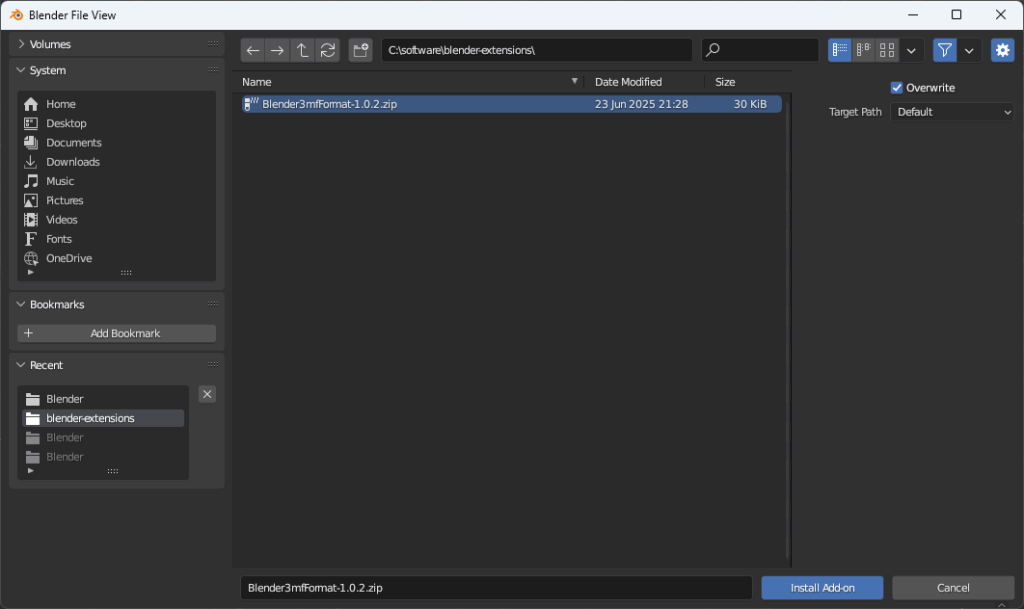
Click on the Install… button at the top. Navigate to the .zip you downloaded.
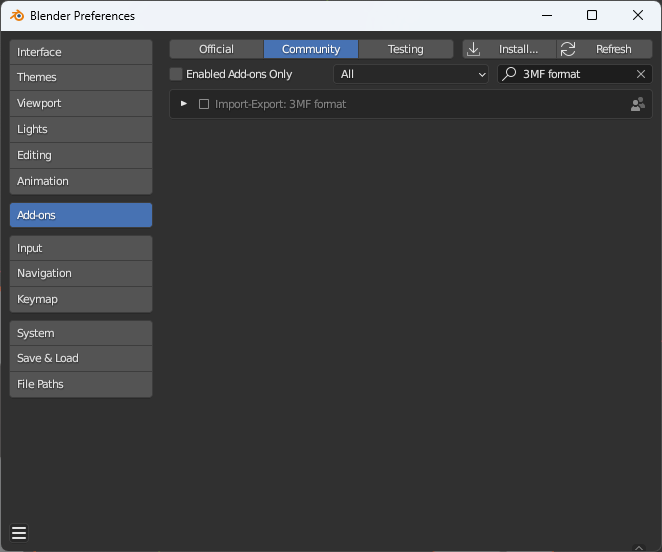
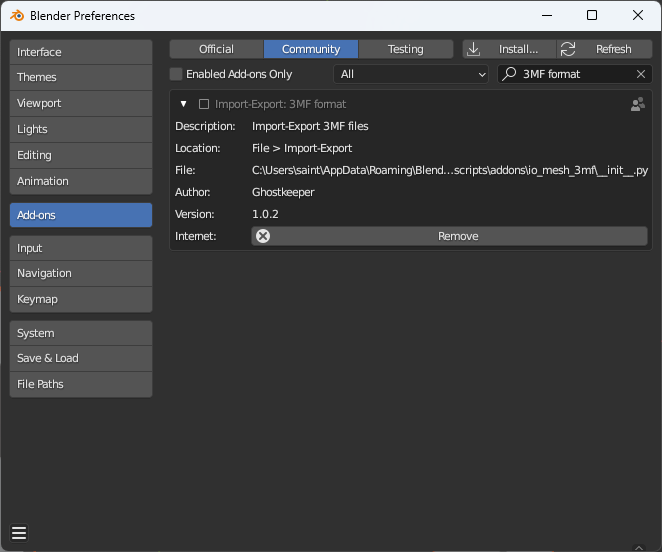
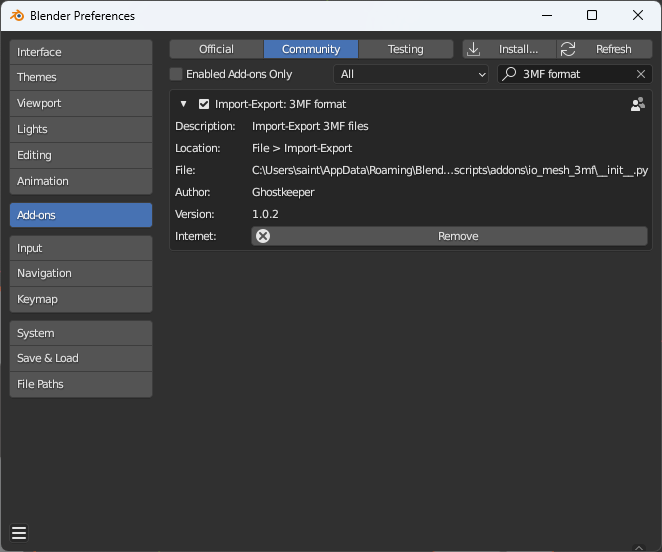
Under the “Community” category, find the add-on called “Import-Export: 3MF format”. Make sure that it’s enabled. (Note: If searching with the search box, exclude the “Import-Export” text since this is the category, not part of the add-on name. Just search for “3MF” instead.)
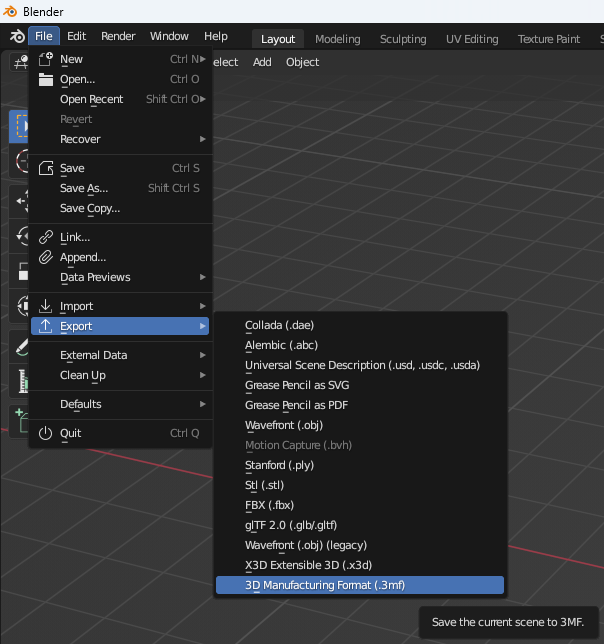
As promised on the plugins page, the export option is now available:
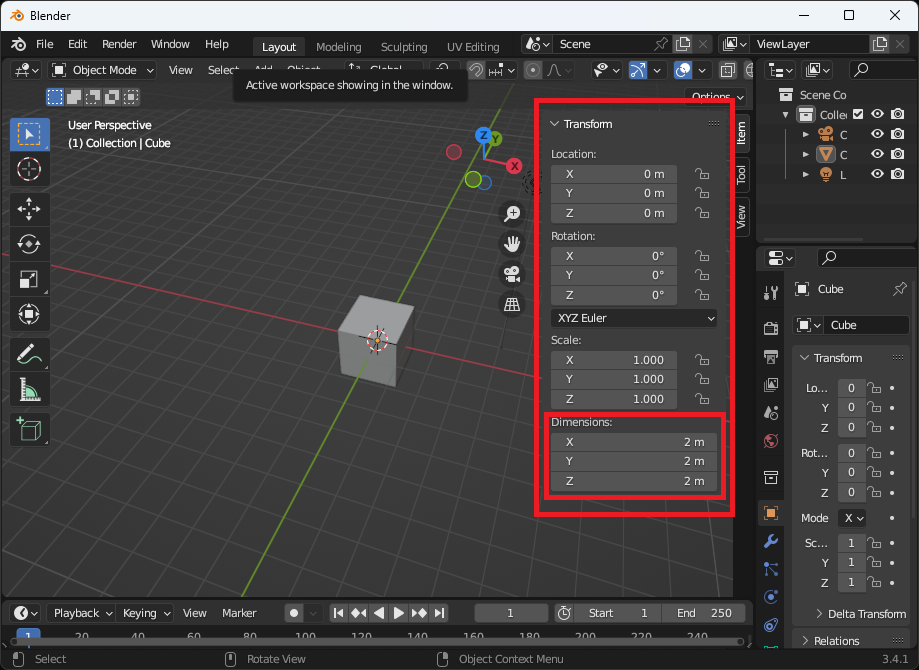
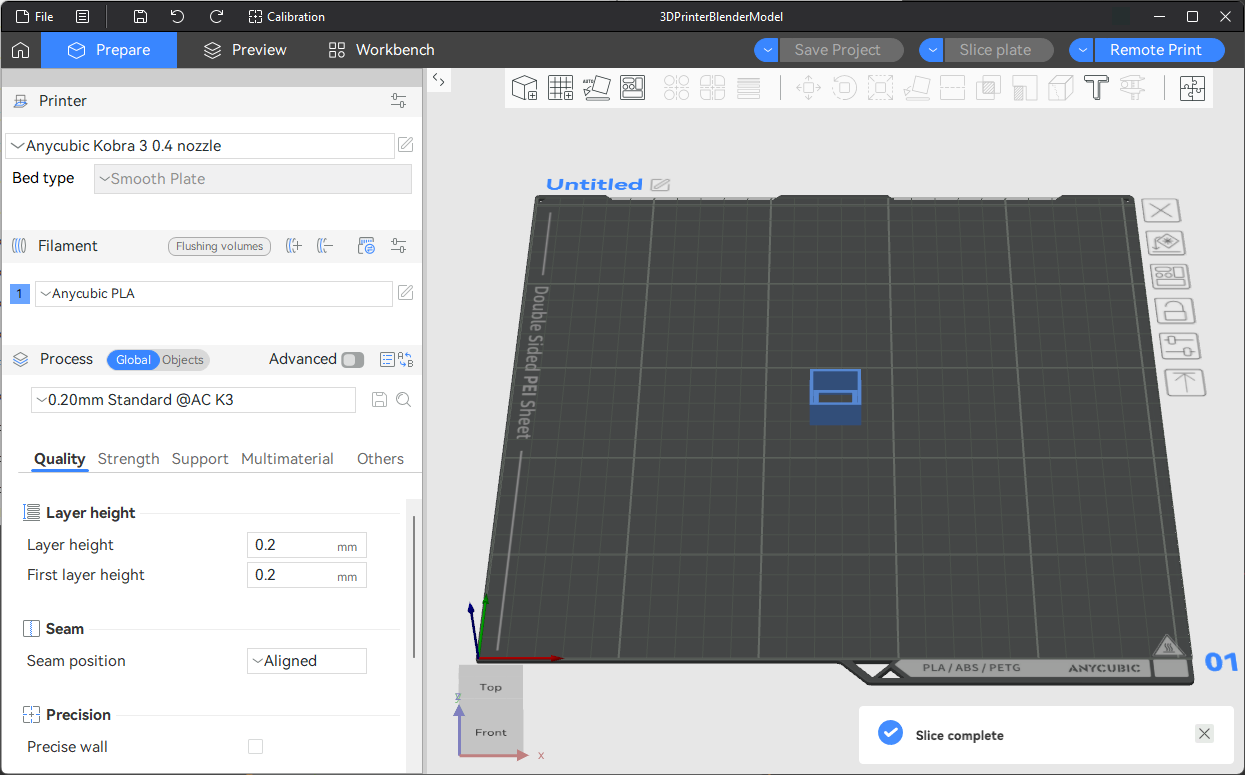
Note that there is a “Scale” option on the export dialog. I just ensured my dimensions were real world dimensions. Here is the simple blender model I made in the Anycubic Slicer Next software. I was able to successfully print it.
Anycubic Slicer Next with a 3mf exported from Blender
I installed SOLIDWORKS 2023 Student Edition on my desktop about 2 years ago but did not renew the license after it expired last year. Having just set up a 3D printer, I decided to renew my SOLIDWORKS license to make new models I could print. Since I bought the latest version (2025) from SOLIDWORKS for Students | SOLIDWORKS. I uninstalled SOLIDWORKS 2023 and installed SOLIDWORKS 2025 SP2.0. However, I could not start SOLIDWORKS 2025! It failed with this error:
---------------------------
SOLIDWORKS Product Activation
---------------------------
The current computer identifier (0) does not match the previously used computer identifier (1). You can continue, but you might have activation or deactivation issues in the future.

Please contact you support representative for support.
---------------------------
OK
---------------------------
The OK button then leads to another dialog with this message:
[Window Title]
SOLIDWORKS

[Content]
This Student Edition has expired.

Please browse to the following web location to find out about the new version of SOLIDWORKS Student Edition:

www.solidworks.com/goEDU

[OK]
These is the first set of instructions I got (slightly paraphrased):
Go to the FlexNet Folder (C:\ProgramData\FLEXnet) and rename all ‘SW_D’ files to something like ‘SW_D_old’. Launch SOLIDWORKS again and test the behavior. By default, the “ProgramData” folder is hidden. Either you can activate the “Show hidden folders” option in the “Folder” options, or you can directly enter C:\ProgramData in the address bar to access this folder.
If the above steps do not help, try the steps below
Go to Control Panel\All Control Panel Items\Programs and Features
Search for SOLIDWORKS <version> then right click on it and click ‘Change’
The SOLIDWORKS installation manager will pop up. Click on ‘Repair your installation’.
Once repair is complete, launch SOLIDWORKS and test the behavior.
If the issue still persists, please share the Installation Manager logs on the 3DSupport App for investigation. To go to the Installation log folder, you can type %appdata% at Start > RUN and press Enter, and it will open the “Roaming” folder. In the “Roaming” folder, go to the “SOLIDWORKS” folder. Under the “SOLIDWORKS” folder, you will find a folder named “Installation log.” Zip this complete folder and provide it for investigation.
These steps didn’t work so I uploaded my installation logs. The next set of instructions addressed the problem. Here they are (slightly paraphrased):
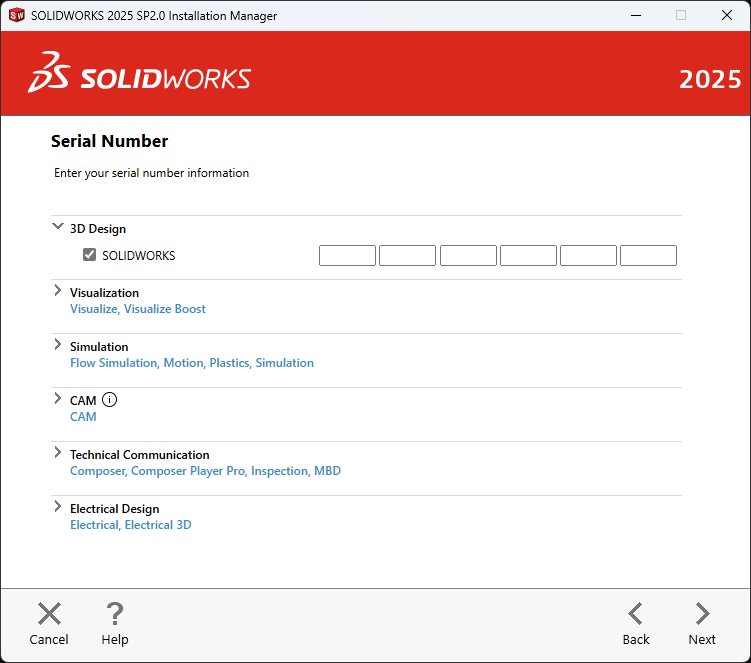
To resolve this issue, I recommend uninstalling all SOLIDWORKS versions currently present on your system. Once that is done, then perform the installation again and be sure to enter your new license number [1234…] manually on the serial number page in the “3D Design > SOLIDWORKS” checkbox. If you have purchased the Student Edition, then your new serial number will be present in the post-purchase email. Please follow these installation steps:
Uninstall all SOLIDWORKS versions currently present on your system. Please follow these steps:
Go to Control Panel\All Control Panel Items\Programs and Features
Search for SOLIDWORKS (Version) then right click on it and select ‘Uninstall’.
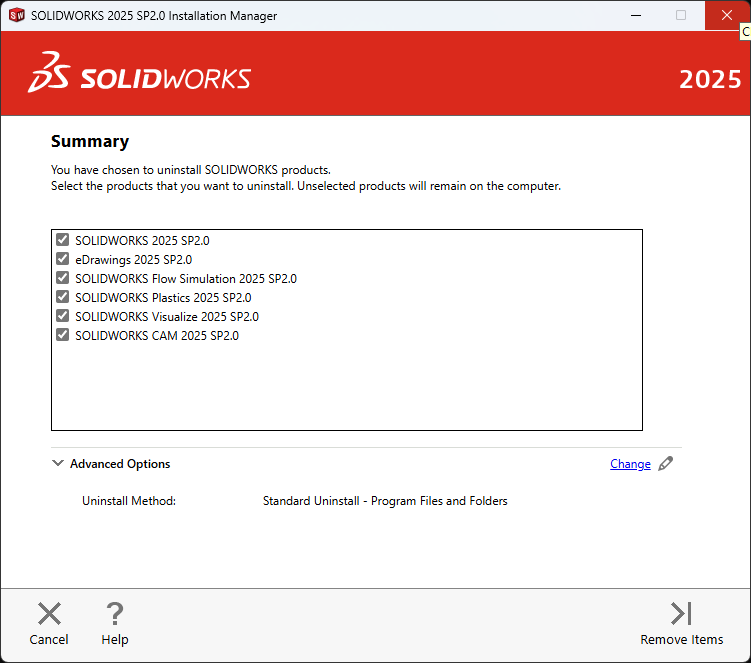
In the Installation Manager window, under ‘Advanced Options’, select ‘Change’.
By default, the ‘Program files and Folders’ will be selected. Select the remaining items (‘Registry Entries’ and ‘Data Files and Folders’) as well.
Click ‘Back to Summary’.
Click on ‘Remove Items’ and let Installation Manager complete the uninstallation.
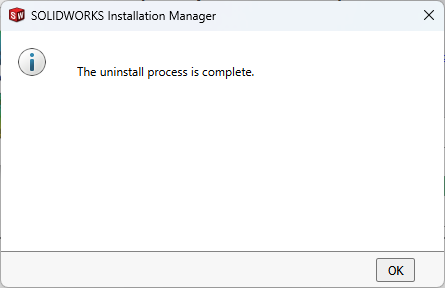
Once uninstallation is complete, restart your system.
Download the setup file from: www.solidworks.com/SEK
Right-click on the setup file and select ‘Run as administrator’.
On Welcome page > Select ‘Install on this computer’ and click ‘Next’.
On the Serial Number screen, enter your latest serial number [1234…] manually in the 3D Design > SOLIDWORKS checkbox only. Please leave all the other product’s [like composer, Visual, simulation, etc..] serial number checkboxes blank and unchecked. See the attached image for your reference.
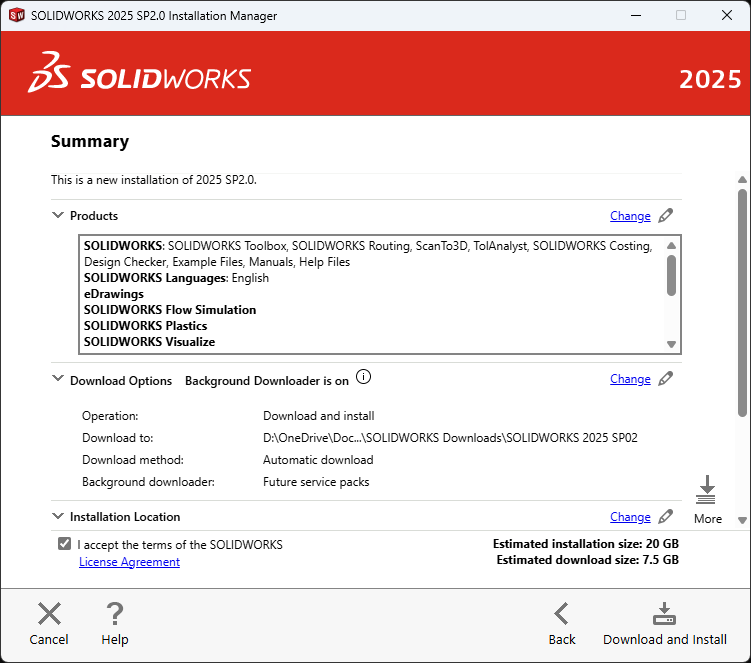
On the Summary screen > Under Products, click ‘change’ > untick the unwanted
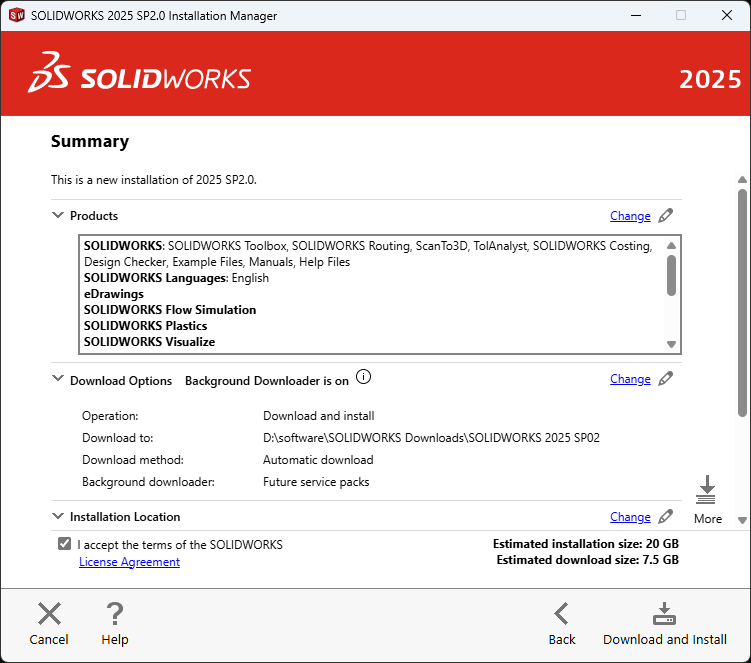
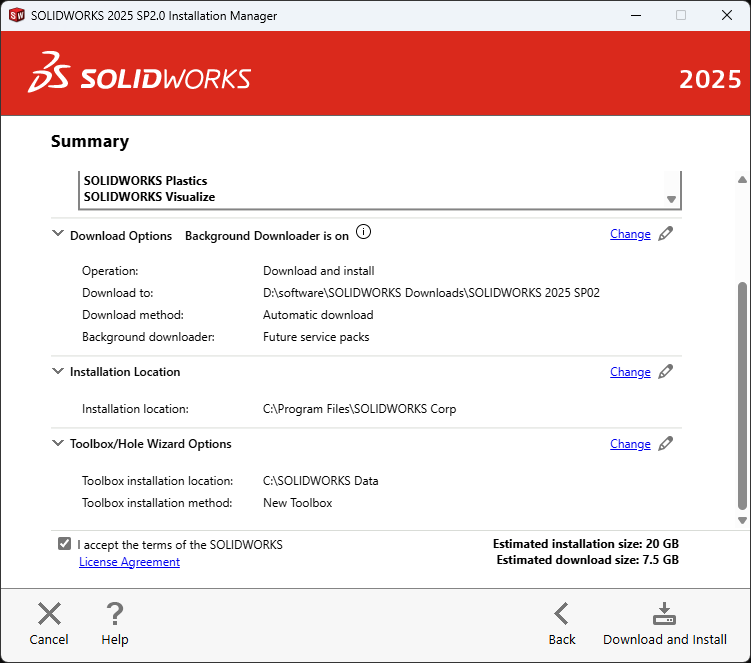
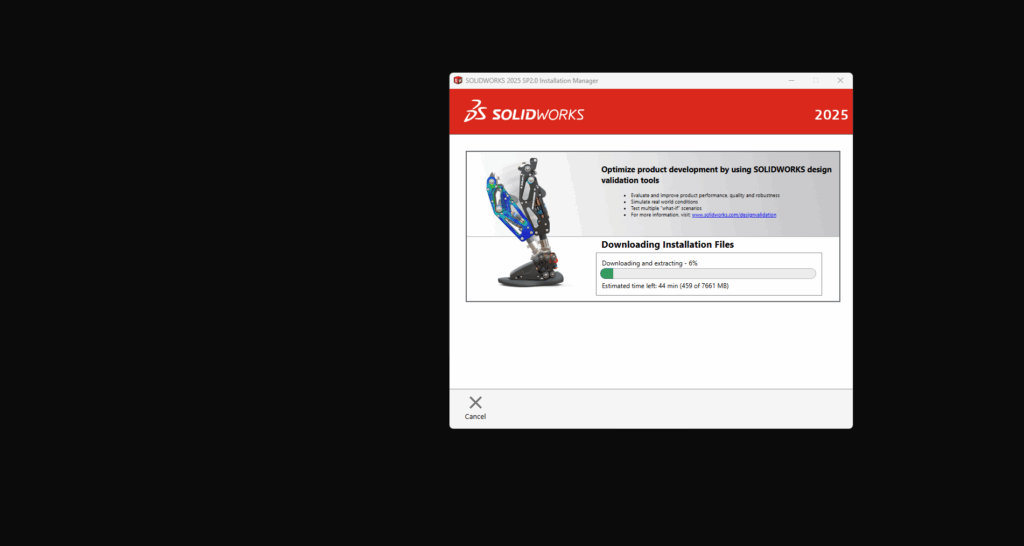
On the Summary screen > Download Option, click ‘change” > select ‘Download and Install’.
On the Summary screen, click ‘Install Now’.
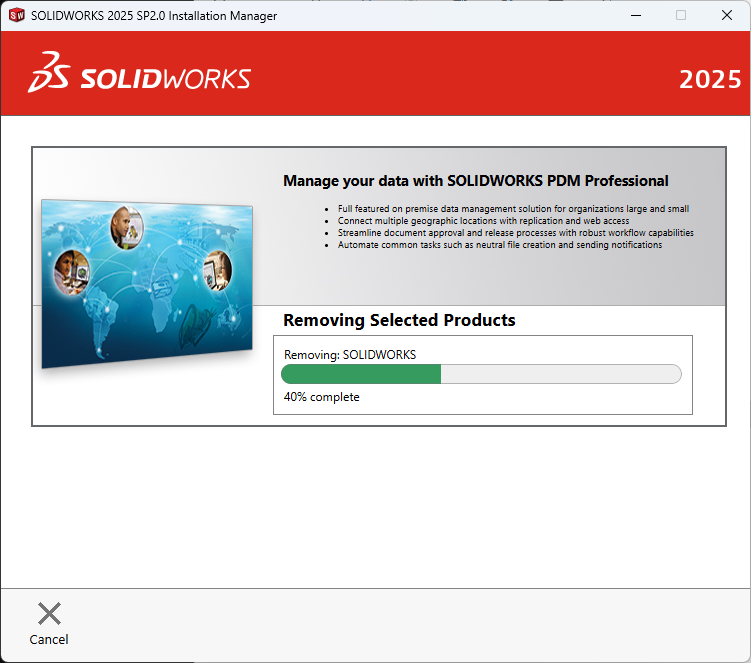
Uninstalling SOLIDWORKS 2025
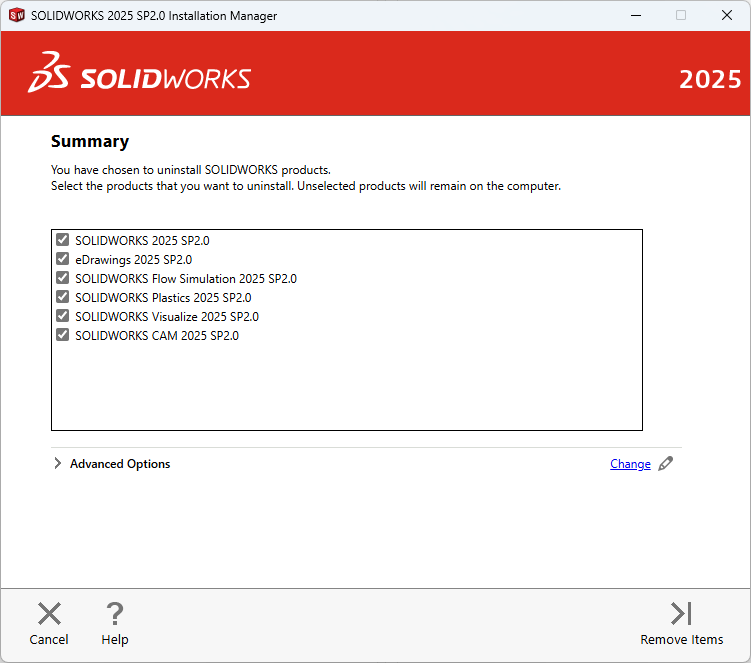
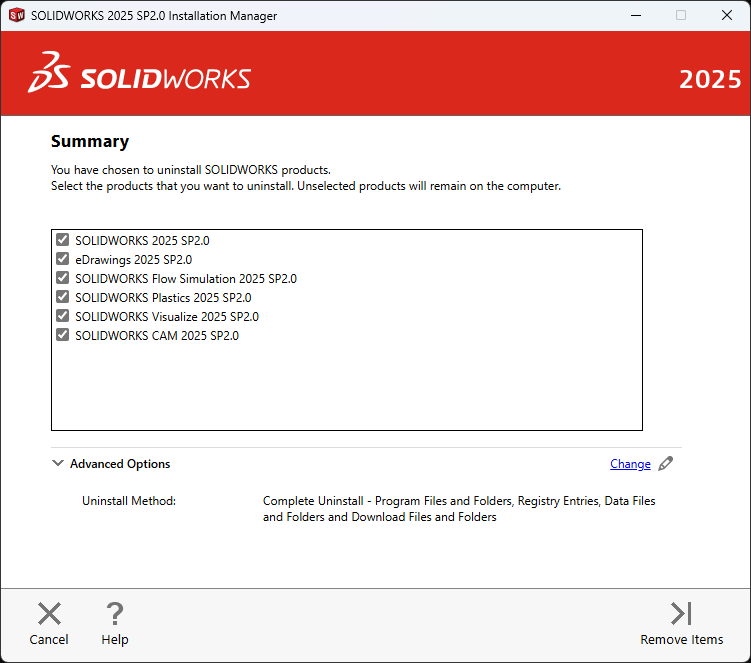
The first time I uninstalled SOLIDWORKS 2025, I didn’t adjust the “Advanced Options”:
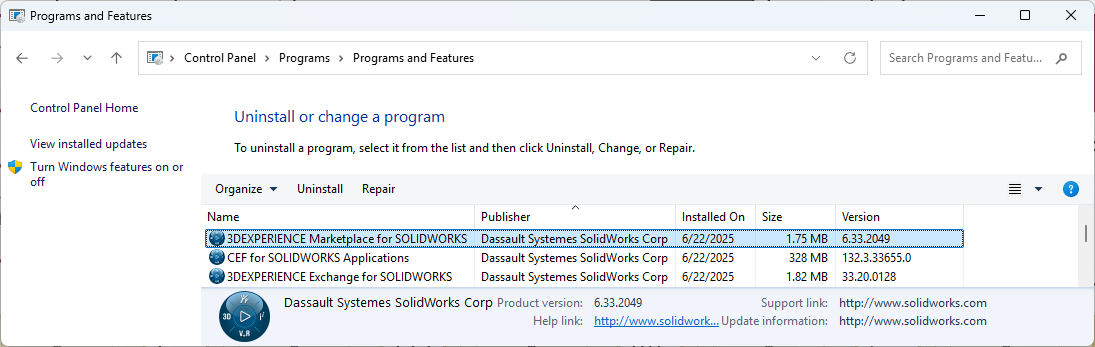
After uninstalling it, the SOLIDWORKS Login Manager was still listed as installed in the control panel. I uninstalled it as well then later realized that I missed other products from Dassault Systemes.
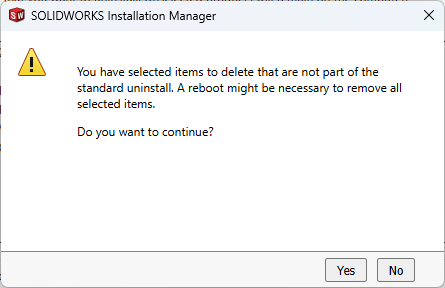
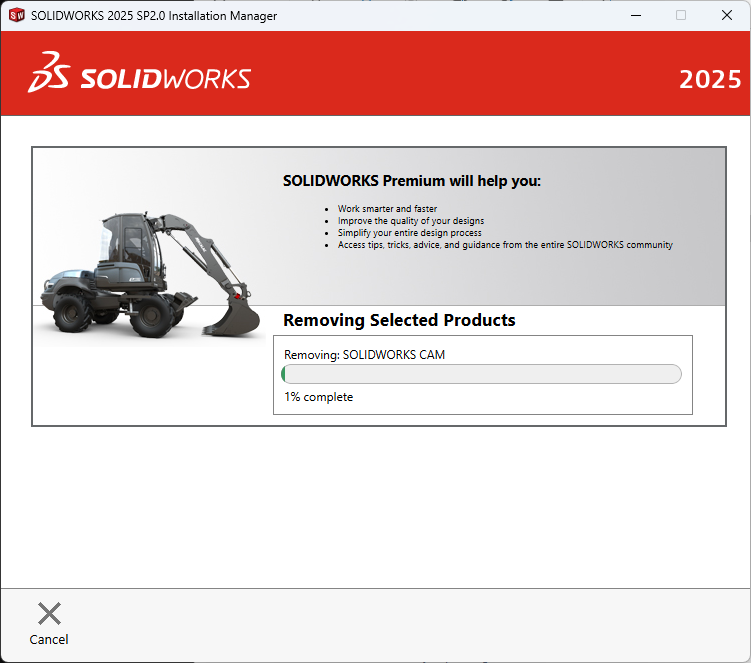
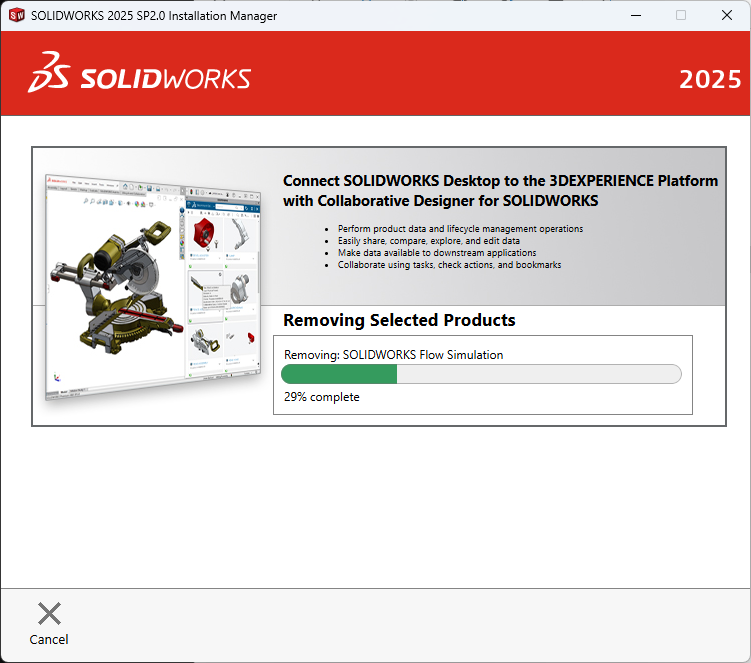
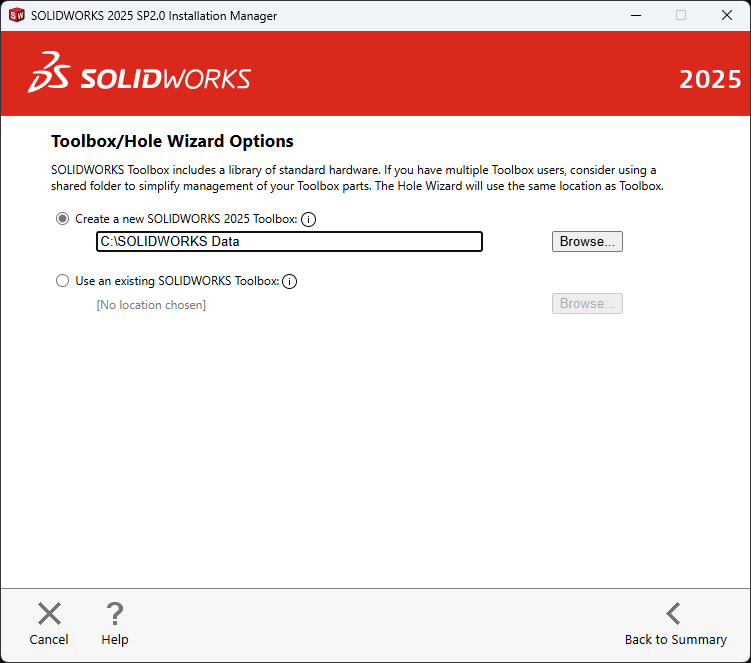
I entered the correct serial number on the installation this time. I also noticed that the install path is in C:\dev (which also has SOLIDWORKS 2023 files). I didn’t remember how I created that directory the last time I installed SOLIDWORKS (nothing else would automatically go into my \dev directory). After all this, the same error message is displayed when trying to start SOLIDWORKS. This was because I skipped the most important steps in the uninstallation. I paid careful attention to the options the next time I uninstalled it! Before uninstalling it, I poked around and found that I the license is in HKEY_LOCAL_MACHINE\SOFTWARE\SolidWorks\Licenses\Serial Numbers. The slideshow below shows the advanced options that need to be selected for a full uninstall.
These are the files and folders that were to be removed on my desktop:
Program Files and Folder:
C:\Program Files\SOLIDWORKS Corp\SOLIDWORKS CAM\
C:\Program Files\SOLIDWORKS Corp\SOLIDWORKS Visualize\
C:\Program Files\SOLIDWORKS Corp\SOLIDWORKS Plastics\
C:\Program Files\SOLIDWORKS Corp\SOLIDWORKS Flow Simulation\
C:\Program Files\SOLIDWORKS Corp\eDrawings\
C:\Program Files\SOLIDWORKS Corp\SOLIDWORKS\

Registry Entries:
HKCU\Software\SolidWorks
HKLM\Software\Wow6432Node\SolidWorks
HKLM\Software\SolidWorks
HKCU\Software\SRAC
HKLM\Software\SRAC
HKCU\Software\eDrawings
HKLM\Software\eDrawings

Data Files and Folder:
C:\software\SOLIDWORKS Data (2)
C:\ProgramData\SolidWorks
C:\ProgramData\COSMOS Applications
C:\Users\Public\Documents\SolidWorks
C:\ProgramData\DassaultSystemes

Download Files and Folder:
C:\dev\Downloads\SolidWorksFiles\SOLIDWORKS 2023 SP02.1
C:\dev\Downloads\SolidWorksFiles\SOLIDWORKS 2025 SP02
After uninstallation completed, I decided to inspect the registry (using the reg query command) to see what was left. 6 of the 7 registry entries returned “ERROR: The system was unable to find the specified registry key or value.” Only the HKEY_LOCAL_MACHINE\SOFTWARE\SolidWorks key still contained data.
C:\>reg query "HKEY_LOCAL_MACHINE\SOFTWARE\SolidWorks" /s

HKEY_LOCAL_MACHINE\SOFTWARE\SolidWorks\AddIns

HKEY_LOCAL_MACHINE\SOFTWARE\SolidWorks\AddIns\{219180B0-7183-4FE2-B167-4E2BFE534004}
    (Default)    REG_DWORD    0x1
    Description    REG_SZ    Access to digital manufacturers worldwide, sourceable 3D components, and more. v6.33.2049
    Title    REG_SZ    3DEXPERIENCE Marketplace
    Icon Path    REG_SZ    C:\Program Files\Common Files\SOLIDWORKS Shared\3DEXPERIENCE Marketplace\I_3DEXPERIENCEPlatform_16.png

HKEY_LOCAL_MACHINE\SOFTWARE\SolidWorks\AddIns\{fb5ac345-200b-44d2-9ffa-69b7d44fc36f}
    (Default)    REG_DWORD    0x0
    Description    REG_SZ    Work with a package of content from a 3DEXPERIENCE source, such as SOLIDWORKS Connected or the Design with SOLIDWORKS app.
    Title    REG_SZ    3DEXPERIENCE Exchange
    Icon Path    REG_SZ    C:\Program Files\Common Files\SOLIDWORKS Shared\3DEXPERIENCE Exchange\Resources\3dexperience_exchange-20px.png
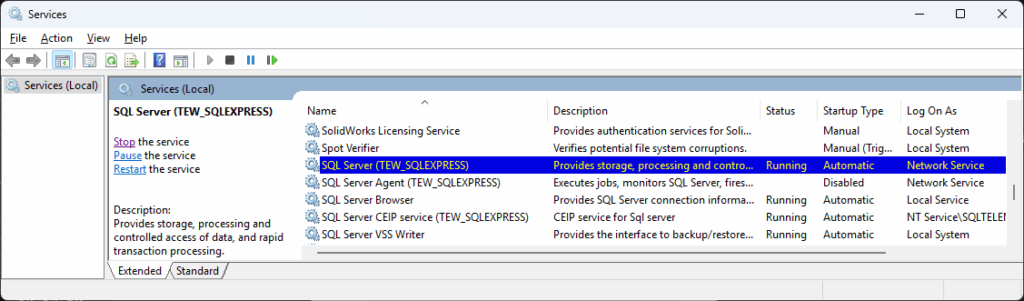
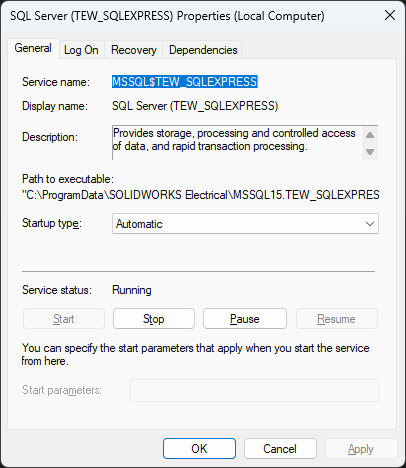
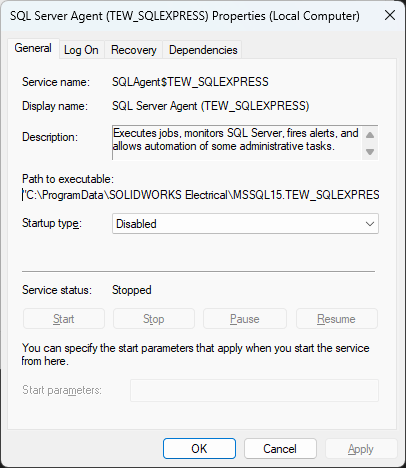
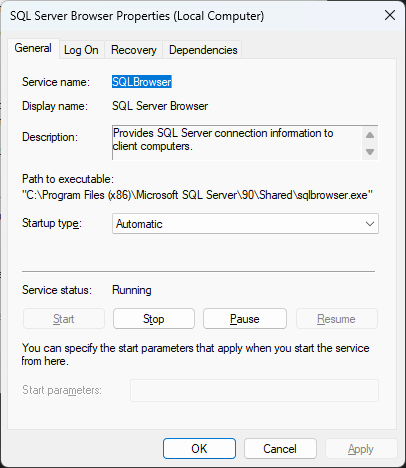
The path “C:\Program Files\SOLIDWORKS Corp” now contained 0 files but still contained 2 folders: “SOLIDWORKS Electrical” and “eDrawings” (which looked harmless). The other directories had been removed. There was still a “C:\ProgramData\SOLIDWORKS Electrical” directory though. I could not remove it because “C:\ProgramData\SOLIDWORKS Electrical\MSSQL15.TEW_SQLEXPRESS\MSSQL\Binn\batchparser.dll” was open in the SQL Server (TEW_SQLEXPRESS) service. The path to its executable was "C:\ProgramData\SOLIDWORKS Electrical\MSSQL15.TEW_SQLEXPRESS\MSSQL\Binn\sqlservr.exe" -sTEW_SQLEXPRESS. The disabled agent’s path was "C:\ProgramData\SOLIDWORKS Electrical\MSSQL15.TEW_SQLEXPRESS\MSSQL\Binn\SQLAGENT.EXE" -i TEW_SQLEXPRESS and the CEIP service executable path was "C:\ProgramData\SOLIDWORKS Electrical\MSSQL15.TEW_SQLEXPRESS\MSSQL\Binn\sqlceip.exe" -Service TEW_SQLEXPRESS. See the properties of these services below.
I stopped the SQL Server (TEW_SQLEXPRESS) and SQL Server CEIP service (TEW_SQLEXPRESS) services. I could now delete the “C:\ProgramData\SOLIDWORKS Electrical” directory. Notice that there was also a SolidWorks Licensing Service but it was stopped. The path to its executable was "C:\Program Files (x86)\Common Files\SolidWorks Shared\Service\SolidWorksLicensing.exe" and it was the only file under the “SolidWorks Shared” directory. I deleted it (even though this left the service entry). I didn’t recall how I set up the 2023 version but I have setup files in C:\dev\Downloads\SolidWorks so I just manually deleted that entire folder.
Installing SOLIDWORKS 2025
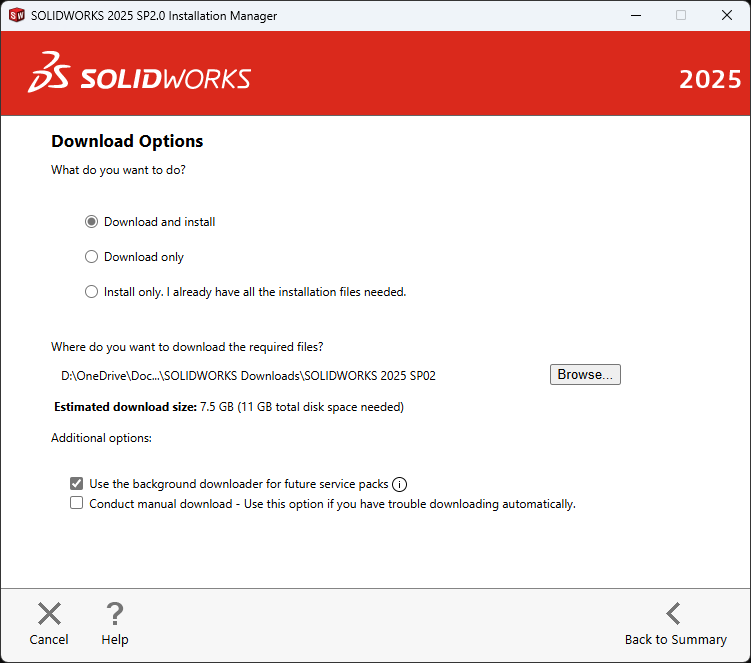
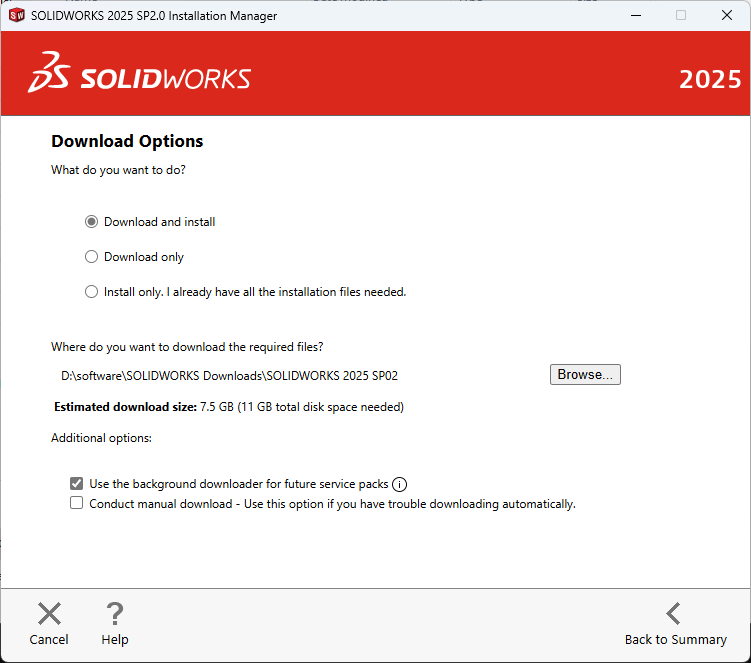
After the full uninstall described above, there was no serial number prepopulated into the installer this time! The default Download to path was in my documents folder, which is on OneDrive. Aha, this must be why I had changed it to C:\dev\Downloads\SolidWorks – no need to store a couple of GBs of installers on OneDrive.
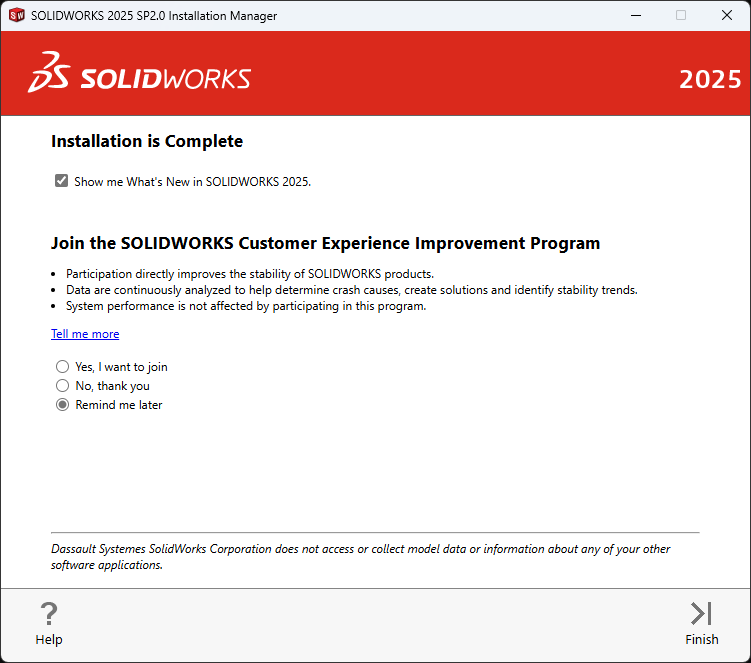
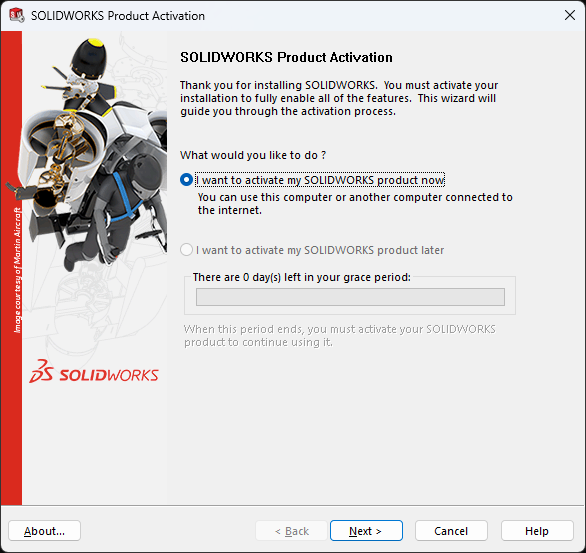
Once installation completed, all I needed to do is enter my email and click “next” to activate the product.
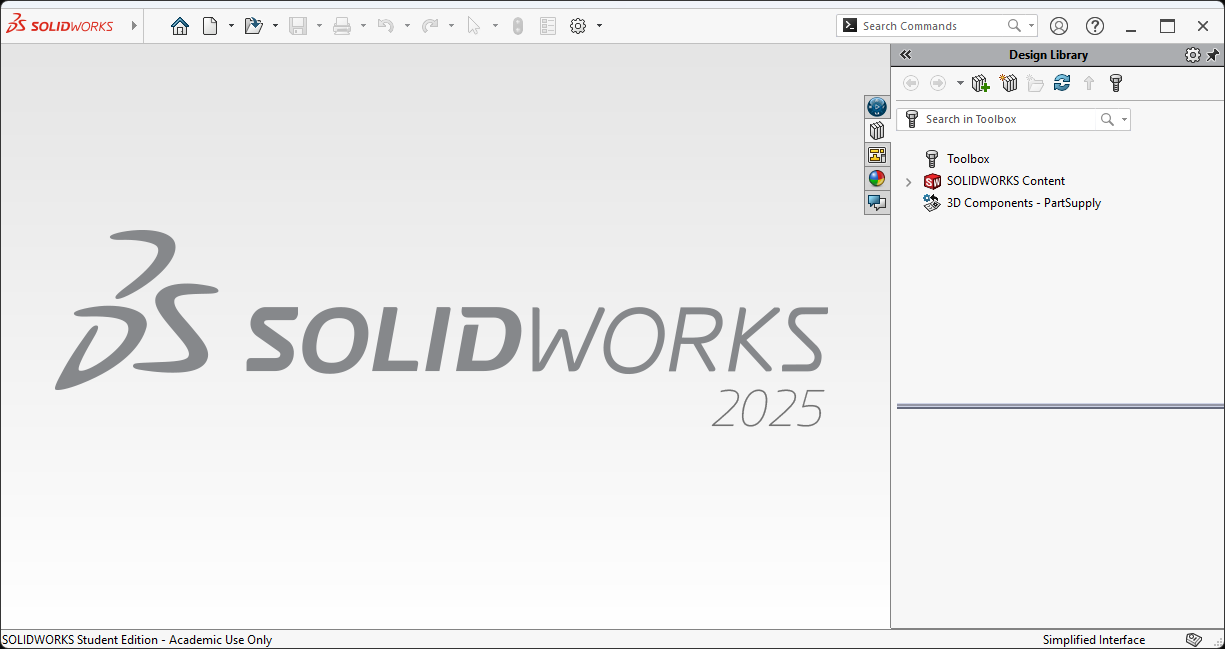
SOLIDWORKS 2025 now started up successfully! The root cause of all my problems was that I didn’t do a full uninstall of SOLIDWORKS 2023!
I’ve had an interest in 3D modeling since my high school days. This was most likely informed by my curiosity about how computer games and animations are made. I recently downloaded Blender to start toying with and hopefully teach my kids and I some animation skills. I settled on Blender (instead of 3DS Max, which was the first such product I used) because it is free. There are also some decent Blender tutorials on YouTube. Here’s the channel I started watching:
Building the Source Code
I decided to dig into the sources and see how easy it is to build Blender on Windows. Thankfully, there are detailed instructions – Building Blender/Windows – Blender Developer Wiki. The subversion client is the only one I don’t have installed on my desktop. Weird that they zipped the MSI for a 3% compression ratio (saving 211 KB on a 7232 KB MSI.
17:19:55.47 D:\dev\repos\other\blender> make update
Warning: Python not found, there is likely an issue with the library folder
No explicit msvc version requested, autodetecting version.
**********************************************************************
** Visual Studio 2019 Developer Command Prompt v16.11.19
** Copyright (c) 2021 Microsoft Corporation
**********************************************************************
[vcvarsall.bat] Environment initialized for: 'x64'
Compiler Detection successful, detected VS2019

The required external libraries in "D:\dev\repos\other\blender\..\lib\win64_vc15" are missing

Would you like to download them? (y/n)y

Downloading win64_vc15 libraries, please wait.

A    D:\dev\repos\other\lib\win64_vc15\openpgl
A    D:\dev\repos\other\lib\win64_vc15\openpgl\lib
A    D:\dev\repos\other\lib\win64_vc15\openpgl\lib\cmake
A    D:\dev\repos\other\lib\win64_vc15\openpgl\lib\cmake\openpgl-0.3.1
A    D:\dev\repos\other\lib\win64_vc15\openpgl\include
...
A    D:\dev\repos\other\lib\win64_vc15\vulkan\share\vulkan\registry\vkconventions.py
A    D:\dev\repos\other\lib\win64_vc15\vulkan\share\vulkan\registry\validusage.json
A    D:\dev\repos\other\lib\win64_vc15\wintab\include\wintab.h
 U   D:\dev\repos\other\lib\win64_vc15
Checked out revision 63049.
python not found, required for this operation

19:10:47.57 D:\dev\repos\other\blender>
Here’s the command line used to download the libraries:
Run make update again since it failed the first time because python was not found but it has now been checked out into the lib folder. Once that completes, run make to build Blender. Interestingly, it fails because it can’t find CMake yet it said to open a plain cmd prompt. I work around this by switching to the VS 2019 Developer Command Prompt instead of updating my PATH and that unblocks the build.
21:08:42.26 D:\dev\repos\other\blender> make

No explicit msvc version requested, autodetecting version.
**********************************************************************
** Visual Studio 2019 Developer Command Prompt v16.11.19
** Copyright (c) 2021 Microsoft Corporation
**********************************************************************
[vcvarsall.bat] Environment initialized for: 'x64'
Compiler Detection successful, detected VS2019
Building blender with VS2019 for x64 in D:\dev\repos\other\blender\..\build_windows_x64_vc16_Release
-- Selecting Windows SDK version 10.0.22572.0 to target Windows 10.0.22621.
-- The C compiler identification is MSVC 19.29.30146.0
-- The CXX compiler identification is MSVC 19.29.30146.0
...
  -- Installing: D:/dev/repos/other/build_windows_x64_vc16_Release/bin/Release/3.4/datafiles/usd/usdVolImaging/resources
  -- Installing: D:/dev/repos/other/build_windows_x64_vc16_Release/bin/Release/3.4/datafiles/usd/usdVolImaging/resources/plugInfo.json
21:35:47.14 D:\dev\repos\other\blender>
This is a really smooth experience (compared to ahem, zlib). I’m amazed it built and generated a local install folder in less than half an hour. I could launch build_windows_x64_vc16_Release\bin\Release\blender.exe, open the About Blender menu and see version 3.4.0 Alpha from hash 206dead86058. The release notes – Reference/Release Notes/3.4 – Blender Developer Wiki – are also quite useful, especially the Developer Intro!